PRACTICAL IMAGE EDITING
Why Removing Text from an Image Is Not Secure Redaction
Removing a visible caption and making a confidential file safe to release are different tasks. TextWiper repairs selected image areas by filling in plausible background. Its product scope does not include secure privacy redaction. A smooth-looking patch is a visual editing result, not proof that all sensitive information has been removed from a file or its context. Do not upload a confidential example to test that distinction.
Published 2026-10-18 · Updated
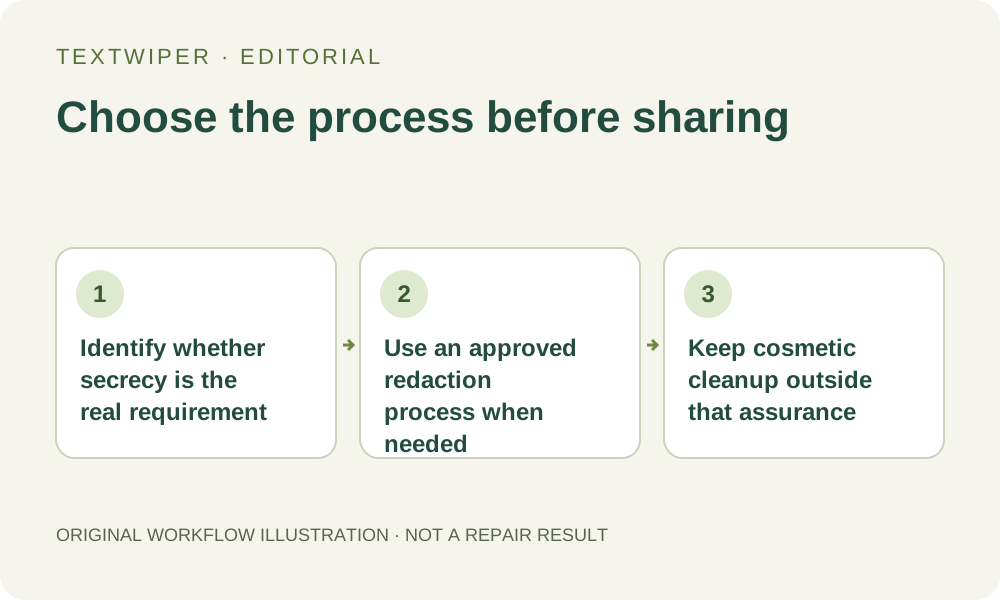
1. Define the job before opening the image
Ask what would make the task successful. If it is removing your expired sale caption from an ordinary product photograph, a visual repair and an honest review may be appropriate. If success means preventing disclosure of private information, you need a process designed and approved for that requirement. Do not substitute an attractive background for that security decision.
This article explains the boundary of a cosmetic image editor. It is not a legal opinion, an assessment of a particular disclosure obligation or a certification of any file. Use your organization’s data-handling rules where applicable, and keep confidential material out of a casual editing experiment, recognition request or image-processing trial.
2. Understand what the repair actually attempts
Quick and Smart manual repair aim to replace a selected area using image-processing methods. The result may contain blur, repeated texture, invented detail or a remaining fragment. The tool does not discover every sensitive item or determine which visible words are confidential. A word missed by recognition can remain outside the selection entirely.
For ordinary pictures, that is a reason to inspect the edited area and surrounding details. For a secrecy requirement, visual appearance alone is an insufficient basis for approval. TextWiper does not provide a complete confidentiality review of the input, output, surrounding caption, copies or sharing destination. Choosing PNG instead of JPG does not turn this workflow into such a review.
3. Read redaction guidance within its actual format scope
Adobe’s official Acrobat documentation describes PDF redaction separately from sanitization of hidden PDF data. It notes that applied, saved redaction is permanent, while hidden information requires separate treatment. That distinction helps explain why “the words are no longer visible” is not a complete document-handling conclusion.
Those linked sources concern PDFs and Acrobat. TextWiper accepts supported still-image files; it does not import PDFs, inspect a PDF text layer, remove PDF attachments or run Acrobat’s sanitization steps. Do not convert a sensitive PDF to a screenshot and treat an image cleanup as a substitute for the approved review of the original document.
4. Choose a process without submitting private test material
- Classify the objective before loading any file: ordinary visual cleanup, or controlled removal of confidential information.
- For a confidentiality objective, stop this image-cleanup workflow and use the responsible owner’s approved redaction process and appropriate tool for that file format.
- Use only non-sensitive, self-created material to learn what an image-selection or background-repair control does.
- Keep the requirements for the actual file with the authorized reviewer. Do not send that file to public recognition or image services merely to see whether they can find remaining text.
- Distinguish a visual inspection note from a security approval. If you have not completed the required review, label the status accordingly rather than “safe.”
- Check the current privacy and format boundaries before any optional image submission. A consent dialog explains a processing choice; it is not a confidential-release certificate.
5. Do not mistake convenient checks for proof
Zooming, reopening an export and looking for a remaining letter are useful visual editing checks. They do not establish that a file is safe to disclose. A text recognition service returning no words may simply have missed them. This article therefore does not recommend uploading an output to another OCR service as a supposed redaction verification step.
Likewise, a plain-looking region, a file renamed “redacted,” or an account sign-in says nothing by itself about the completeness of a confidentiality process. TextWiper does not promise that a repaired area is forensically unrecoverable, nor does it claim that hidden original pixels can be recovered. Neither conclusion follows from the preview you can see.
6. Return to TextWiper for an ordinary visual edit
If you establish that the image is non-sensitive and the goal is cosmetic cleanup, keep an untouched copy and select only the unwanted overlay. Run a manual repair, inspect the whole result and save the exact output you intend to use. Preserve necessary product labeling, credit and disclosures; an edit should not misrepresent what the image shows.
If a confidentiality requirement appears later, pause the ordinary publication handoff and return to the approved process. Do not attach a sensitive original to help a public reader compare the edit. The useful outcome here is choosing the right workflow before sharing, rather than adding a security promise to a tool built for visual background repair.
Sources
- Adobe Acrobat Help: Redact and sanitize PDFs — Read October 18, 2026. Official PDF-specific explanation of redaction and separate hidden-data sanitization. It does not describe or certify TextWiper.
- Adobe Acrobat Help: Sanitize PDFs — Read October 18, 2026. PDF-specific hidden-information guidance; this article does not offer PDF input, PDF sanitization or a product recommendation.