PRACTICAL IMAGE EDITING
Use Editor Shortcuts Without Typing Tool Letters into Your Keyword Rules
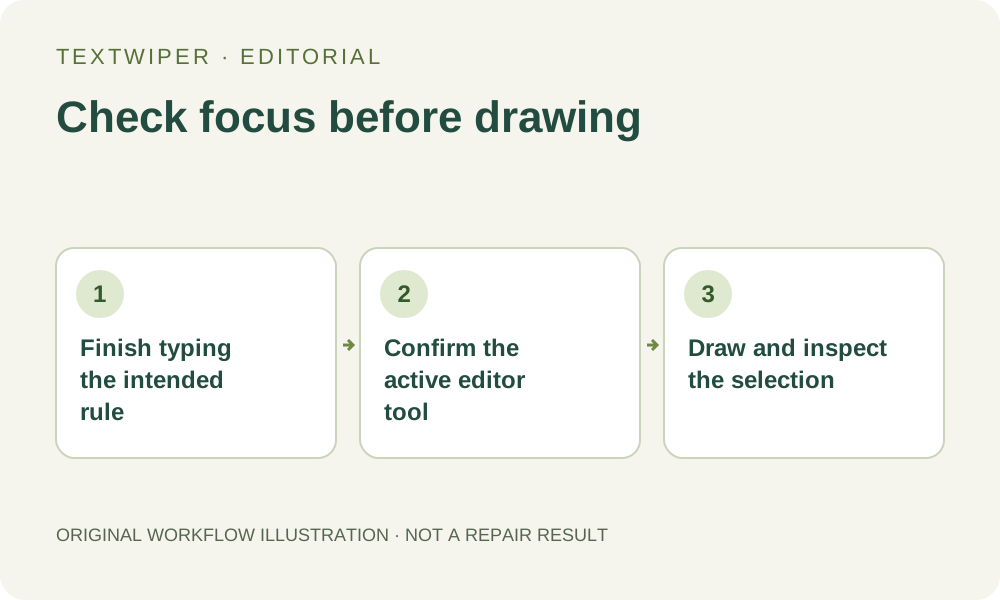
Desktop shortcuts can make tool changes more convenient, but they depend on where you are working. While a keyword field has focus, letters belong to that field rather than the drawing tools. Finish the text entry, return deliberately to an editor control and confirm the active tool before drawing. These shortcuts complement pointer-based selection; this guide does not claim that the entire editor can be operated without a pointer.
Published 2026-10-23 · Updated
1. Separate typing from tool selection
The editor does not handle its drawing shortcuts when the event comes from an input, select or textarea, when an open dialog is present, or while the image is loading or busy. That protects ordinary text and form interactions from being interpreted as tool commands. It also means pressing B while entering a removal phrase is not a reliable way to switch to Brush.
Read the field before leaving it. An unintended letter added to a removal or keep phrase changes the rule itself; switching tools afterward does not remove that letter. Correct the text intentionally, then leave the field by choosing a visible toolbar control. Avoid clicking the image merely to change focus, because the currently active drawing tool may add a stroke.
2. Know the six tool letters and their roles
With an image ready and the editor context active, V selects detected text, B chooses Brush, E chooses Erase, R chooses Area, P chooses Protect and H chooses Pan. Use the toolbar label and active highlight to confirm the outcome. These letters select a tool; they do not run recognition, create a repaired result or download a file.
Brush and Area add removal coverage, while Erase withdraws coverage from the mask rather than deleting picture pixels. Protect marks input pixels to retain. Pan moves the view instead of painting. In particular, do not confuse P with panning or assume E immediately removes a word: the actual repair is a separate approved operation.
3. Use a deliberate field-to-canvas sequence
This original practice sequence uses any small authorized image and a safely isolated target. It does not require recognition unless you choose to work with detected regions. Use the visible buttons instead of shortcuts whenever the keyboard layout, input method or focus state makes the intended letter uncertain.
- Finish entering or correcting your keyword rules and inspect the complete phrases and matching choice.
- Choose the Pan toolbar button to leave text entry deliberately, then position the image without drawing a removal stroke.
- Choose Brush with its button or B in the ready editor context, and confirm the active tool before marking the target.
- Choose Erase or Protect only for the corresponding mask task, confirming the highlight before touching the image.
- Review all green removal and blue protection regions before using the visible repair control.
4. Distinguish field undo from selection undo
In the ready editor context, Ctrl or Command plus Z moves backward through selection history; adding Shift moves forward. The same key combination while typing belongs to the form interaction rather than the editor’s selection handler. Check what changed before continuing. A phrase that reverted in its field does not prove that an unwanted canvas stroke was undone.
Use the editor’s visible Undo or Redo buttons when you need to make the selection context unambiguous. This history concerns the selected regions and strokes, not an archive of completed repairs. Changing the mask invalidates its old candidate and returns to the original view. Run repair again and inspect the new output rather than treating an undo action as a saved-image rollback.
5. Stop repeating keys when the editor is not ready
Tool shortcuts are not a route around a loading state, busy overlay or open account dialog. Read and finish or deliberately cancel the relevant operation using its visible controls. If a shortcut does not change the toolbar, check the current field and state instead of repeatedly pressing letters or adding Ctrl, Command or Alt to an assumed tool combination.
Apart from its selection-history combinations, the tool handler leaves modified keys to the browser or operating environment. The site does not advertise a universal shortcut for every button. Keyboard layouts, input methods and browser behavior can also differ. A direct toolbar choice is the clearer fallback; no shortcut should be taken as evidence that an image was submitted, repaired or saved.
6. Verify the edit independently of the input method
After an explicit repair, inspect the full result, shown by default, and use comparison only when helpful. Read the retained words and the selected boundary. If you discover a typing mistake in the rules, correct it and review the resulting selection before another repair; do not assume the previous candidate represents the corrected rule.
Download and reopen the accepted image before leaving the page. Manual selection, Quick repair, Smart repair and downloads are free during beta without an account. Optional recognition has a separate upload choice; whole-image automatic cleanup is a separate limited sign-in trial. Keyboard convenience changes none of those boundaries and does not provide a project backup, full keyboard-accessibility certification or automatic approval of a result.