PRACTICAL IMAGE EDITING
Blue Protection Overlaps Green Removal? Decide Which Pixels Must Stay
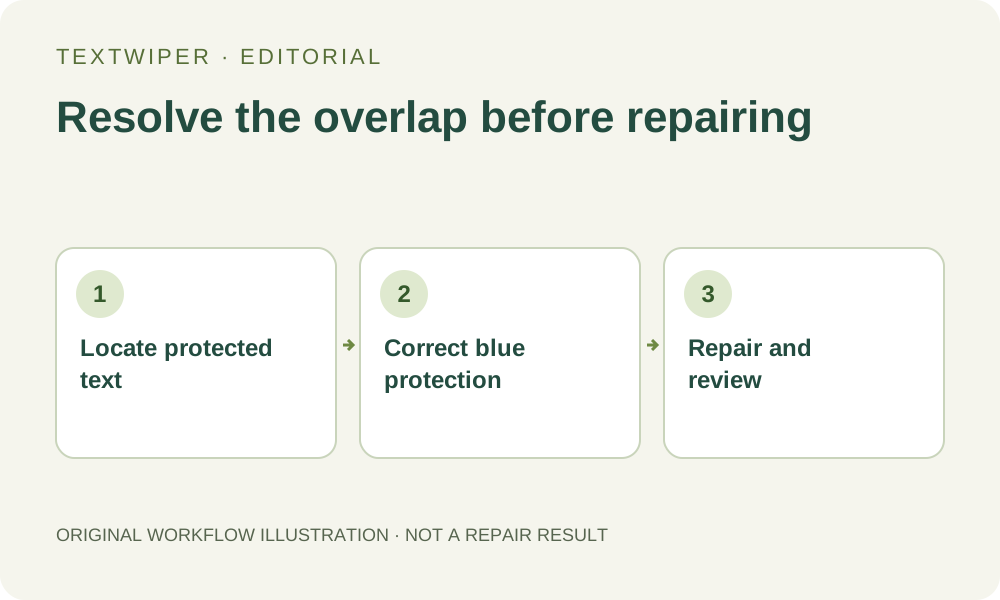
If a blue protected area crosses the text you want removed, manual repair will retain the input pixels in that overlap, including the lettering. Painting more green over the same spot does not override protection. Decide which visible pixels must stay, correct the protection when necessary and run repair again. Protection is not a way to reveal the background beneath text.
Published 2026-10-20 · Updated
1. Give removal and protection different jobs
Green marks pixels you ask manual Quick or Smart repair to replace; blue marks pixels you ask to retain from the current input. Protection is applied with priority over removal coverage. An overlap therefore represents conflicting intentions, not an invitation for the editor to decide which object or word you meant.
Consider an illustrative caption touching the edge of a cup in your own photo. A broad protection stroke covers the cup edge and part of the unwanted letter. The retained letter fragment is consistent with that protection, even if the rest of the caption disappears. This scenario explains selection behavior; it is not a new repair test.
2. Inspect the source boundary before changing tools
Keep the original file separately. Enable Show mask, enlarge the contact area and use Pan to position it before painting. Identify whether the blue coverage protects only a visible useful edge or also covers part of the unwanted lettering. The selected-word count cannot describe that pixel overlap.
If the caption actually covers the useful edge, both occupy the same input pixels. Protecting them preserves the visible caption at that location; replacing them requires an estimate of what lies below. A narrow brush cannot make those two intentions simultaneously true. When authenticity matters and the hidden boundary is unknown, an unobstructed authorized source is the better option.
3. Correct accidental protection explicitly
- First save any reviewed result that you need to retain. Editing the selection invalidates that result and returns the display to the input image.
- If the mistaken protection stroke is recent, use Undo to return to a selection state before that stroke. Check the complete green and blue coverage again, including changes made afterward.
- Do not use Erase as if it were an unprotect brush. In this interface it withdraws green removal coverage; it does not cut a hole out of blue protection.
- If reconstructing the intended selection is clearer, choose Clear selection and rebuild it. This clears detected selections and drawn selection strokes, including protection, while keeping the input image and recognition list.
- Paint only the necessary removal area and justified protection. Do not expect a later green stroke to defeat protection that is still present.
4. Check the effective mask rather than tool order
With Show mask enabled, inspect the final visible coverage near the target. Drawn protection is retained when the removal mask is rebuilt, regardless of whether another green stroke came later. Repeatedly painting the same unwanted letter may add work without changing the effective removal area.
If all proposed removal pixels are protected or withdrawn, there may be no nonempty manual repair selection. That is a selection problem, not a failed background reconstruction or a reason to run recognition repeatedly. Keep the source intact and establish a defensible area before choosing Quick or Smart repair. The separate whole-image automatic trial is not an override for this manual conflict.
5. Repair again and inspect what was deliberately retained
Run repair explicitly after the correction. Inspect the complete result with comparison hidden, then use comparison to locate a remaining letter edge or a changed object boundary. Check both sides of the decision: did the unwanted text disappear, and did the visible detail you wanted to retain remain suitable?
A repaired patch can meet the mask instruction yet look unnatural at its border with a protected region. Retained source pixels do not guarantee a convincing seam with inferred neighbors. Reduce unnecessary coverage or reject the candidate if the boundary cannot be made acceptable. Do not claim that protecting a cup edge reconstructs the authentic edge under a caption.
6. Remember which input the protection refers to
Protection preserves the image currently loaded, not an earlier version from another session. If you open an already edited PNG as a new input, protecting a patch keeps that PNG’s patch. It cannot restore pixels from the original photograph that is no longer the loaded source. Reopen the retained original when that is the revision you actually need.
Download the reviewed PNG and reopen it to inspect the corrected overlap. Manual PNG repair preserves decoded pixels outside its final removal mask; JPG re-encodes the image, so it is not a pixel-identity check. This workflow is about resolving a keep-versus-remove conflict before local repair, not about semantic object protection or recovery of hidden original detail.