PRACTICAL IMAGE EDITING
Use Different Repair Modes Within One Image Batch
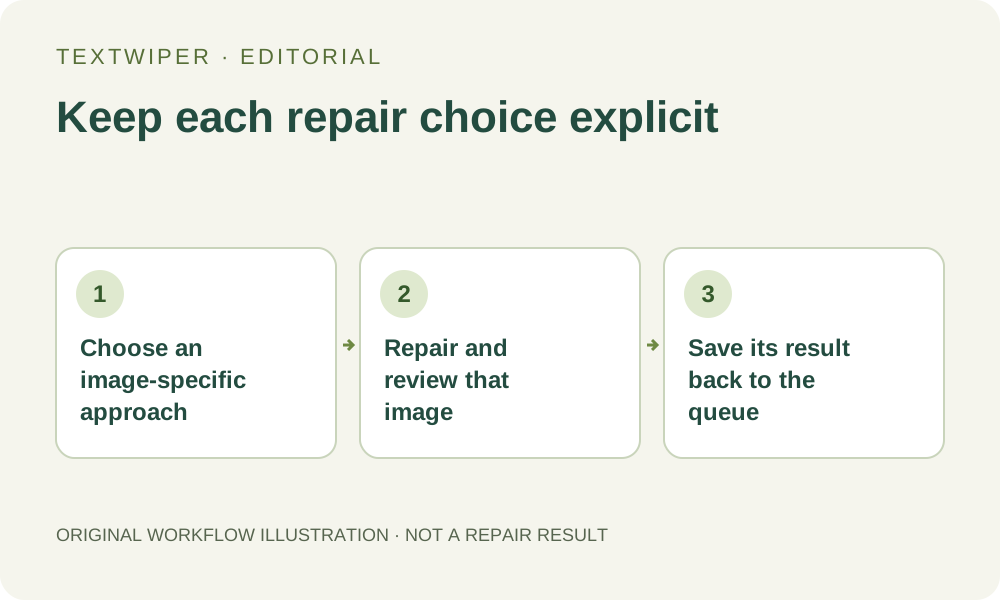
A mixed batch may need Quick repair for one picture and Smart repair for another. The batch runner uses the mode selected in the batch controls for the images it processes; it does not preserve a different planned mode from every reviewed draft. For deliberate per-image choices, open each image, run its chosen manual repair there, inspect it and save the result back. Alternatively, separate the work into groups that share a suitable mode.
Published 2026-10-26 · Updated
1. Separate a choice from a result already produced
A draft can contain selections and saved editor settings without having a repaired image. If you only choose Smart repair during review and return to the batch without running it, you have not produced a Smart repair result. The next batch repair action will use the current batch mode for the eligible images it processes.
An existing completed card is different. Changing the batch mode does not silently recalculate that result. Before deciding how to proceed, check which cards actually contain results and which only contain reviewed masks. A mode label is an instruction for a later operation, not evidence that every visible candidate was generated with it.
2. Choose whether to group the work or finish items separately
For a uniform set of backgrounds, use a suitable shared batch mode and inspect every result. For a small mixed set, individual review lets you complete different approaches while retaining a common collection. If grouping is simpler, save useful outputs and prepare separate batches; the editor has no per-card mode column for a single bulk run.
Choose by the repair area rather than by a claim that one mode is always superior. Quick repair uses nearby colors; Smart repair may help with some textures and can take longer while resources first load. Both can leave artifacts. A mode that worked well on a plain label does not approve an unrelated patterned picture.
3. Run the selected mode inside the individual image
Wait for the queue to be idle and open Review image, or Inspect result for a completed candidate you intend to revise. Check the removal mask and any protection before choosing Quick repair or Smart repair. To produce that per-image candidate, actually run the repair in this editor instead of only changing the option.
Inspect the full result when processing finishes. Use comparison if it helps locate the modification, then return to the complete candidate for acceptance. If the mask is wrong, correct it and repair again. Changing a selection invalidates the earlier candidate; returning immediately without a new repair would save a reviewed draft rather than the revised finished image.
4. Save the produced result back before reviewing the next
Use the return-and-save-review action to put the current image’s candidate back into its queue card. Confirm that the card now reports a result and offers its download buttons. If saving reports a storage problem, download a useful candidate before reorganizing the collection rather than assuming the queue has received it.
Repeat that individual process for the image needing another mode. Do not infer which approach was used from the card thumbnail: the thumbnail is a source preview. If mode provenance matters to your handoff, record it yourself beside the source and output names; TextWiper does not attach a signed processing history to the exported image.
5. Avoid turning a mixed set back into one bulk instruction
Repair reviewed images skips items that already contain results and targets eligible reviewed selections without one. The chosen batch mode governs that pending work. Use it only when those pending items share the intended approach. Existing results remain existing results, rather than becoming proof that one bulk run applied several separate choices.
Applying keyword suggestions can clear existing results on affected detected drafts and require review again. Scan & erase matches intentionally combines recognition and repair under the batch settings. Neither action is a neutral way to refresh a completed mixed-mode collection. Save accepted files first and select a new broad action only when its effect is actually wanted.
6. Deliver the actual candidates, not the intended settings
Open the saved results, check the retained content and download the accepted files or a ZIP of current successful results. Reconcile outputs against the image list. A draft planned for Smart repair but never repaired has no completed output to include; the plan and the ZIP contents are separate facts.
Manual batch selection, Quick repair, Smart repair and downloads are free during beta and run one image at a time when queued. Whole-image automatic cleanup is a separate limited sign-in trial for a single image. It is not an additional per-card batch mode, and it should not be used merely because the manual collection needs different settings.