PRACTICAL IMAGE EDITING
Adjust Quick Repair Radius Without Widening the Removal Mask
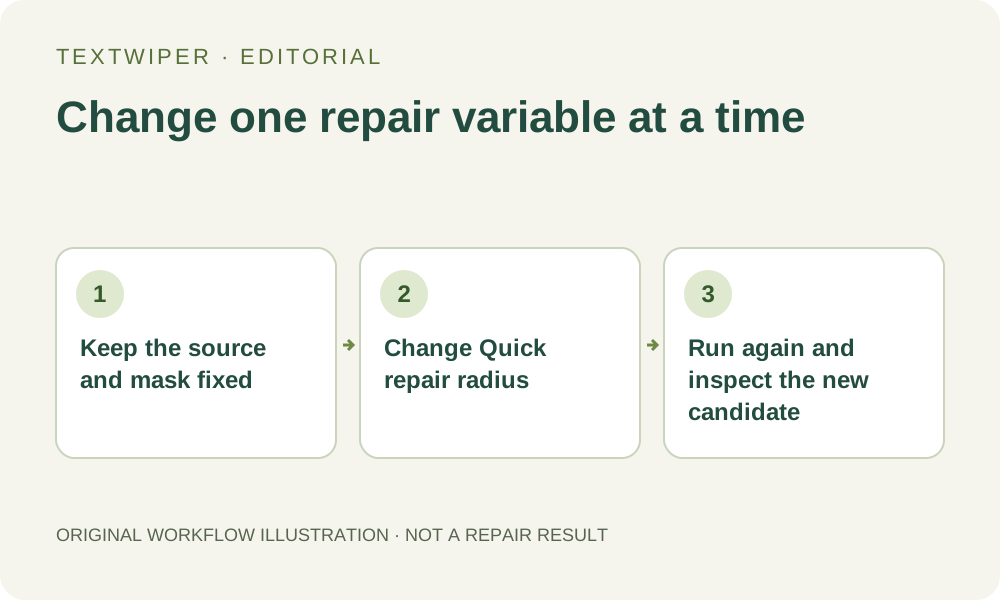
If a small manual repair looks smeared, changing the repair radius is a different experiment from selecting more of the picture. The green mask says which pixels may be replaced; Quick repair radius adjusts its filling calculation. Keep the source and mask fixed, preserve a useful candidate, and rerun Quick repair explicitly before comparing another radius. A larger number is not a promise of a cleaner result.
Published 2026-10-26 · Updated
1. Separate two controls that both use pixels
Brush size sets the width of a new Brush, Erase or Protect stroke. The Area tool instead follows the rectangle you drag. Repair radius is a separate control under the repair modes. Increasing radius does not paint a wider green selection or authorize replacing useful content beside the target.
Begin with an image you own or may edit. Identify a small removable annotation and the useful detail next to it. If the green mask misses a letter edge, correct that coverage first. Adjusting the filling calculation cannot remove lettering that remains outside the effective manual mask.
2. Establish a candidate worth comparing
Choose Quick repair, inspect the full green and blue coverage, and run Remove selected text. Look at the complete result before zooming into the patch. Record the displayed radius and keep a downloaded candidate if you may want it later. The page does not keep a separate finished-image history for every setting.
Name the problem you see: a color smear, a distracting boundary or an unremoved stroke. Only the first two are sensible reasons to compare another fill with the same mask. If the source contains a unique hidden edge, another radius will not establish its authentic shape. An unobstructed source may be the appropriate stopping point.
3. Change the radius without rebuilding the selection
Leave the selected detections and drawn strokes unchanged, then move Repair radius while Quick repair is selected. The control is unavailable for Smart repair. Do not describe it as an AI strength, brush hardness or selection expansion setting; those are different concepts and are not what this control changes.
Changing the radius alone does not regenerate the visible candidate. The preceding result can remain on screen until you explicitly run repair again. Read the current setting as an instruction for the next run, not evidence that the displayed pixels already reflect it. This distinction prevents comparing two views of the same old output.
4. Rerun and make a fair visual comparison
Run Remove selected text again after choosing the new radius. The manual operation uses the loaded original and current mask, rather than adding another fill on top of the preceding candidate. Let it finish before deciding whether the adjustment helped. Do not redraw the mask between runs if radius is the variable you want to evaluate.
Use the optional comparison to locate the repaired boundary, then hide comparison to judge the complete new image. That split view compares the loaded source with the current result; it does not compare two radius candidates. For a candidate-to-candidate judgment, reopen the saved outputs separately at the same display scale.
5. Prefer a defensible result over the largest setting
Compare the retained border and nearby color transition as well as the cleared letters. A patch may become smoother while also looking less consistent with the surrounding texture. Select the candidate that suits the intended use, rather than assuming the greatest radius means the greatest quality. This guide supplies no newly measured optimal radius.
If neither candidate is acceptable, reconsider the mask boundary or the choice of source. Smart repair is another manual option to evaluate separately, with its own possible artifacts and first-use loading time. Change one thing deliberately so you know which operation produced each saved version; repeated changes without an output record obscure the comparison.
6. Save the actual chosen output and its limitations
Download the accepted PNG and reopen that file. Inspect the patch at its intended display size and retain the original separately. PNG manual repair keeps decoded pixels outside the effective mask; it does not prove that the inferred pixels within the patch match what the annotation covered. JPG re-encodes the whole picture and is not a pixel-identity check.
Manual selection, Quick repair, Smart repair and downloads are free during beta without an account. Optional recognition requires upload permission; it is unnecessary for this hand-drawn comparison. The limited whole-image automatic cleanup trial is a separate signed-in operation, not the repair-radius control and not an unlimited way to search for another candidate.