PRACTICAL IMAGE EDITING
Why Is Remove Selected Text Unavailable? Check the Actual Removal Mask
A visible picture, a detected-text list and a usable removal mask are different states. When Remove selected text is unavailable, first identify which state is missing. Finish the current gesture or operation, then inspect the actual green removal coverage and blue protection. Do not submit another recognition request merely to make the button active: a deliberate manual selection can be enough.
Published 2026-10-28 · Updated
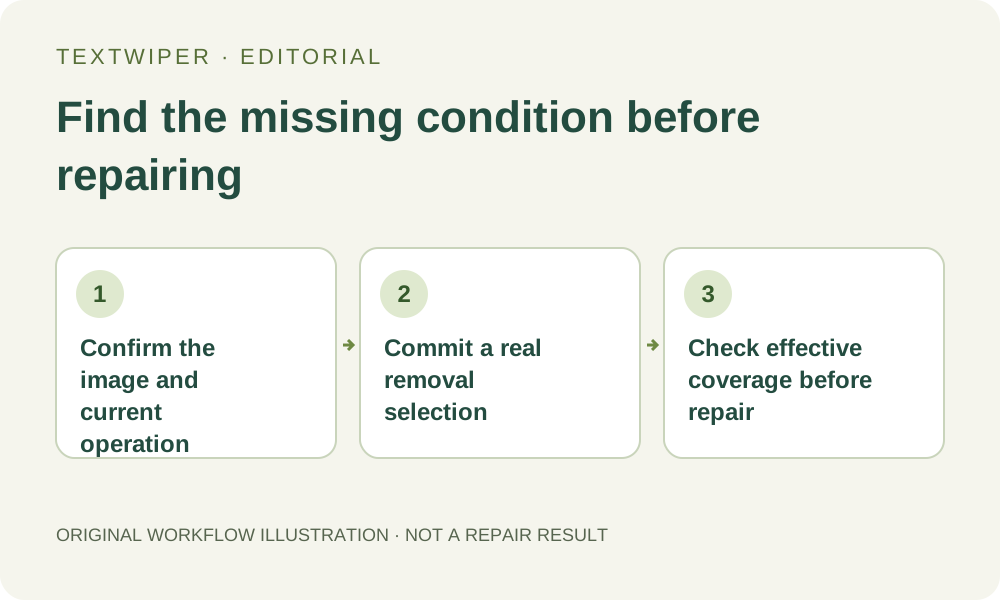
1. Confirm that a file is loaded and the editor is ready
Begin with an image you own or may edit. Check that the workspace shows the intended picture, filename and dimensions. An example on a landing page or a file still being opened is not the same as a ready editing workspace. If opening a replacement produced an error, identify which picture remains before choosing any deletion area.
Read the current operation panel. Loading a file, finding text and repairing a picture temporarily lock controls. Let the chosen operation return, or cancel its wait deliberately when that control is available. An unavailable button during an active operation is not evidence that your account needs an upgrade or that a new OCR scan is required.
2. Distinguish detected words from selected words
A successful Find text response supplies suggestions and starts with none of those regions selected. Read Text in your image and choose an intended checkbox, then inspect its location on the picture. The total number of recognized items is not a removal count. Seeing ten suggestions does not mean that any of their pixels have been scheduled for repair.
Select is for choosing detected regions; it does not paint a new area wherever you click. Pan moves around the enlarged picture and likewise adds no removal coverage. When there are no useful detections, choose Brush or Area explicitly. You can draw a bounded target without scanning, so an empty text list alone does not prevent manual repair.
3. Complete a deliberate drawing gesture
Use Brush for a visible local mark, or drag Area across a suitable rectangle. Release the mouse button, pen or touch gesture before trying to run repair. The editor does not start repairing while a drawing stroke is still active. Keep the selection close enough to the target that you can explain what background and lettering it includes.
After an interrupted touch gesture, inspect the committed mask rather than assuming every temporary stroke survived. Choose Pan before repositioning on a touch screen, then return to the drawing tool. If you see no intended removal coverage, make a short controlled selection and release it; repeatedly pressing the repair button cannot complete a missing selection for you.
4. Check whether protection or Erase leaves anything to remove
Turn on Show mask while viewing the editable source. Green indicates proposed removal and blue indicates protected content. Protect retains source pixels and takes priority where the two overlap. A picture covered only by blue protection has no effective removal region. A checked text item can also be entirely excluded by protection, so the checkbox count is not the final pixel boundary.
Erase withdraws mask coverage; it is not an immediate image eraser. If Erase removed all green coverage, an unavailable repair action is consistent with that result. Restore only the intended removal area or revise unnecessary protection, preserving safeguards that still matter. Do not clear every blue area solely to activate a button, especially where a useful word or object shares the target's pixels.
5. Separate readiness from a later repair failure
Once a committed, effective removal region exists and the editor is idle, choose the suitable manual mode and request repair once. An active button means a request can be attempted; it does not certify a good mask, a reliable reconstruction or a successful dependency download. Keep visible context outside the mask rather than selecting the entire picture merely to satisfy the control.
A large-selection warning, an engine-loading failure or a returned repair error is a different stage from a disabled button. Read that message and address its stated condition. Changing from Quick to Smart does not create a missing mask, and signing in for the separate automatic trial does not fix an empty manual selection. Avoid turning one selection question into repeated whole-image submissions.
6. Verify the result before treating the task as complete
When manual repair finishes, inspect the full result and the useful detail beside the target. Download and reopen an accepted PNG or JPG. The availability of a repair control, a completed recognition list and a saved edited file are separate checkpoints; only the last reviewed file is a deliverable you can use elsewhere.
If the control remains unavailable despite a visibly committed green area and no active operation, preserve any useful download before leaving the page and report the tool, stage and visible fixed message. Do not share private image text or credentials. Manual selection, Quick or Smart repair and downloads remain free during beta; this diagnostic does not consume an automatic-cleanup attempt.