PRACTICAL IMAGE EDITING
Text Recognition Is Taking Longer? Wait, Cancel or Recover Without Duplicate Scans
When Find text is still working, keep that one operation separate from a failed request or an empty recognition result. Let the current request reach a result if you still want it, or choose Cancel deliberately. Do not refresh the page or start another scan just because the progress display pauses. Recognition can take longer for some images and service conditions; the interface has bounded waits, not a universal completion-time promise.
Published 2026-10-27 · Updated
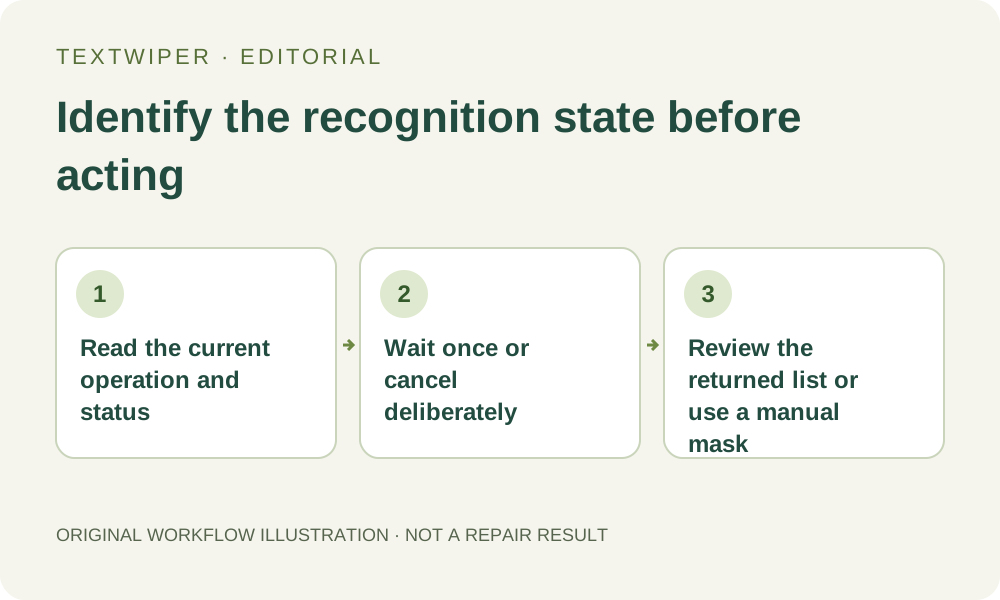
1. Identify what is waiting before changing the picture
Use an image you own or may edit and read the busy panel. Finding the words, preparing the working image and sending it for recognition belong to the recognition workflow. Repairing a selection or preparing Smart repair belongs to a different operation. A delay in one does not establish a failure in the other, and selecting a repair mode does not accelerate recognition.
Leave the page open while deciding. A progress value is a stage indicator, not a reliable estimate of how many seconds remain. Some time can be spent checking service availability or preparing the working image before a recognition result exists. Do not use the visible progress fraction to decide that the image is partly recognized or partly repaired.
2. Let one pending recognition operation finish, or cancel it
While the editor is busy, normal selection and repair controls are locked. Avoid opening duplicate tabs to submit the same picture. If you still want the recognition result, allow the current operation to return. The current workflow has finite request limits, but those limits are safeguards rather than a promise that every source will succeed within a particular time.
Choose Cancel if you want to stop waiting and return to the draft. The editor keeps the loaded image and selection available. Canceling a browser wait does not prove that remote computation has instantly stopped, so it is not a reason to immediately send the same picture again. Check the visible status before choosing the next action.
3. Treat success, an empty list and failure differently
A successful scan replaces the recognition list, clears its checked selections and invalidates the prior repair candidate; drawn strokes remain. Inspect the new list before choosing areas. A successful response with no usable text is an empty recognition result, not proof that the source has no lettering and not proof that the picture was repaired.
A timeout, busy message, service-unavailable message or temporary usage-limit message is a failure state, not a fresh detection list. Read the actual message instead of guessing from how long the panel was visible. A retained old list after an error is still old information. Your picture can remain suitable for a manual mask even when recognition did not complete.
4. Give any later retry a clear purpose
If service availability or a temporary busy condition changes, a later explicit retry may be appropriate. If the relevant recognition language was wrong, choose an available matching language before a new attempt. Do not cycle through unrelated languages, change the interface language or sign in expecting those actions to repair a slow recognition request automatically.
When good detections already exist and only your keyword rule changes, use Apply to detected text. That action works with the existing positions rather than requesting fresh recognition. Scan & match my words and Scan & erase matches both request recognition again; the latter can proceed into repair. A keyword scan can therefore fail at recognition before matching or repair ever begins.
5. Continue with a manual selection when location is already clear
If you can see exactly which annotation should go, use Brush or Area after the waiting operation ends. Recognition is optional location help, not a prerequisite for Quick or Smart repair. Keep needed writing and nearby details outside the effective mask, adding Protect where you can define a useful retained region. Loading repair dependencies can still require a working connection.
When detection did succeed, examine the combined mask before repairing because older manual strokes still contribute. If the target overlaps a unique detail that cannot be checked, use a better authorized source instead of broadening the mask to compensate for an unhelpful transcript. A slower scan does not justify accepting a less defensible selection.
6. Save the reviewed output and report the stage accurately
Run repair only after the intended mask is ready. Inspect the full result, use optional comparison if useful, then download and reopen the accepted file. Do not refresh to clear a slow request before saving a result you need: the page is not a persistent project archive. A detection list, selected mask and actual downloaded picture are separate checkpoints.
If you need help, describe the operation and visible fixed error message without sharing private source text or credentials. This guide explains the current waiting and recovery decisions; it is not a new timing benchmark. Manual selection, local repair and downloads remain free during beta, while optional recognition still requires upload permission and respects service availability and temporary limits.