PRACTICAL IMAGE EDITING
Revise Blue Protection on an Existing Automatic Cleanup Candidate
After automatic cleanup, adding blue Protect coverage can bring an original detail back into the result. It restores that area from the loaded source; it does not ask the processing service to understand a new protected subject. Keep the same page, source and signed-in account, and distinguish rechecking an existing candidate from requesting a different image.
Published 2026-11-01 · Updated
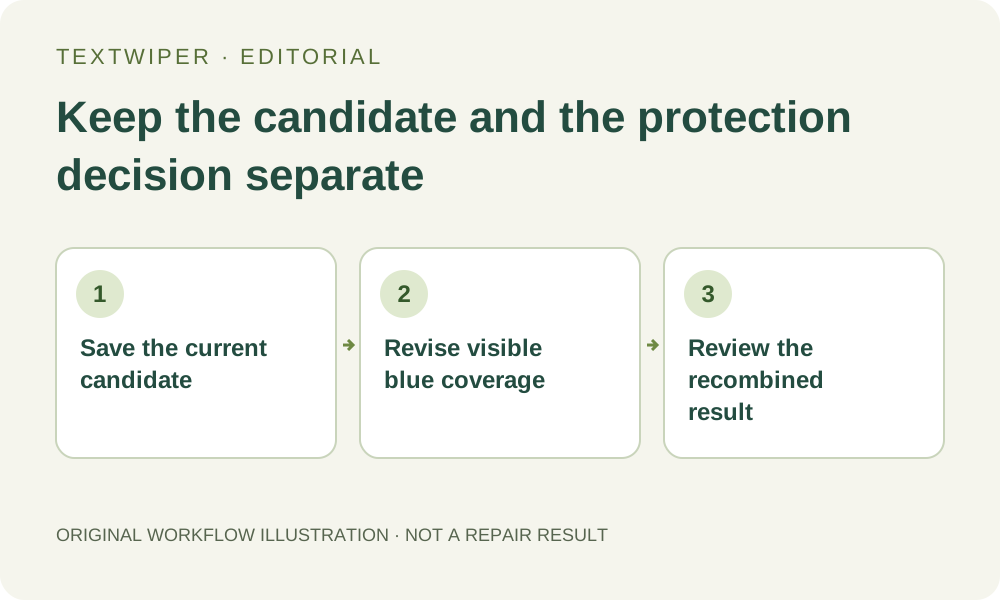
1. Save the candidate before changing its protection
Start with a completed automatic-cleanup result for an image you own or may edit. Download a useful PNG candidate before drawing again and keep the authorized source separately. Give the saved candidate a distinct local name so you can tell it from a later version with different protection.
This procedure concerns a candidate already obtained in the current working page. It is not a reason to send a new picture merely to explore the feature. If processing is still active, wait or deliberately cancel waiting before editing. Canceling the wait does not stop accepted server work or restore trial allowance.
2. Decide which original pixels should return
Blue Protect coverage restores pixels from the currently loaded original after whole-image automatic cleanup. It can bring back a useful product name or visible edge, but it brings back an unwanted watermark too when that watermark occupied the same source pixels. Protection does not separate two overlapping visual layers.
Green detected-text selections and hand-painted removal areas do not limit this automatic process to those regions. A small green rectangle is not a selected-area cloud instruction. If you need the surrounding image restricted to a manual mask, use the separate Quick or Smart workflow and review its own result.
3. Revise the blue area deliberately
When the page is available again, enable Show mask and choose Protect to mark only the visible source details you intend to restore. Drawing changes the selection and dismisses the existing preview, so seeing the original again is expected. It does not by itself prove that the completed automatic candidate was lost.
Erase edits the green removal mask; it is not a blue-protection eraser. For a recently added wrong Protect stroke, inspect the selection state after Undo. For a fresh plan, Clear selection removes detected choices and all drawn strokes, including protection and useful manual removal work. Rebuild only what you deliberately need, rather than assuming every earlier mark survived.
4. Recheck the same candidate within its actual scope
Keep the same loaded source and signed-in account in this working page. Use the available automatic control, labeled Remove watermarks automatically or Check existing cleanup according to the current status, and read its upload notice. The page checks that account and reuses its known attempt; when its completed candidate is still available here, the current protection is applied to that candidate.
This is not a new-generation or quality-strength control, and it is not an entirely offline action: account and status requests can still need a connection. Do not promise the same behavior after refresh, account switching, replacing the source or losing the candidate. Opening a downloaded result as a new source is a different image decision, not merely another protection revision.
5. Inspect the boundary between restored and generated detail
Read the complete result before using comparison to locate the change. Check the restored useful detail, the former watermark and the join where source pixels meet the automatic candidate. A sharp edge, color change or returned letter can make the composition unsuitable even though the requested detail is now visible.
If preserving a face feature also restores the watermark crossing it, the two goals conflict at those pixels. Do not keep enlarging the blue area as if it could recover the hidden clean face. Reject that candidate for this purpose, seek an unobstructed authorized source, or consider a defensible manual edit with its own separate review.
6. Save the version that actually passed review
Download and reopen the accepted recombined image. Keep its source, the earlier candidate if useful, and a short note about which detail was protected. The downloaded file is a flattened result; it does not contain editable blue strokes or a permanent automatic-cleanup project.
Private remote results are short-lived, and page memory is not a durable archive. Save promptly instead of refreshing to test whether reuse still works. Accepted automatic work remains subject to the limited-trial rules; this workflow does not reset allowance, enable paid fallback or guarantee an invisible repair. Manual editing remains separately available during beta.