PRACTICAL IMAGE EDITING
Revise One Completed Batch Image Without Rerunning the Queue
A batch can be mostly approved while one image needs a smaller removal area or an extra protected detail. Correct that existing card deliberately. This is different from replacing the input file or applying another keyword rule across the queue. Preserve the earlier candidate, repair the same source inside its review editor and save the finished revision back before considering the batch ready.
Published 2026-10-30 · Updated
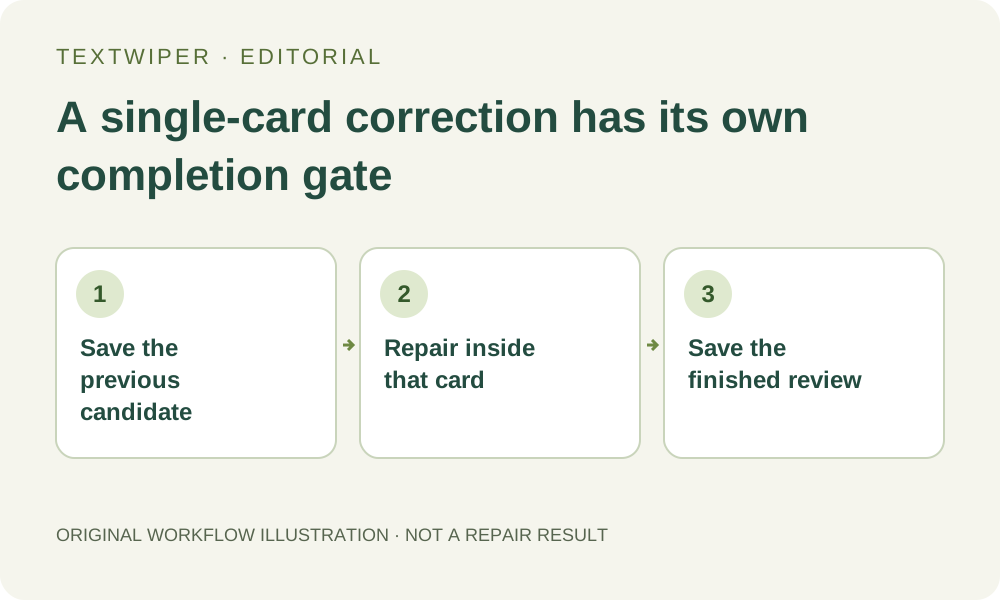
1. Identify the card and save its current result
Find the completed card by its filename and source preview, then inspect the existing result. Queue thumbnails represent the input, so they are not sufficient evidence of which repair you approved. Note the specific correction needed, such as restoring a visible border or covering a remaining letter fragment.
Before changing anything, download the existing PNG if it may be useful as a checkpoint. Keep that file separate from the intended revision. The batch is held in the current page, not an account revision archive, and saving a later review back into this card replaces its stored candidate rather than adding an independently selectable history entry.
2. Open Inspect result on this card
Use the card’s Inspect result action to return to its image editor. The loaded source, saved selection and current result belong to that item. Check the source dimensions and target location again, especially when several cards show very similar pictures. Do not remove and re-add the source merely to adjust its mask.
Keep the correction in this individual review. Batch keyword actions can update multiple detected cards, invalidate their results and require new reviews. Likewise, queue-level repair controls operate on eligible items rather than an arbitrary checkbox subset. To change only this image, use the repair button inside its open editor.
3. Expect a selection change to invalidate the old preview
When you change the removal selection or protection, the current candidate is invalidated. The view returns to the original with the revised mask; that is not evidence that the previously downloaded checkpoint was lost. It means the earlier repair no longer represents the selection now displayed.
Brush can add missing coverage, Erase can trim the removal mask and Protect can exclude visible details. Check the complete revised selection, including earlier regions that should still be removed. The next manual repair runs from this card’s original source with that mask, not automatically on top of the old repaired candidate.
4. Repair and inspect while the card is open
Choose a suitable manual repair mode and run repair in this editor. Inspect the full new result, then use comparison if it helps locate the change. Check both the requested correction and previously satisfactory areas; a revised selection can produce a different candidate. A smaller mask does not by itself prove better quality.
If you need a cumulative second pass that treats the earlier repaired pixels as the new starting picture, that is a separate workflow: save and reopen a reviewed output as a deliberate derivative. Do not expect the mask history here to turn the old candidate into a layered document. Undoing a selection also requires a fresh repair preview.
5. Save a result back, not just a revised intention
After the new candidate is acceptable, use Save review & back. This saves the current draft and any current result into the card. Confirm that the queue shows a completed result for this image and that its download controls are available. Open the returned result if necessary to verify that the correction was actually committed.
If you save back immediately after editing the mask without repairing, the card can instead be reviewed and ready to repair, with no finished result. Reviewed does not mean repaired. Do not hand off the batch merely because you returned to the queue; reopen this card and complete its repair, or intentionally run the appropriate reviewed-item workflow after checking its scope.
6. Verify the replacement and leave other cards alone
Download the revised card’s PNG and reopen the actual file. Compare it with the source and the earlier checkpoint using your revision note. Verify that the correction is present and that required details still read correctly. Keep the earlier checkpoint clearly labeled if retained, so it cannot be mistaken for the current approved deliverable.
Other cards do not need another recognition or repair just because this review changed. Check their existing results before exporting the batch. ZIP includes cards that currently have results; it is not a history bundle containing both versions of the corrected card. This method limits the action to one source, while quality and delivery still require their own checks.