PRACTICAL IMAGE EDITING
Replace One Wrong Source in an Image Batch Without Clearing the Collection
If one batch card contains the wrong view or an outdated source, use that card’s Remove action after saving anything useful from it, then add the correct file. There is no in-place source-replacement control or queue-removal undo. The replacement is a new card with no inherited recognition, mask or result; the other cards remain. Distinguish a wrong input from a merely imperfect repair before discarding a draft.
Published 2026-10-28 · Updated
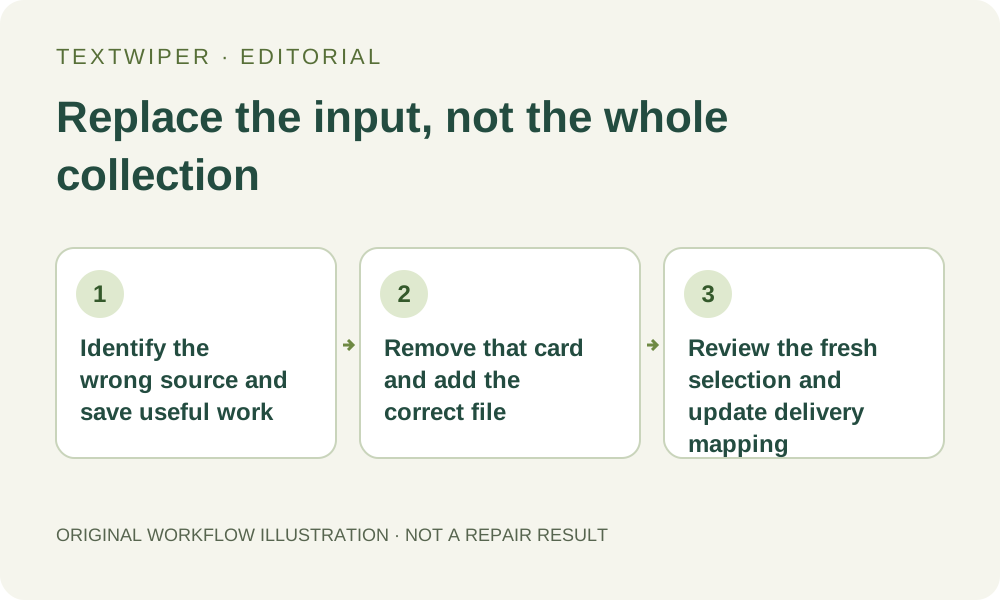
1. Decide whether the source or only the selection is wrong
Open Review image, or Inspect result for a completed card, and compare its actual picture with the intended source. A wrong camera angle, obsolete design or accidentally chosen file needs a different input. If the input is correct and only the removal boundary needs adjustment, revise that card’s selection instead of discarding the source and its useful draft.
Keep the untouched local source files separately. A small thumbnail and similar filenames can make an outdated view seem current, so use content and dimensions to identify it. This workflow is for ordinary authorized artwork. Replacing an image in the queue does not correct an already published destination or recover information that the correct source itself lacks.
2. Preserve anything useful from the card before removing it
Wait for the queue to be idle. If the mistaken card has a result you may still need for comparison, download the appropriate PNG or JPG and reopen it before removal. Save any brief decision note locally. TextWiper does not export a reopenable mask project or keep an account album that can restore the removed card later.
A completed download does not remove the card or its result. Conversely, Remove does not save either one automatically. If an unfinished draft is valuable, decide whether to keep it and process the correct source separately while capacity allows. Do not treat removal as a reversible hide command: the queue has no removal-undo action.
3. Remove the specific card, leaving the rest of the queue
Return from the image review to the batch workspace and choose Remove on the identified card. That action removes its source reference, draft and stored result from this collection. Clear queue applies to the collection as a whole and is unsuitable when the other cards still contain useful work. Check the card name before clicking.
Removing the card does not delete the original file on your device or erase files you have already downloaded. It also does not change other cards’ selections or results. Existing exported packages can still contain the old output, however. Keep those versions separate so a later handoff does not silently reintroduce the rejected source.
4. Add the correct source as a new item
Use Choose images to add the intended supported file within the remaining limits. The corrected source must pass admission itself; removing one card does not guarantee that a larger replacement fits the forty-megapixel queue allowance. If it is rejected, read the actual message and retain the other useful cards while resolving the input.
The new card receives a fresh queue identity. It does not inherit recognition positions, selected text, hand-painted protection or a repaired result from the removed card, even when both files share a name. Do not transplant old coordinate assumptions onto a new crop or size. Queue item numbers are not permanent version identifiers across separate page sessions.
5. Review the replacement before any queue-wide action
Recognize the new source when useful, or open Review image and make a manual selection. Check the intended target and retained content on that source. Existing keyword fields may help form suggestions, but the replacement still needs its own inspection. A common filename or familiar layout is not evidence that its lettering and positions are unchanged.
Read the scope of any batch button before using it. Find text in queue can include other cards still awaiting recognition, and Use selections & repair approves eligible current selections across the queue. Do not click a broad action assuming it targets only the replacement. Leave unrelated drafts unapproved until they are actually ready, or complete the replacement through its individual review.
6. Replace the delivery reference as carefully as the source
Inspect the new repaired result in full, download it and reopen the actual file. Update your own source-to-output mapping and remove the obsolete candidate from the delivery folder if it should not be sent. A newly downloaded ZIP includes all cards that currently have results; it is not automatically a one-file correction package.
Save the accepted replacement and other useful results before closing the page. This guide describes a deliberate remove-and-add workflow, not a source-relinking feature or persistent revision history. Manual editing and downloads remain free during beta; optional recognition still needs its upload choice and available service capacity. Whole-image automatic cleanup is a separate limited workflow.