PRACTICAL IMAGE EDITING
Revise Words to Keep Without Misreading the Blue Protection
Changing the Words to keep field does not immediately rebuild the protection mask. Apply the revised rule to suitable existing detections, then inspect the blue coverage. Rule-generated protection is replaced from the current matches, while hand-painted Protect strokes remain. If an unwanted word is still retained, identify which contribution protects it before clearing the whole plan or removing a necessary safeguard.
Published 2026-10-27 · Updated
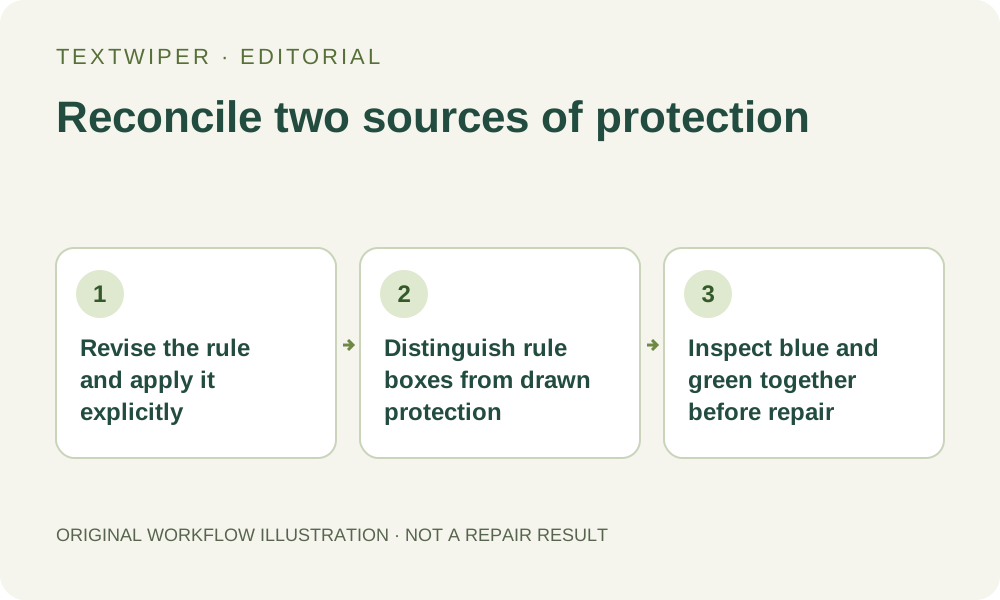
1. Identify the protection you are actually changing
An image can have protection derived from Words to keep and separate protection painted with the Protect tool. Both can exclude pixels from manual removal, but they do not have the same origin. Use an authorized source, turn on Show mask and note which locations were deliberately painted before modifying any phrase.
Keep a useful repaired candidate as a downloaded file first. Applying a rule changes the selection plan and invalidates that candidate. A short note such as keep the logo at upper left is more informative than a protected-count total, because a recognized region can cover more than one visible word or touch a neighboring removal target.
2. Edit the field, then choose the right application action
Open Use your keyword library and revise Words to keep, together with the removal phrases and match style relevant to the job. Typing in the fields can update the text-list presentation; it does not by itself apply a new removal set or replace the existing blue mask. Read the field values and the actual image separately.
When the required detections are already present, use Apply to detected text. You do not need a new recognition request merely to revise a keep phrase. If recognition is genuinely needed, Scan & match my words provides a review step afterward and requires the recognition upload choice. Do not choose Scan & erase matches while still diagnosing which protection should remain.
3. Expect rule protection to be rebuilt, with manual protection retained
Applying a valid rule replaces the selected recognition regions with its removal matches. It removes the previously rule-generated protection and creates new protection around the current keep matches. A removed keep phrase therefore need not keep its former generated box after you apply the revised valid rule; a newly added keep phrase needs a usable match before it can contribute a box.
Hand-painted Protect strokes are retained rather than silently discarded. If the same location was also painted manually, it can remain blue after its phrase leaves the keep field. That is not evidence that the field change failed. The rule cannot know that a manually protected logo has become disposable merely because one text entry was deleted.
4. Handle an empty field and an entirely empty rule differently
You can remove all keep phrases while retaining a meaningful removal phrase, then apply that valid rule to rebuild the rule-generated contribution without those keep matches. Inspect retained hand-painted protection afterward. Do not assume an empty keep field means that every blue pixel in the draft has been cleared.
When both removal and keep fields contain no entries, Apply to detected text rejects the empty rule instead of applying an erase-all reset. Existing protection can therefore remain. If your actual intention is a completely fresh selection plan, use Clear selection deliberately, knowing that it also withdraws detected selections and drawn Brush, Area, Erase and Protect work.
5. Recheck the effective mask before proceeding to repair
Protection takes priority where it overlaps removal. Read both green and blue coverage around a retained word, its punctuation and the neighboring target. A keep match may use a broad recognized region, so it can also preserve unwanted lettering nearby. Removing a safeguard to increase a match count is not a substitute for a defensible boundary.
Scan & erase matches follows a different selection policy: it rebuilds keyword-based removal, withdraws prior hand-painted removal and mask-erasing strokes, and retains hand-painted protection. Do not use that action expecting your earlier hand-drawn additions to survive unchanged. For a mixed manual plan, apply the rule, inspect and deliberately run the manual repair instead.
6. Confirm both the revised removal and the required retained detail
Run Quick or Smart repair only after the revised mask is clear. Inspect the complete result, using optional comparison to locate the area if necessary. Check that the newly removable word is gone and the genuinely required logo, wording or fine detail remains. Protection preserves selected input pixels; it does not reconstruct information that was already hidden in the source.
Download and reopen the accepted output. Keep the source and any useful earlier candidate separately because the page is not a permanent protection-history archive. This guide describes rule application and manual-mask behavior, not newly measured repair quality. Manual selection, repair and downloads remain free during beta; whole-image automatic cleanup is a separate limited trial and does not use the green keyword mask as its processing boundary.