PRACTICAL IMAGE EDITING
Deselect Recognized Words Without Clearing Your Brush Work
Use Select none in the text list when you want to withdraw recognized text selections while keeping your manual strokes. Use Clear selection when you want to remove the entire current selection plan, including drawn removal, Erase and Protect strokes. These are different scope decisions. A zero selected-word count does not necessarily mean that the image has no removal mask or that repair should be unavailable.
Published 2026-10-26 · Updated
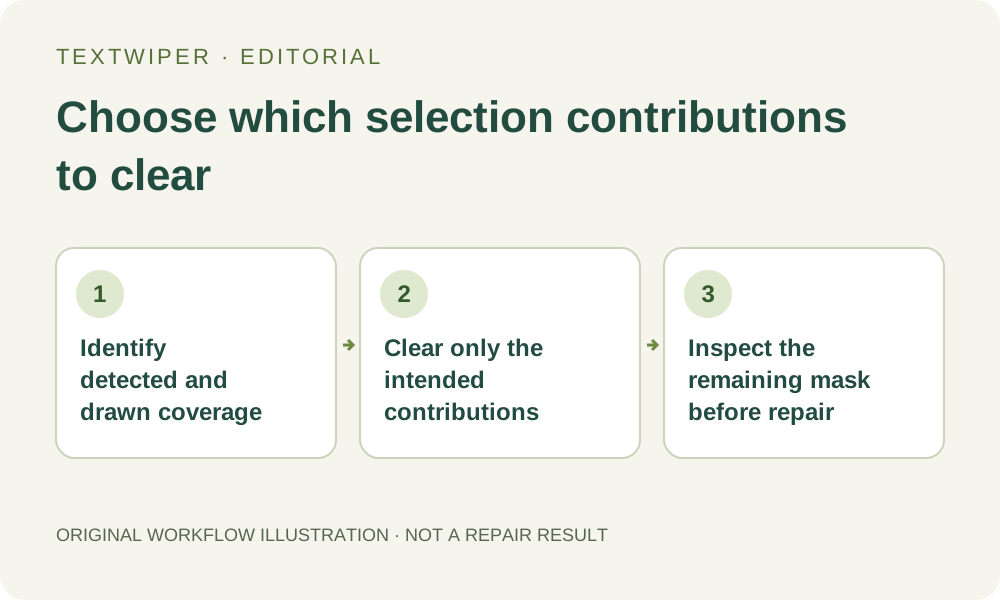
1. Inventory the current selection before clearing it
A mixed draft can contain checked recognition regions, green Brush or Area marks, Erase strokes that withdraw coverage and blue Protect marks. These contributions combine into one effective manual mask. Before clearing anything, enable Show mask and identify which parts are still useful. Use a permitted image and keep its original file separately.
If a repaired candidate is worth retaining, download it first. Changing a detection selection or clearing the mask invalidates that candidate and shows the source with the revised selection. This is a change to the edit plan, not a command that saves the old result elsewhere or commits its pixels as the next input.
2. Use Select none for the recognized-text contribution
Select none beside the text list removes the current detected-region selections. It does not delete the detections or discard hand-drawn strokes. This is useful when the boxes are too broad but carefully drawn areas already mark the right targets. You can keep that manual work rather than starting the whole plan again.
Afterward the selected-text count can read zero while a green manual region remains and repair is still available. That combination is consistent: the count describes recognized groups, not a census of all painted pixels. Do not keep pressing the same text-list control expecting it to erase a brush mark outside the recognized selections.
3. Use Clear selection when the whole plan should be rebuilt
Clear selection withdraws detected selections and removes the stored drawn strokes, including protection and mask-erasing strokes. The loaded image and recognition list remain available. It is appropriate when the combined plan is confusing and you deliberately want a fresh mask, rather than just a different set of checked words.
Check the newly empty mask before drawing again. Clearing a plan does not remove text from the source, produce a repaired download or delete the recognition transcript. It also does not clear your file from the whole workspace. Choose the action by the state you need next instead of treating every command containing clear as a universal reset.
4. Remember that surviving strokes still affect later choices
After Select none, an old Erase stroke remains even if it is not a green visible target by itself. If you later select a detected region at that position, the erase contribution can still withdraw part of it. A retained Protect stroke can likewise exclude overlapping removal pixels. Recheck the effective mask after changing which words are selected.
If the retained strokes no longer match the task, choose Undo for an appropriate available selection state or deliberately clear and rebuild the plan. Painting a wider green stroke does not override blue protection. Do not interpret a partly missing new selection as a failed checkbox until you have considered the previous manual contributions.
5. Reconstruct only what the next deliverable requires
For a manual-only correction, leave the detections unselected and draw the intended targets. For a fresh recognition-based plan, choose only the relevant list items and add any justified manual refinement. Neither route requires selecting all visible text. Your target list, rather than an empty or populated sidebar count, determines the plan.
Once the mask is defensible, run Quick or Smart repair and inspect the complete candidate. Use optional comparison to locate changes, then hide it to evaluate the whole picture. If a necessary word or object cannot be separated from the unwanted annotation, stop and use a suitable source instead of widening the selection until the source meaning is lost.
6. Keep a durable output rather than relying on the cleared draft
Download the reviewed file and reopen it, checking both the removed targets and the details that should remain. The page holds a limited in-memory selection history, not a persistent project archive. Refreshing or closing it is not a way to retrieve the plan you cleared, and account settings do not save the image or its mask.
Manual selection, local repair and download remain free during beta without an account. Optional recognition requires upload permission. Whole-image automatic cleanup has its own separate upload choice and limited signed-in trial; Select none does not turn that operation into a selected-word repair or restore an attempt already accepted by the service.