PRACTICAL IMAGE EDITING
Restore a Source Detail After Repair in a Separate Layered Editor
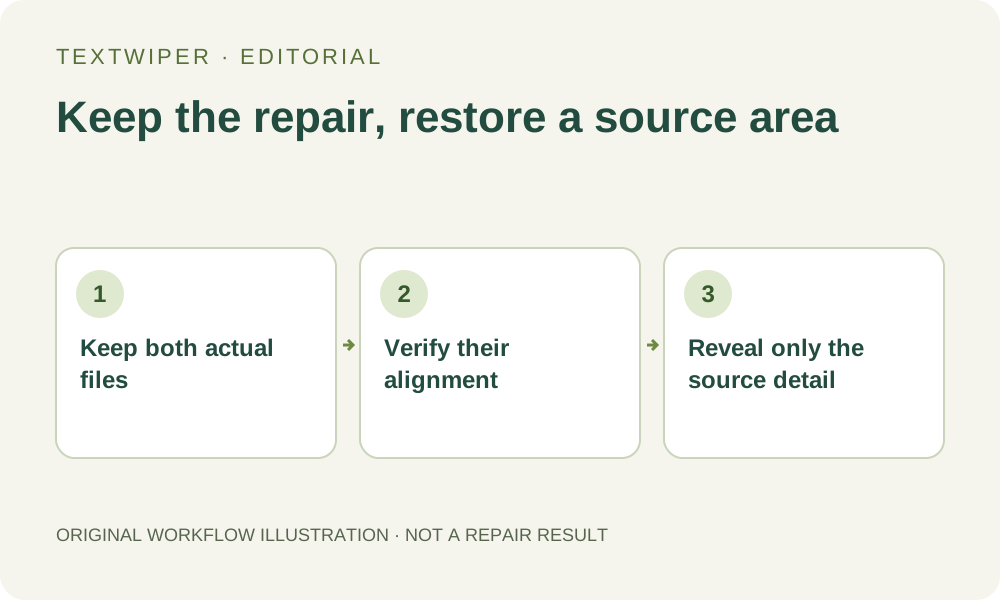
A repaired download may contain a useful cleared area and one neighboring detail you would rather keep exactly as it appeared in the source. You can return to TextWiper and revise the removal mask. Alternatively, in a separate editor that supports aligned layers and masks, combine the actual source with the actual repaired file. This is a deliberate external composition, not a TextWiper partial-result undo feature. It restores available source pixels, including any unwanted lettering on them; it cannot reveal detail hidden under that lettering.
Published 2026-10-24 · Updated
1. Decide whether to revise the repair or compose two files
First identify what failed. If a broad mask damaged a visible edge, revising it in TextWiper is usually the more direct next step. Erase reduces the pending selection; Protect retains visible source pixels. A changed selection invalidates the old result and needs another repair. Those controls do not selectively roll back part of an already downloaded file.
External composition is useful only when you understand which part of the candidate to retain and which source region to restore. Keep both real files before leaving the workspace. Use an editor you already have permission to use that supports layers and masks; this guide does not install another application or establish that every editor offers the same controls.
2. Establish that the two files share the same image geometry
Matching width and height is necessary but insufficient. Two equally sized pictures can have different crops, orientations, versions or resampling. Choose the unchanged source used for this particular repair, not a similar photograph or an earlier composition. Prefer the actual PNG candidate for this handoff rather than a screenshot of the workspace.
Open the files as separate layers in the other editor. Keep their orientation and placement unchanged, and compare several visible landmarks around the intended patch and elsewhere in the image. Temporarily alternating the layers or using an available comparison method should not show those landmarks jumping. A single matching corner does not establish alignment across a resized or distorted picture.
3. Reveal the source through a reversible external mask
Work on a new layered document while preserving the two input files. Exact controls depend on the chosen application. The conceptual operation is to keep the repaired candidate visible and reveal only the required region of the aligned source, using that editor's layer mask rather than destructively erasing your only copy.
- Confirm the candidate and source are the correct versions, with several landmarks aligned.
- Place the source in the layer arrangement required by your editor and initially conceal its contribution.
- Use a small mask change to reveal the wanted original detail without moving either layer.
- Check the boundary and inspect which original marks returned with the restored pixels.
- Retain the layered working document separately from the flattened delivery file.
4. Check what the source region actually contains
An original handle edge or garment seam can be restored only where it is present in the source. If the same pixels also contain a caption, the caption returns too. A layer mask cannot choose an invisible clean handle underneath the letter. Do not call this operation recovery of obscured information or treat the source layer as a hidden unmarked photograph.
Inspect transitions around the restored region. The candidate may have a different local color or texture inside its repair, leaving a noticeable join beside the original. Widening the revealed source area might restore more unwanted text. If the acceptable boundary cannot separate those requirements, revise the original removal plan or obtain an unmarked source instead.
5. Review the external composition as a new deliverable
Read the complete image, then inspect the restored detail and the retained repair separately. Confirm that the chosen source region stayed in its correct position and that no part of the original overlay has accidentally returned. Review meaningful text and edges outside the patch too, particularly if your candidate came from whole-image automatic cleanup.
The final composition is now produced by another application. TextWiper's manual PNG preservation boundary does not certify that later editor's resampling, color handling or export choices. Keep the layered document if future adjustment matters, and export a clearly named delivery copy. Reopen that actual file rather than approving only the layer preview.
6. Stop when alignment or provenance is uncertain
If landmarks drift, identify the differing crop or transform before continuing. Do not stretch one small detail into place and assume the rest is aligned. When the matching source is unavailable, an approximate patch cannot be described as the original pixels for that location. Keep the useful candidate as a separate option while seeking a better source.
Manual selection, Quick repair, Smart repair and downloads in TextWiper are free during beta without an account. Optional recognition asks permission to upload a resized working image. Whole-image automatic cleanup is a separate limited sign-in trial. Neither recognition nor that trial is required for the external layer operation described here; any external editor has its own capabilities and terms.
Sources
- GIMP 3.0 User Manual: Add Layer Masks — Documents layer visibility controlled by an external layer mask. It does not establish a TextWiper feature or recovery of obscured source detail.