PRACTICAL IMAGE EDITING
What to Do When Your Removal Selection Covers Too Much of the Image
A removal selection that covers much of the image is a decision point, not a reason to keep increasing the repair strength. TextWiper shows the approximate selected percentage and warns above thirty percent that large areas may lose detail. That warning is not a promise that smaller selections are safe, or a hard thirty-percent rejection. Examine what information remains before choosing a smaller mask, a better source or a rebuilt layout.
Published 2026-10-25 · Updated
1. Read what the percentage measures
The mask summary describes the effective image area selected for removal. It does not describe file size, recognition confidence, how much text is obsolete or a predicted success rate. A wide rectangle around sparse letters can select far more background than the lettering itself. Several separate strokes can also add up to a large share of the picture.
Look at the green removal coverage and blue protection on the actual image. The remaining source context matters more than treating the percentage as a score. A small mask crossing a unique identifying detail may be unsuitable, while a larger simple patch still needs inspection. There is no universal percentage that certifies an edit.
2. Distinguish excess selection from genuinely dense coverage
If a broad Area rectangle includes unnecessary margins, use Erase to trim the mask or undo and rebuild a closer selection. Preserve the surrounding image that the repair can use. Cover real letter edges and effects without selecting an entire panel merely because its words are scattered. Zoom in, then return to a fitted view to see the overall coverage.
If the overlay itself really occupies most of the useful image, trimming cannot invent unobstructed background. A dense title card may be mostly typography with very little photograph beneath it. Removing all those pixels could erase the content the picture was made to convey. Decide whether an original unlettered asset or a fresh composition is the better deliverable.
3. Check what remains available to support the fill
Identify visible surface, edges and objects around the selected area. Does the remaining picture provide enough context to judge the intended background, or would you be asking the repair to invent most of a face, product or scene? Protect keeps visible input detail out of the effective removal area; it cannot reveal the surface hidden underneath lettering.
The manual repair engine rejects a mask covering the entire image and asks you to leave unselected background. Leaving one token corner does not make the underlying task sound. Treat the message as a prompt to reconsider the selection, not a boundary to evade. An accepted calculation can still return an unsuitable image.
4. Make one deliberate revision before another repair
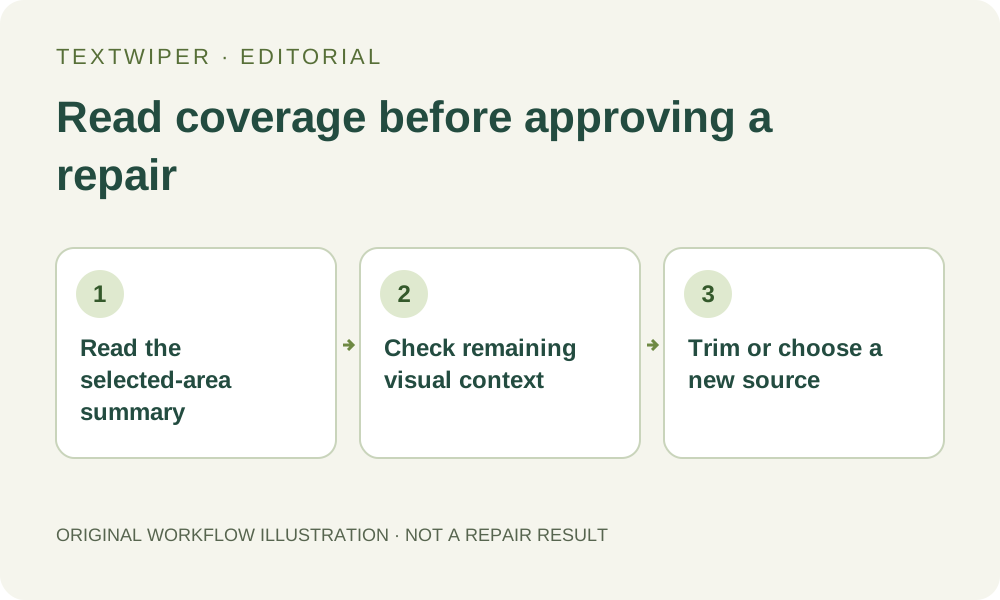
Work from the loaded source and save any earlier candidate you actually need before changing its mask. The following is a decision sequence, not a new large-area performance test.
- Read the selected-area summary and locate the coverage on the full image.
- Determine whether broad selection margins or the overlay itself caused the large area.
- Trim only unnecessary coverage while retaining the full unwanted mark and its visible effects.
- If little useful context remains, pause and obtain an unlettered source or rebuild the layout in its original application.
- If a bounded manual edit still makes sense, choose Quick or Smart repair for that reviewed mask.
- Inspect the complete result and reject a fill that invents required detail, even when the unwanted lettering disappeared.
5. Do not confuse output dimensions with retained detail
A downloaded image can keep the input width and height while a large repaired patch looks soft or repetitive. Smart repair may use a reduced working size for large selected regions. Full-size output dimensions therefore do not establish full-detail reconstruction inside the mask. Judge the actual scene and its intended viewing size rather than relying on the pixel count alone.
Repeatedly repairing a candidate as a new source can compound the uncertainty because the next step starts with an already estimated patch. Return to the untouched source when revising the plan. Making a smaller crop elsewhere is a separate framing decision; it should not be used to pretend that the removed scene detail has been recovered.
6. Keep the accepted outcome proportional to the available source
If the result is suitable, download the reviewed PNG or JPG and reopen the saved file. Check the former overlay area, required content and the complete composition. PNG preserves the manual workflow’s unselected decoded pixels, but that does not authenticate the invented area. A good-looking thumbnail is not enough for a deliverable that depends on fine detail.
Manual selection and local repairs remain free during beta. The separate limited whole-image cleanup trial is not a guarantee for excessive coverage and should not be treated as a stronger version of this mask control. Sometimes the correct outcome is a tighter selection; sometimes it is abandoning repair and obtaining the right visual asset.