PRACTICAL IMAGE EDITING
Replace a Cleaned Image in a Slide Without Changing Its Crop or Layers
A correctly edited picture can still look wrong after it replaces an image in a presentation. The slide may crop the file, cover it with a live text box or position it inside a fixed frame. Inspect the saved image first, then use your presentation application’s image-replacement workflow and verify the actual slide. TextWiper repairs a supplied still image; it does not open the presentation, preserve a slide’s object settings or replace text boxes in the document.
Published 2026-10-24 · Updated
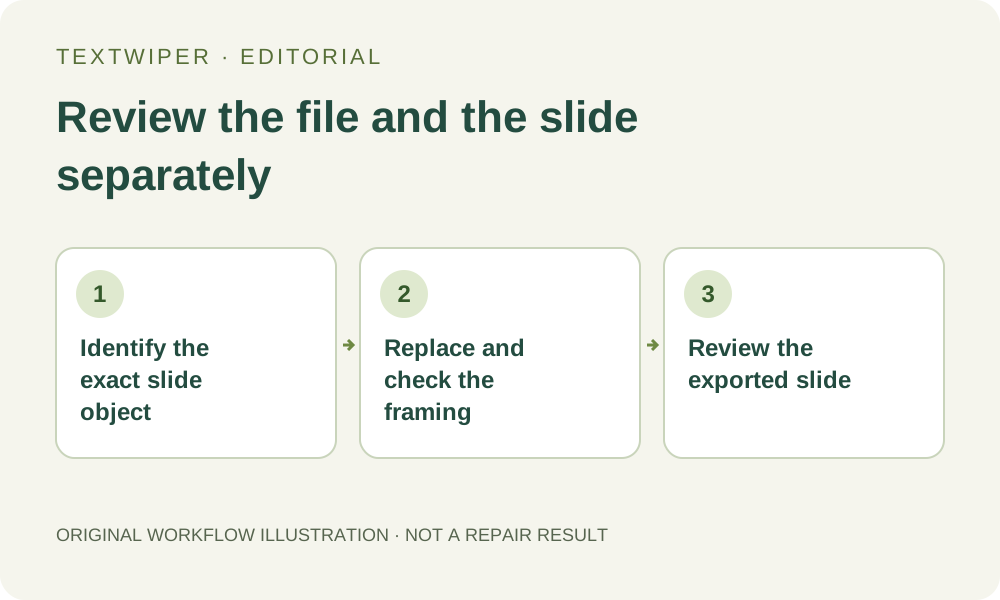
1. Identify whether the unwanted label is in the image
Open the source presentation and inspect the object you intend to change. A word can be embedded in the picture, placed in an editable text box above it, or present in both. If it is a separate disposable text object in your own document, revise that object there. Repairing an underlying picture will not remove a live word drawn above it.
Keep an unchanged presentation copy and the authorized image asset. Use the picture’s real source file when available rather than a screenshot of the entire slide. A slide screenshot flattens text, diagrams and image content together, losing the distinction you need for a controlled replacement. Reconstructing that screenshot is not equivalent to updating the original picture object.
2. Record the placement that makes the image useful
Note the target slide and exact object, especially when the same image appears several times. Inspect its displayed frame, aspect ratio, visible crop and nearby objects. A crop can hide part of the source while retaining the entire file in the presentation. Cleanup should be based on the authorized asset, while the final review must cover the portion actually shown.
Check whether live captions, borders, arrows or a mask are layered above the image. Those may be intentional parts of the slide. Do not remove them from a screenshot merely because they are not visible in the standalone asset. A correctly cleaned image and a correct slide composition are separate deliverables with separate checks.
3. Finish the image cleanup before replacing the object
Open the supported image in TextWiper and select only the intended embedded lettering with Brush or Area. Recognition is optional and asks permission before uploading a resized working image. Protect nearby visible details and inspect the mask. Choose an appropriate manual repair, then judge the complete candidate rather than leaving the original over half of the preview.
- Inspect the removed area and retained content in the full result.
- Download the actual PNG or JPG and reopen it outside the editor.
- Confirm its dimensions and orientation against the intended source.
- Keep it under a distinct name so the presentation replacement cannot silently use an earlier candidate.
4. Replace the intended picture, then check its object settings
Use the presentation application’s normal image-replacement control when it suits the object. Menu names and retained formatting differ by application and object type. Do not assume that replacement automatically preserves every crop, size or effect. Compare the resulting frame with the unchanged slide copy before accepting it. Microsoft documents Change Picture under Picture Format in supported Office workflows. Where Fill and Fit are available, distinguish filling a frame by clipping the image from fitting the complete picture with unused space.
If you delete and reinsert instead, recheck placement, size, alignment and stacking order deliberately. A new object may sit above a caption, appear at a different size or use the whole source instead of the earlier crop. TextWiper has no access to those document settings and cannot correct them by repairing the same image again.
5. Review the visible slide and any hidden image portion
Inspect the slide at its intended viewing size. Check that required picture detail is not newly cropped out, the cleaned region remains convincing at presentation scale and live labels still align with the right content. A file that is sharp at native size can become unsuitable after excessive enlargement in a slide.
Where appropriate, inspect the image object’s crop against the complete saved file as well. A visible crop is a layout choice, not secure deletion of material outside its frame. Do not use this cosmetic workflow to conceal confidential information. If hidden content must not be distributed, use an appropriate document-sanitization process rather than relying on the slide’s display boundary.
6. Check the presentation’s actual delivery format
View the final slide in the presentation mode or exported format you plan to send. Confirm the correct image version is embedded, the crop remains intended and overlays have not shifted. Exporting to PDF or a slide image introduces another rendering step; review that actual file rather than assuming the editing view is the final audience view.
Record which image revision was placed on which slide and retain the unchanged sources. If the source image passes inspection but the slide still shows old wording, recheck the selected object, live text and the file used for replacement before repeating repair. Manual editing and download remain free during beta. This is a workflow guide, not a tested compatibility claim for every presentation application.
Sources
- Microsoft: Replace or delete a picture — Documents the replacement control in supported Office workflows; it does not guarantee that every object retains all settings after replacement.
- Microsoft: Crop a picture to fit in a shape — Explains the different framing behavior of Fill and Fit; this supports checking an external slide placement, not a presentation-editing feature in TextWiper.