PRACTICAL IMAGE EDITING
Is That Text Inside the Image, or a Live Caption on Your Web Page?
A headline drawn over a picture on your own web page is not necessarily part of that picture's pixels. It may be a live caption, a slider label or another page element placed above the image. Before repairing a screenshot, inspect the authorized image asset and compare the same composition. If the asset has no unwanted lettering, change the page's caption through its normal editor rather than inventing replacement pixels. TextWiper edits a supplied still image; it does not inspect your page layers, change its HTML or remove a live overlay from your website.
Published 2026-10-23 · Updated
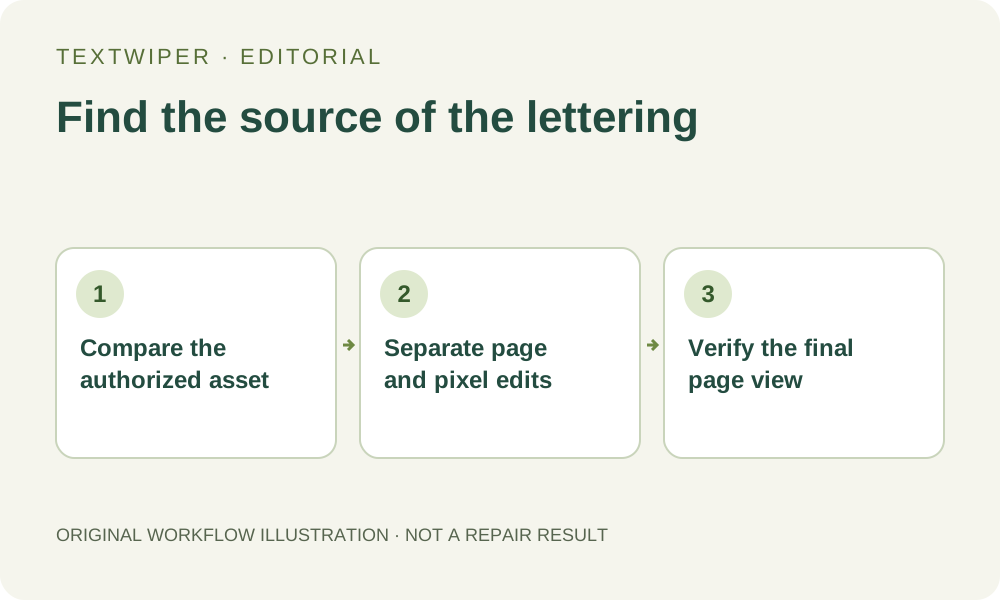
1. Describe where the words actually appear
Record the page, the intended picture and the unwanted wording without treating everything visible together as one file. A page heading can sit over the hero photograph while a small label is embedded in the photograph itself. The two targets may need different changes, even though one screenshot contains both.
Limit this check to your own site or material you are permitted to edit. A visible caption may communicate attribution or required context; establish whether it should be removed, moved or rewritten before editing. Do not strip someone else's page overlay merely to reuse its image. Permission and an appropriate source come before the repair choice.
2. Compare the matching image asset, not a similar thumbnail
Use your own media library, design source or supplied authorized asset to inspect the image independently of the page. Confirm its crop, scene and version. A clean thumbnail from an older page is not proof that the current larger asset is unmarked. Likewise, a screenshot includes page rendering and is not the underlying image file.
If the unwanted wording is absent from the matching asset, there may be nothing to repair in that file. If it is visible there, it is part of the available raster copy, even when a separate page caption repeats the same phrase. Check each occurrence independently. This is a practical source comparison, not an automatic test performed by TextWiper.
3. Fix a live caption in the page's own editor
When the words belong to the page, use your site's normal content or layout controls to make the intended change. Keep a copy of the previous configuration and preview the result. Removing a caption might change the space around an image, reveal an unrelated background or leave another label on smaller screens. These are page decisions, not image-repair settings.
Do not use a cleaned screenshot as a replacement for the whole page just to make one live label disappear. That would flatten useful text and interactive elements into pixels. TextWiper cannot update navigation, accessible image descriptions or page content for you. Review those in the application responsible for the site, and preserve any required attribution or explanation through an appropriate visible form.
4. Use local repair only for unwanted embedded pixels
For a genuine embedded label in an authorized still image, choose the local-repair route. Open the matching source copy, define the pixels to remove and keep useful image content outside the mask. Optional Find text asks for recognition upload permission. It locates some wording; it does not identify web-page elements or tell you whether the asset is the correct version.
- Identify the unwanted lettering in the independent asset before creating a mask.
- Use Brush or Area to select its visible footprint, then Erase to trim excess coverage.
- Protect nearby visible detail that must remain, while checking whether an unwanted mark shares those protected pixels.
- Try Quick or Smart repair as appropriate and inspect the complete result, shown by default.
- Download the reviewed file and reopen it before changing the site's image reference.
5. Verify the page and image as separate outputs
If you changed only a live caption, confirm that the source image itself did not needlessly change. If you changed the image, confirm the site uses the actual reviewed download and that an old live caption does not still cover it. A page can contain both kinds of overlay, so success on one side does not prove success on the other.
Check the final page at the intended viewing sizes, including any small-screen layout where the caption moves. Do not infer the reason for a remaining word from appearance alone: compare the selected asset and page settings again. A cache, alternate image or different content entry may require investigation in the site system; pixel repair is not a substitute for locating the source of the display.
6. Keep the correct source for the next update
Retain the authorized asset, any accepted repaired copy and the page-edit record separately. If a new caption is needed later, add or edit it through the appropriate page or layout tool. Do not assume the repaired PNG stores the original live text or its positioning rules. Changing a TextWiper mask invalidates its old candidate; it does not undo a published website change.
Manual selection, Quick repair, Smart repair and downloads are free during beta without an account. Whole-image automatic cleanup is a separate limited sign-in trial with its own upload choice and allowance, not a web-page cleaner. If the lettering's origin or permission remains unclear, obtain the correct source before proceeding. This article reports no inspection of a particular customer's website.