PRACTICAL IMAGE EDITING
Remove Selection Handles from Your Design Screenshot: Try a Fresh Export First
A rectangle with corner handles in your own design screenshot may be the source application’s selection overlay, rather than part of the artwork. First deselect the object or use that application’s normal artwork export, then check the result. This preserves the real design instead of guessing what a handle covered. Only consider pixel repair when the handles are already embedded in the available image and the affected area can be checked reliably.
Published 2026-10-22 · Updated
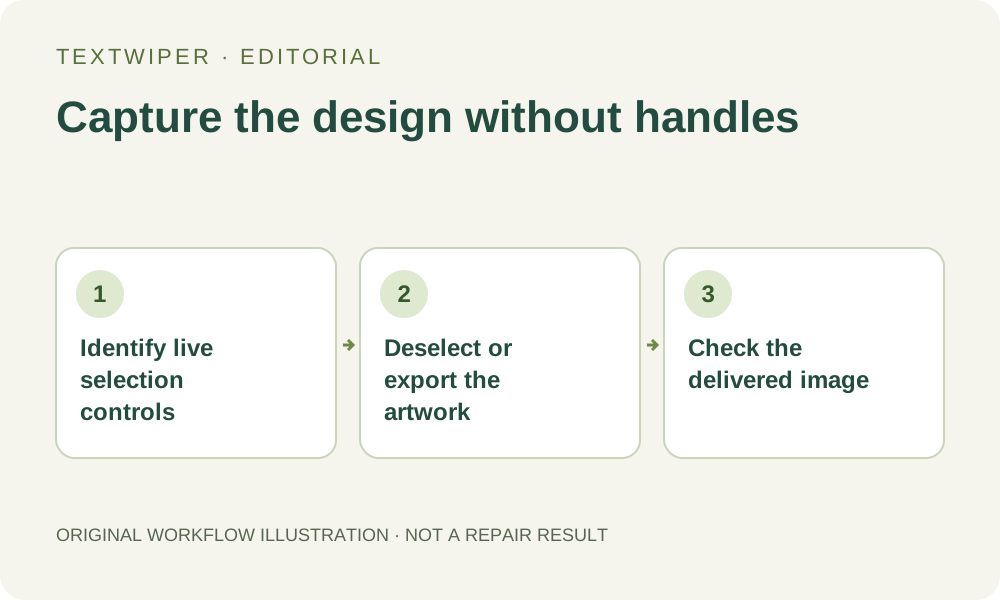
1. Distinguish editor controls from designed objects
Open the correct source project when available. Identify whether the visible rectangle, rotation handle, anchor point or guide belongs to the design tool’s current selection. Then distinguish it from a deliberately drawn border, crop mark, dotted line or small circle in the artwork. Similar colors and shapes do not establish a common purpose.
Keep the original capture as a reference. A selection overlay can cross a photograph or letter without belonging to either. This is different from an added review annotation: it may disappear simply by changing the source editor’s selection state. TextWiper has no access to that application’s objects or selection controls, so establish the distinction before opening a flattened image.
2. Deselect and export from the source when possible
On an appropriate copy of your project, use the source application’s normal way to clear its active selection. The controls vary by application; check that you have deselected the object rather than deleted, hidden or moved it. Inspect the selected object’s former position and confirm its visible content is still present. Capture again only after the intended artwork is unchanged.
For a picture of the artwork itself, use a normal image export when the application provides one. Check the chosen page or artboard, its bounds, visible layers and output dimensions. For a tutorial showing the surrounding interface, take a new screenshot of the intended editor state instead. An artwork export and an editor screenshot serve different purposes and need not contain the same surrounding panels.
3. Inspect the available file before choosing pixel repair
Open the new export or capture and verify whether the handles are actually absent. If they remain, determine whether they are embedded in a placed image or deliberately drawn objects in the source. Deselecting an outer image will not remove a selection rectangle already baked into that image. Find the earlier clean asset if one exists.
If only the flattened copy is available, list each unwanted control and its crossings: corner squares, center marks, rotation circles and any outline that joins them. Do not mask the whole enclosed object. The object inside the selection rectangle is usually exactly what should remain. A handle covering a meaningful letter or detailed image feature is a reason to obtain the source instead.
4. Use a narrow local mask only for a suitable flattened copy
TextWiper opens JPG, PNG and still WebP. Manual selection needs no recognition request. Optional Find text asks for recognition upload permission but does not identify source-tool handles or reveal design layers. For these graphical marks, inspect their geometry directly. The blue protection overlay in TextWiper is an editing control of this page; it is not the source application’s blue selection rectangle.
- Zoom into one embedded handle and keep the artwork feature underneath or beside it visible.
- Use Brush to follow the handle or thin selection outline, avoiding a broad rectangle around the object.
- Trim excess green coverage with Erase and protect nearby visible design detail.
- Try Quick repair on a small even patch or compare Smart repair on the same mask when local texture requires it.
- Reject a fill that changes the artwork, even when all apparent handle pixels disappear.
5. Check the complete object and the output version
The full repaired result is shown by default. Follow the object edge and inspect the former handle positions for square patches, repeated texture or shortened strokes. Compare intended borders, corners and tiny circles with the unchanged reference. Use Show comparison to locate the edit, then Hide comparison to judge the entire design. If you change the mask, the previous result is invalidated; repair again from the original.
Manual selection, Quick repair, Smart repair and downloads are free during beta without an account. Whole-image automatic cleanup is a separate limited single-image sign-in trial requiring its own upload permission and available allowance. It is not a design-control removal feature and may change other artwork. A fresh source export or a local manual edit does not require using that trial.
6. Deliver the intended capture, not an assumed clean project
Download the reviewed PNG and reopen the exact file. Check all four corners, the object bounds and the surrounding composition at the destination display size. Keep the source project, original screenshot and final image separately. Pixel repair does not clear selection in the original application, edit its objects or change future exports.
Stop if a handle conceals a necessary stroke, a designed border cannot be distinguished from the overlay or the output changes the object’s shape. Obtain a fresh unselected capture or a clean source export. The goal is to show the intended design without its temporary controls, not to reconstruct details that were never visible in the available screenshot.