PRACTICAL IMAGE EDITING
Remove Added Text While Checking Perspective, Not Just Straight Lines
An added caption across a receding floor, shelf or architectural illustration can disappear while the repaired geometry looks wrong. A line may be straight locally yet point away from the surrounding convergence, or repeated spaces may stop getting smaller into the distance. Inspect the projection already visible in your own image before drawing. TextWiper repairs selected pixels; it has no perspective grid, vanishing-point control or guarantee of reconstructing hidden geometry. This is a geometry review workflow, not a new repair test on a particular scene.
Published 2026-10-24 · Updated
1. Identify whether perspective is part of the task
Use an image you own or are authorized to edit, and keep its unmodified version. The target should be an unwanted added caption, not dimensions, required markings or lettering that explains the structure. If a layered illustration is available, removing its caption there preserves the original geometry without asking a pixel repair to estimate it.
Distinguish a visual presentation from a dimensional record. An attractive repaired view cannot establish the measurements or construction hidden beneath text. A floor seam covered by a word may be uncertain even when its visible ends look easy to connect. Use a source drawing, an unmarked photograph or another view when exact geometry matters.
2. Read more than one direction before selecting
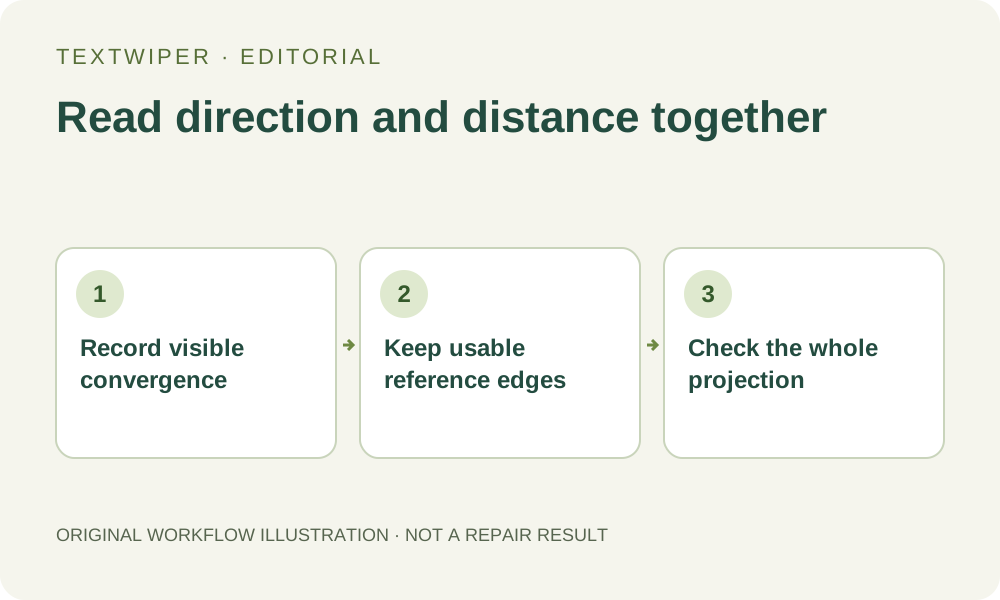
Trace visible edge families on both sides of the caption: edges receding away from the viewer, edges crossing that direction and any visible upright references. Note their directions and the changing spacing of repeated elements. Do not replace every family with parallel lines in the image just because the real objects may be parallel in the scene.
Also inspect the original for curved surfaces, lens distortion or deliberate stylization. Not every line must meet one convenient point, and a short visible fragment may not establish a reliable convergence. You are recording the evidence the image offers, not imposing a new geometric model. Mark doubtful relationships in your own review notes before considering a candidate.
3. Keep the visible geometric references outside the mask
Select the unwanted lettering and its visible effects narrowly. A broad rectangle can remove several intact segments that would otherwise help judge the repaired region. Optional recognition may locate the caption after upload permission, but its text boxes do not describe which edge belongs to which plane.
- Open the unchanged image and inspect the caption together with nearby edge families.
- Use Pan to follow visible reference edges before returning to Brush.
- Cover the lettering with short strokes, leaving intact structure between letters where practical.
- Trim excess removal with Erase; use Protect only for visible pixels that should remain.
- Inspect any protected overlap, since protecting a source letter keeps that letter too.
- Repair the checked selection, then review the complete image before changing the mask.
4. Compare repair candidates without expecting a geometry tool
Quick repair may suit a small word over a relatively even area. Smart repair can provide another candidate where more surrounding texture is involved. Compare the same reviewed mask and use the visible structure as your acceptance criterion. More detail in a patch does not prove that its perspective agrees with the scene.
Changing the selection invalidates the existing candidate; another repair uses the loaded original and current mask. Do not progressively widen the region simply to hide one bent seam. That can remove the remaining references and replace several distinct planes with an apparently consistent but unsupported surface. Neither local mode supplies a straightening or perspective-correction control.
5. Check convergence before checking the surface finish
Start with the whole image at a useful viewing size. Follow a repaired edge outward into the visible reference segments and consider its direction relative to neighboring edges in the same family. Look for a kink at the patch boundary, an accidental parallel segment or a line that seems to belong to the wrong plane.
Next inspect near-to-far spacing and scale. Repeated sections should not abruptly become wider, reverse their order or keep an unrelated uniform size inside the repair. Then enlarge the joins to check line width, contrast and texture. Use Show comparison to consult the original, then hide it to judge the whole projection; a close, smooth patch alone is insufficient.
6. Keep an image that supports its intended use
Reject a candidate that changes a visible corner, moves an intersection or makes an uncertain edge look like a verified construction. If the caption covers all evidence for an important plane boundary, stop rather than accepting whichever guess appears most regular. Return to an unmarked source or the original drawing when the geometric relationship is essential.
Download an accepted PNG and reopen it at the destination size, retaining the original separately. Manual selection, Quick repair, Smart repair and downloads are free during beta without an account. The separate limited automatic-cleanup trial is not a perspective reconstruction service. This review checks whether a candidate is suitable for presentation; it does not recover or certify the hidden physical scene.