PRACTICAL IMAGE EDITING
Remove Added Text Across Thin Wires While Checking the Visible Line
When an added caption crosses a thin wire, a small missing segment can change the whole picture. Select the caption cautiously, keep visible wire references and inspect every crossing. A repair that connects two dark ends convincingly has still guessed the covered path. TextWiper cannot verify the real shape of a line hidden behind the words.
Published 2026-10-20 · Updated
1. Identify the line and the unwanted overlay separately
Work from a photograph you own or are authorized to edit, keeping the original. The target may be a digital caption placed over cables, a bicycle spoke or a fine railing element. Identify which marks belong to the photographed object. A thin dark stroke may be part of the scene rather than a letter that should be removed.
Use an earlier photo without the caption if possible. This task is a presentation edit, not a way to establish an obscured cable route or the construction of a component. A cleaner image cannot verify whether a hidden line is straight, bent, interrupted or attached to a particular point. Preserve the original where that uncertainty matters.
2. Map visible segments and their crossing order
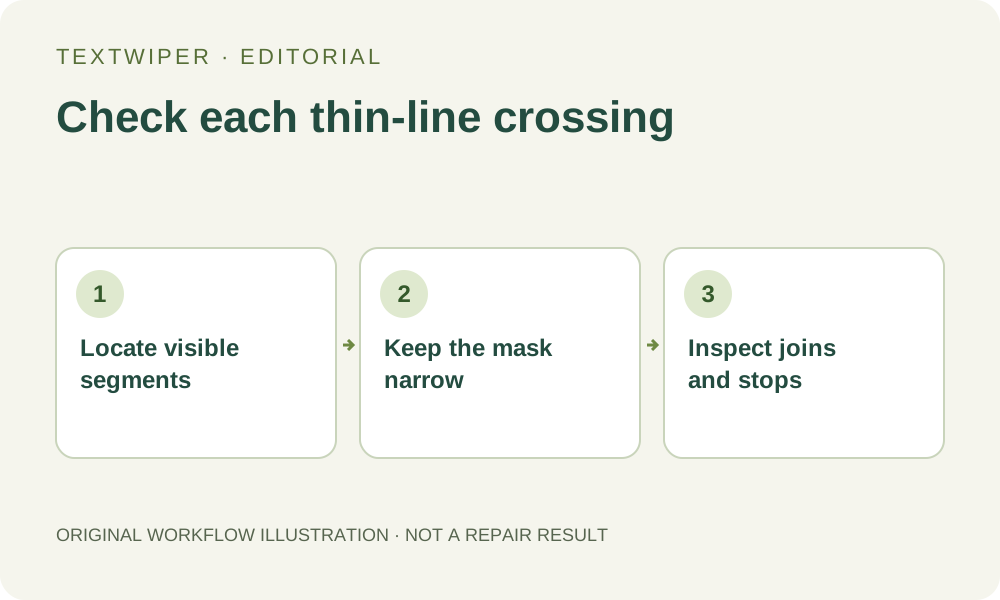
Follow each visible line toward the caption from both sides. Note its thickness, curvature, light or dark edge and any attachment that is still visible. Do not assume that the nearest two ends belong to the same wire. Several thin elements can overlap, and the actual crossing may be entirely covered by the lettering.
Check what lies in front of what where evidence remains visible. A wire passing behind a leaf or a bracket need not appear continuously through that object. Distinguish these real occlusions from unwanted gaps. A scene photograph provides incomplete evidence, unlike a diagram whose intended connections may be available in its editable source.
3. Build a controlled selection around the caption
Find text is optional and requires recognition upload permission. It may locate the caption, but the returned region is not a pixel-level separation of ink and wire. Review the actual mask before repairing.
- Open the original in TextWiper, zoom in and use Pan to inspect each place where the caption meets a line.
- Use short Brush strokes to cover the letters and their visible effects. Avoid a broad rectangle that also swallows intact line segments.
- Use Erase to withdraw excess green coverage near exposed wire. Add Protect to visible segments or attachment points that must remain.
- Inspect protected overlaps: preserving a source pixel preserves any caption on it too. Protect cannot uncover the hidden wire beneath a letter.
- Try a small crossing first. If you expand the target afterward, retain all intended caption-removal areas and repair the revised mask from the original.
4. Try a local fill without treating a line as recoverable data
Quick repair can be a first candidate for a short letter over a simple background away from important line detail. Smart repair may offer another candidate for varied surroundings. Compare the same checked selection and inspect the line geometry, not just the disappearance of text. Neither mode verifies a hidden path or attachment.
Manual selection, Quick repair, Smart repair and downloads are free during beta without an account. Whole-image automatic cleanup is a separate limited sign-in trial requiring its own upload permission and remaining allowance. It may alter unprotected parts of the image and is not a cable-tracing or thin-line reconstruction feature.
5. Inspect each connection at two viewing sizes
The full repaired image is shown by default. Follow each visible segment into and out of the former caption. Look for a kink, doubled line, changed thickness, new join or attachment shifted to a different point. Check a bright edge as well as the dark center; a plausible dark stroke can still have an inconsistent highlight.
Use Show comparison to locate changes, then Hide comparison to judge the whole photograph. At the intended display size, check whether an apparently minor gap changes which objects look connected. At an enlarged view, inspect where the repaired segment meets preserved pixels. Record uncertainty when the original does not support a definite connection.
6. Stop where a meaningful hidden line would have to be invented
Reject a candidate that changes a visible attachment or creates an unsupported connection. Repeatedly enlarging the mask can remove the remaining reference segments. Seek an unmarked source, another view or a new photograph when exact geometry is required. A natural-looking line is not proof that the real object had that shape.
Download and reopen a reviewed PNG, keeping it separate from the original. Recheck crossings in the saved file and in the destination’s resized copy. This article gives a photo-specific inspection method; it supplies no new thin-wire test or verified reconstruction of hidden physical connections.