PRACTICAL IMAGE EDITING
Remove Added Text While Checking Symmetry Without Mirroring Away Real Differences
A caption over a nearly symmetrical design can tempt you to accept a repair simply because it resembles the opposite side. First check whether the original was actually symmetrical. Perspective, lighting, wear or the design itself may create legitimate differences. Use paired features to detect a displaced center or distorted outline, not to invent a mirrored original. TextWiper has no symmetry axis or mirror-reconstruction control. This workflow supplies a review sequence for your own authorized image, not a newly tested restoration or a claim that the hidden side has been recovered.
Published 2026-10-24 · Updated
1. Define the symmetry the image really supports
Keep an unchanged copy and identify the unwanted added lettering. A decorative emblem may be intentionally bilateral, while a photographed object that looks balanced can still have different visible sides. Look for a source design or unmarked image before repairing a flattened file. An editable caption can be removed without reconstructing its background.
Decide whether the deliverable needs decorative balance or exact preservation of a specific object. A presentation repair cannot verify an obscured logo detail, damaged surface or manufactured part. Do not remove a meaningful identifier or required notice merely to make the two halves look more alike. Write down what must remain unchanged before selecting anything.
2. Record paired features and existing differences
Choose several visible anchors that help locate the apparent center: paired corners, contour endpoints, a central opening or repeated features on either side. Compare their position and scale in the original. Do not establish a symmetry axis from a single small feature that may itself be off-center or partly obscured.
Next record differences that already exist. One side may be brighter, have a different reflection, appear narrower in perspective or contain an intentional mark. The opposite side is only a visual reference for the review. It is not an available clean copy of the hidden pixels, and a repair does not become historically accurate by making the halves identical.
3. Select the overlay while retaining the anchors
Optional recognition can locate text after permission to upload a resized working image, but it does not identify a design's symmetry. Brush is available without recognition. Keep the selection close to the unwanted lettering and its visible effects, leaving useful original anchors outside it when possible.
- Open the unchanged source and locate the target relative to the recorded center and paired features.
- Use short Brush strokes, or Area only where the rectangle avoids useful structural detail.
- Trim excess coverage with Erase instead of including an entire half for convenience.
- Use Protect for visible features that must stay, checking any overlap with unwanted letters.
- Inspect the combined mask at close view and across the whole composition.
- Repair explicitly, then inspect the full result before drawing another selection.
4. Judge a candidate without imposing perfect duplication
Quick repair may provide a first candidate for a small overlay on a relatively simple field. Smart repair may give another option for more varied surroundings. Compare the same reviewed mask. Neither choice takes your anchor notes as instructions or automatically centers a shape, and a more detailed patch may still displace the apparent balance.
If you change the mask, the previous candidate becomes invalid and the next repair uses the loaded original. Do not erase a larger region merely to make a different side match a newly guessed patch. That removes more of the evidence you intended to preserve. If exact mirrored geometry is genuinely required, return to the editable design rather than claiming repair established it.
5. Check global balance before inspecting local texture
View the whole candidate first. Does the original center still appear in the same place? Check the distance from the apparent center to the visible paired anchors, the broad contour and any central opening. A patch can look smooth close up while making a whole emblem lean to one side or giving one edge a different apparent width.
Then inspect the local joins and compare them with the original differences you recorded. Look for duplicated ornaments, a kinked contour, a reflected highlight copied into an implausible place or a formerly distinct mark that has vanished. Show comparison can locate the change; hide it to judge the complete candidate. Do not reject a retained asymmetry simply because it is not perfectly balanced.
6. Stop when symmetry would substitute for missing evidence
Reject a result that changes a visible anchor or invents a meaningful feature under the lettering. If all evidence for a unique detail is covered, the opposite side cannot certify it. Seek the source design, another view or an unmarked version. Decorative plausibility may be enough for a stated illustration use, but it must not silently become an accurate record of the original object.
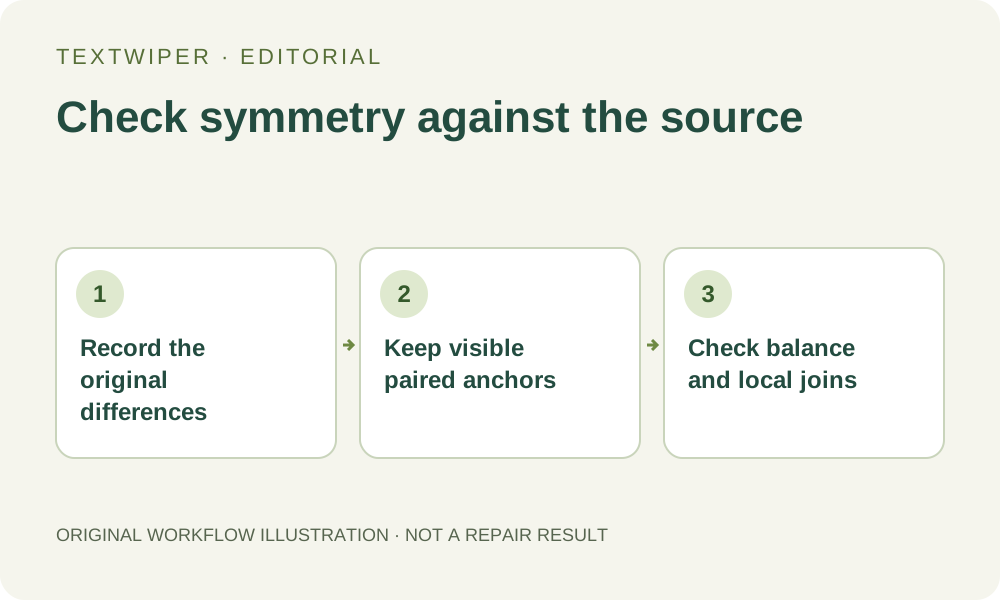
Download an accepted PNG and reopen it at the intended display size, keeping the source separate. Manual selection, Quick repair, Smart repair and downloads are free during beta without an account. Whole-image automatic cleanup is a separate limited sign-in trial and is not a symmetry-restoration function. The workflow diagram illustrates checks; it shows no before-and-after performance evidence.