PRACTICAL IMAGE EDITING
Remove Subtitles from One Still Frame of Your Own Video
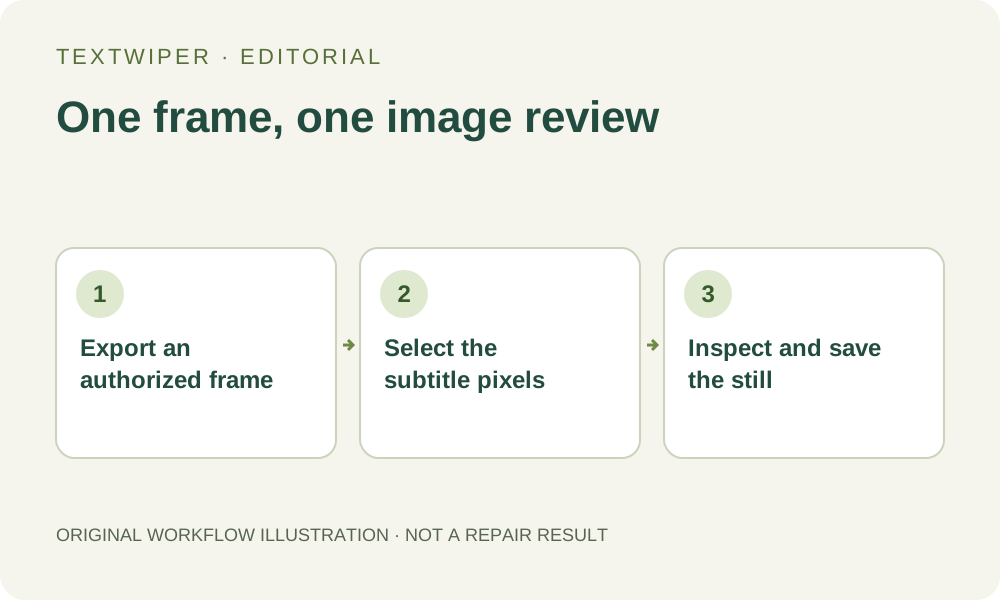
For a thumbnail or a still illustration, export one frame from your own video and remove only the unwanted subtitle pixels in that image. TextWiper edits supported still images; it does not open a video, remove an entire subtitle track or process consecutive frames into a finished clip.
Published 2026-10-15 · Updated
1. Check whether the subtitle can be hidden before export
A subtitle displayed by a player can be a separate track, while burned-in subtitles are already part of the frame pixels. If your video editor or player can hide a separate subtitle track, export the clean frame there instead. That avoids reconstructing a background which was never covered in the underlying video.
If the words are burned in and you are authorized to edit the material, export a single frame as JPG, PNG or still WebP. Use the video's frame-export feature when available rather than capturing playback controls, a progress bar or a low-resolution browser preview. Keep the original frame separately and check that its orientation and dimensions are correct.
2. Choose a useful frame before choosing a repair mode
If several moments would suit your illustration, prefer a frame where the subtitle covers a simple background and does not overlap a face, a hand or important lettering. Moving to another moment in your video editor may produce a better source than repeatedly enlarging an image removal mask.
Read the whole caption area. A second subtitle line, speaker name, outline or translucent backing box may extend beyond the most obvious words. Decide which of these elements belongs in the still image and which should go; do not remove intentional scene signs simply because they also look like text.
3. Mark the subtitle in the still-image editor
- Open the exported still in the TextWiper text remover. You do not need to sign in or start the separate automatic cleanup trial to use this manual workflow.
- Zoom into the caption. Use Brush for letters and their outline, or Area for an isolated caption block where the surrounding background is simple.
- Include an unwanted shadow or backing box only if you intend to reconstruct that whole region. Check for a separate second line before repairing.
- Use Erase to remove excess green mask and Protect for nearby visible scene details. A protected region keeps its original pixels, including any subtitle that crosses it.
- Try Quick repair for a smooth background; inspect Smart repair on the same selection when texture requires a different approach. Neither choice can reveal the exact detail hidden behind the caption.
- Inspect the full result. If you revise the selection, repair again; mask edits return to the original and are not themselves an updated finished frame.
4. Judge the frame as an image, not as moving footage
Look for faint letter outlines, repeated texture and the rectangular edge of an old subtitle box. Check a horizon, a floor joint or clothing that crossed the caption, then inspect nearby faces and hands. A still image invites close inspection even when the corresponding moment passed quickly in the original video.
TextWiper shows the full repaired result by default. Use Show comparison only when you want to locate a difference, then Hide comparison to evaluate the complete image. Review the still at original size and at its intended thumbnail or article size; the small preview alone can conceal damaged features.
5. Save the still and keep video work in a video editor
Download PNG and reopen the actual file before adding it to your article, slide or thumbnail layout. Keep it distinct from the original export so you do not confuse a repaired still with an untouched video frame. If another application needs JPG, inspect that converted file too because JPEG encoding can change the whole image.
This file has no video timeline, audio track or subtitle timing. It does not replace the video source and cannot demonstrate that adjacent frames would match. To change a complete clip or a subtitle track, return to a video editor; repeating this still-image procedure is not an automatic video-removal feature.
When another frame is the better answer
Stop if the subtitle crosses a mouth, eye, instrument control or other detail that the repaired image changes visibly. Try another authorized frame or obtain a clean export from the source project. Where the missing content matters, a plausible fill is not a substitute for the original scene. This tutorial describes a workflow, not a measured result or a guarantee for any particular video.