PRACTICAL IMAGE EDITING
Remove Added Text from Metal While Checking Brushing and Highlights
An added caption over brushed steel or polished metal can interrupt both fine texture and a broad bright band. Select only the overlay, then inspect those two features separately. A smooth gray fill may flatten the surface, while a sharp invented scratch may misrepresent the item. Metal-texture cleanup is an estimate, not recovery of the actual finish beneath the lettering.
Published 2026-10-20 · Updated
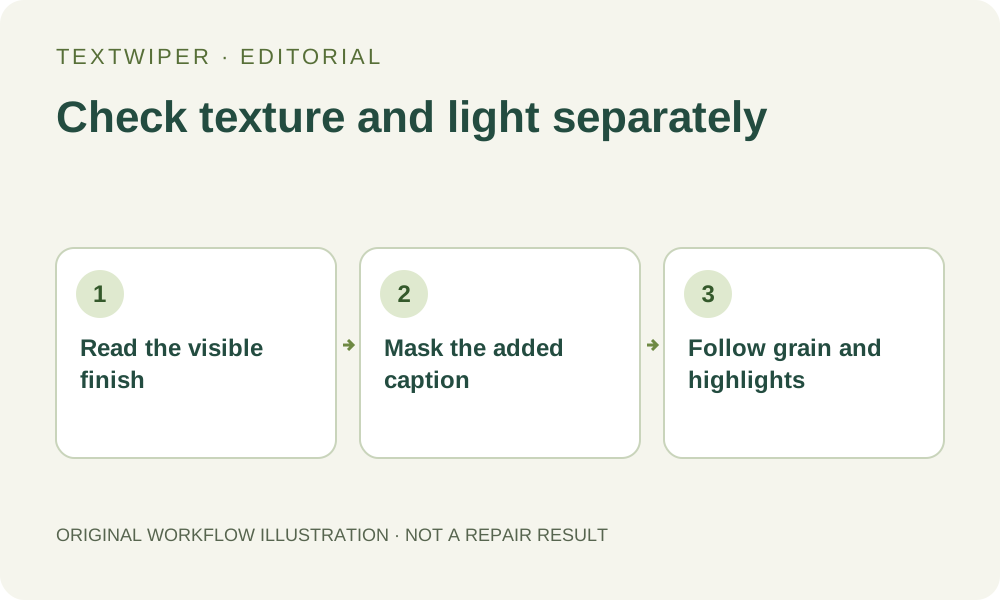
1. Separate added wording from the object’s own marks
Keep the original and use a photograph you own or have permission to edit. Identify the digital caption you intend to clear. An engraved number, stamped mark, wear line or product warning may belong to the metal object itself. Do not treat every detected dark shape as a disposable overlay.
Look for the unmarked photo or a layered composition first. When the photograph describes a particular product, finish quality and existing scratches can be important. Decide whether this is an ordinary presentation edit or an image that must accurately show the individual item. A cleaner-looking surface should not silently imply a different condition.
2. Read fine brushing and broad lighting as different features
Inspect narrow visible lines around the caption. Note their direction, spacing and variation, without assuming all metal is brushed. A polished surface may instead have broad reflections with little fine grain. Use the finish actually present in this photograph as the reference, rather than adding texture just because the object is metallic.
Then follow broad bright and dark bands across the surface. Look at where they taper near a curve, edge or seam. A filled patch may match the local gray color yet break the larger light transition. Unlike a glass-pane task, this check does not reconstruct a separate scene viewed through the material. TextWiper provides no metal-finish or reflection-alignment control.
3. Make a small mask without swallowing the reference finish
Find text is optional and asks for recognition upload permission. If used, check that the selection targets the added caption rather than stamped numbers, brand lettering or other intentional markings.
- Open the original in TextWiper, zoom in and use Pan to inspect the caption and an intact neighboring patch.
- Choose Brush to cover the visible letters and their outline or shadow. Leave clear spaces between them unselected where practical.
- Use Erase to reduce excess green coverage near a bright boundary. Protect exposed edges, screws or other necessary details beside the caption.
- Check protection overlaps: it retains input pixels, including any overlay present there. It cannot uncover a clean screw head or true finish under a letter.
- Repair a small representative part before extending the work. Keep earlier intended removal areas in a revised mask and rerun repair from the original.
4. Compare local modes without creating a false product finish
Quick repair can be a first candidate for small lettering on a relatively even part of the surface. Smart repair may be worth comparing when the mask crosses texture. Use the same checked mask and inspect the light band as well as the fine lines. Added sharpness is not evidence that the hidden scratches were recovered.
Manual selection, Quick repair, Smart repair and downloads are free during beta without an account. Whole-image automatic cleanup is a separate limited sign-in trial with separate upload permission and allowance. It may modify unprotected regions elsewhere, and is not a guarantee of preserving the object’s finish or exact reflected shapes.
5. Follow direction, brightness and boundaries in order
The full repaired result appears by default. Check whether brushing changes direction or density at the patch, whether a distinctive scratch repeats, and whether adjacent fine lines merge into a smear. Next follow the broad highlight across the old caption. Look for a sudden flat zone, a hard bright edge or a band that inexplicably changes width.
Inspect the silhouette, seam and visible fasteners near the repair. Use Show comparison to locate changes, then Hide comparison to judge the complete object. Check close up and at the intended display size; an apparently subtle highlight break may make a curved object look dented or flat when the image is reduced.
6. Reject edits that change the condition or shape
Stop when a repair erases a relevant dent, adds a scratch, changes an edge or replaces an important stamped mark. Do not keep enlarging the mask until the whole surface becomes uniformly gray. Obtain an unmarked original, remove the caption in the source design or photograph the object again when faithful product detail is necessary.
Download a reviewed PNG and reopen it, comparing the saved file with the source and the destination’s display copy. Keep the original and candidate separate. This article provides a surface-specific review plan, not a new metal-image test or proof that a polished-looking replacement is the authentic finish.