PRACTICAL IMAGE EDITING
Remove Overlay Text from Wood While Checking Grain and Board Seams
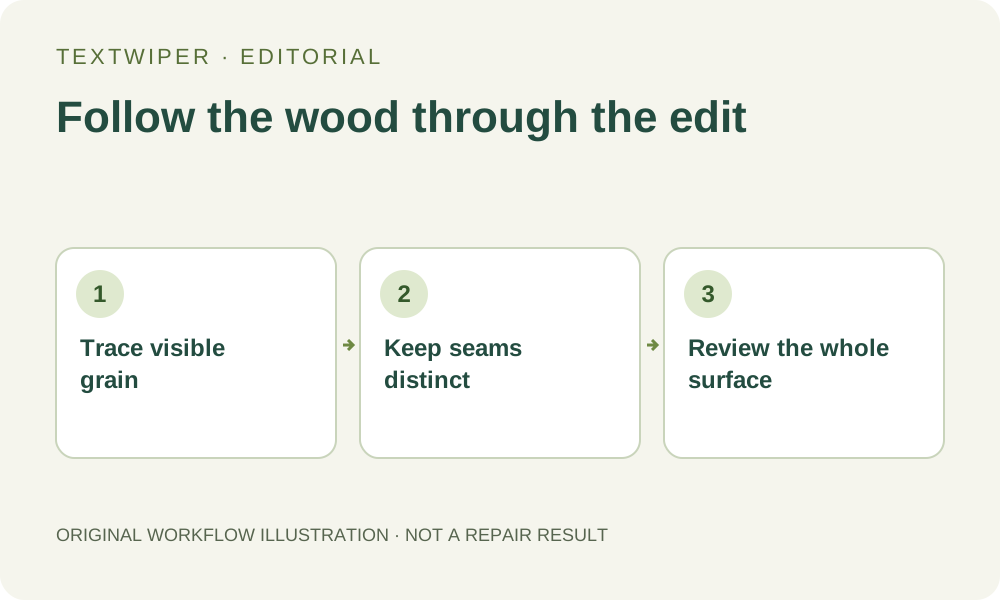
For an unwanted caption over a wooden table, shelf or panel, follow the visible grain before selecting the letters. A patch may share the right brown color yet interrupt a long grain line or bridge two separate boards. Use a limited manual repair and judge the wood as a connected surface, rather than accepting a smooth patch simply because the text is gone.
Published 2026-10-19 · Updated
1. Identify the overlay and the surface you need to retain
Keep the original photograph and confirm that the caption is yours to remove. A digital note across a tabletop is different from a maker’s stamp, engraved lettering or a mark that documents the object’s condition. This workflow concerns an added overlay on an authorized image. It does not promise to restore physical wood or establish what an obscured stamp originally said.
Look for a version without the caption or a layered design first. If the wood itself is a product being sold, exact grain, finish and wear may matter to the buyer. Treat a repaired section as an estimate. A plausible replacement is insufficient when the image must accurately record the individual item’s surface.
2. Trace grain, knots and seams separately
Before drawing, follow several visible grain lines toward both sides of the caption. Notice their direction, spacing and changing thickness. Some lines bend around a knot rather than running straight. The aim is to compare the repaired patch with the actual neighboring wood, not with an idealized set of parallel stripes.
Identify board seams independently from grain. A dark seam may separate two boards with different directions and colors; a thin grain line belongs within one board. Also note highlights from varnish and shadows at joints. Mark these landmarks mentally or in a separate review note. TextWiper has no wood-grain alignment guide or tool for specifying a hidden seam.
3. Build a letter-sized mask before repairing
Find text is optional. If you choose it, review and approve its recognition upload prompt, then select only the added words. Fine grain or dark knots can resemble letter strokes, and a detection box is not a guarantee that only lettering will be removed.
- Open the authorized original in TextWiper. Zoom in and use Pan to inspect the surface without adding a stroke.
- Choose Brush and cover a small, representative part of the caption. Include visible outlines and shadows, while leaving the surrounding grain outside the green removal mask.
- Use Erase to withdraw excess selection near a board seam. Use Protect on an exposed knot, joint or edge that must remain.
- Inspect the mask where letters cross a seam. Protection preserves the input there, including any caption inside a protected overlap; it does not uncover hidden wood.
- Try repair on the limited area. If you extend the selection afterward, retain the earlier intended removal areas and repair the revised mask again from the original.
4. Compare modes without expecting grain recovery
Quick repair can be useful for a tiny letter over relatively even wood color. Smart repair is another candidate when the mask crosses texture. Compare them with the same checked selection and look for continuity rather than simply choosing the sharper-looking output. Neither can verify the original knot shape or grain that the caption covered.
Manual selection, Quick repair, Smart repair and downloads are free during beta without an account. The separate whole-image automatic cleanup trial requires sign-in, its own upload permission and remaining allowance. It can change unprotected areas across the image and is not a control for keeping each board aligned. This local inspection does not require starting that trial.
5. Inspect direction first, then judge the color patch
The complete result appears after repair. Trace a grain line as it enters and leaves each selected letter. Watch for abrupt turns, several lines collapsing into one, cloned knots or a repeated stripe. Follow each board seam through the patch and verify that it has not widened, vanished or joined an unrelated line. Check a varnish highlight for an unexplained break too.
Use Show comparison to locate the change, then Hide comparison to inspect the whole table or panel. Review an enlarged view and the intended display size. A large soft patch can be more obvious in a small product image than individual missed letter edges. Inspect nearby intact wood as well as the center of the repair.
6. Reject a repair that changes the individual object
Stop when a distinctive knot is replaced, a seam moves or a scratch disappears although it was meant to remain. Increasing the mask can remove more reference wood and enlarge the uncertain area. Prefer the unmarked original, an earlier design or a new photograph when faithful representation of the surface matters.
Download a reviewed PNG and reopen it before publication. Keep it separate from the original and check the final uploaded copy for resizing or additional compression. This guide supplies an inspection method, not a new wood-surface test or a claim that every caption can be removed convincingly.