PRACTICAL IMAGE EDITING
Remove Added Text from a Glass Photo Without Confusing Reflections and the View
Glass can show a reflected scene and a view through the pane at the same place. When an added caption crosses both, a repair may look tidy while joining the wrong lines or losing a reflection. Map the visible layers first, select the overlay narrowly and accept that the actual obscured scene cannot be recovered from surrounding pixels.
Published 2026-10-19 · Updated
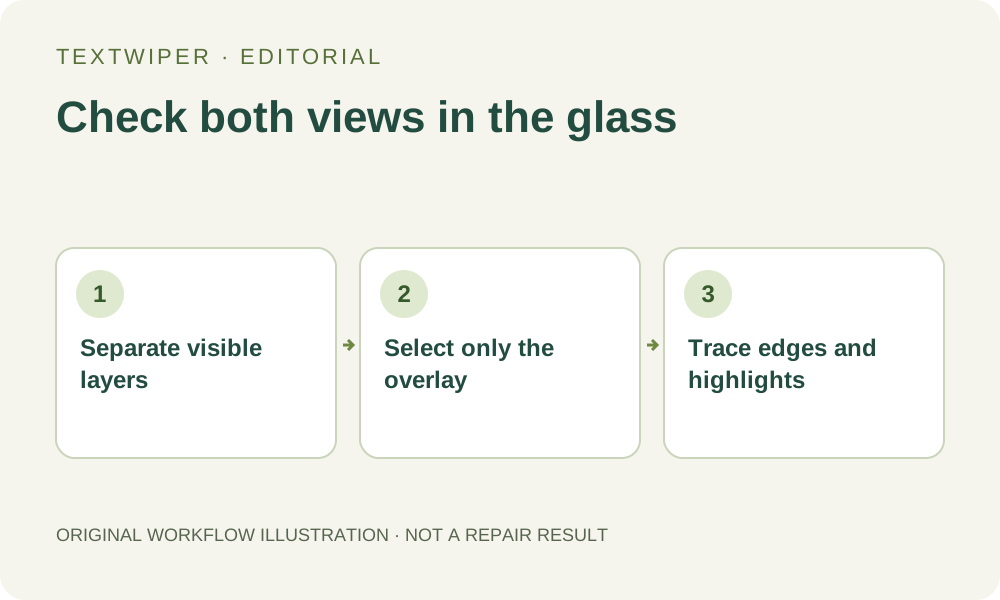
1. Confirm that the target is an added overlay
Use a photograph you own or have permission to edit. An added caption across a window is different from lettering painted on the glass, a required safety marking or a reflection of a real sign. Identify which one you intend to change before selecting text. Removing every word the detector finds could erase information that belongs to the photographed scene.
Look for the unmarked photo or the editable caption layer first. This guide deals with a presentation edit, not with establishing what was behind a shop window or reconstructing a missing scene. When the visible mark documents a condition or required notice, preserve the original and choose an appropriate unaltered image for that purpose.
2. Separate reflected, transmitted and surface features
Inspect the text neighborhood before repair. Identify objects seen through the pane, reflected shapes, bright streaks on the surface and the frame around the glass. A reflected building edge and a shelf behind the window may cross one another without being the same object. Do not require them to merge into a single straight boundary.
Choose a few visible landmarks on each side of the caption: the end of a highlight, the corner of a reflected sign, a frame edge or an object behind the pane. These are inspection references, not ground truth for the hidden pixels. TextWiper does not separate optical layers or let you reconstruct a reflection independently from the view behind it.
3. Make a restrained manual selection
Find text can help locate a caption, but it is optional and requires recognition upload permission. Review each returned item manually: text behind the glass and text reflected in it can both be genuine scene content that you want to keep.
- Open the original in the editor. Zoom in, then use Pan to move between the caption and the selected landmarks.
- Use Brush to follow the unwanted lettering. Include a visible shadow or outline, but avoid one large rectangle across several unrelated objects.
- Use Erase to narrow excess coverage near a pane edge or a bright reflection. Paint Protect over nearby visible details that should stay.
- Check protected overlaps carefully. Protect keeps the original pixels, so any caption inside that area stays too; it cannot retain a clean reflection hidden by the text.
- Repair a small representative area and review it before expanding the mask. When changing the selection, keep the intended earlier areas and run repair again from the original.
4. Choose a mode by the actual patch, not the material name
Try Quick repair on a small word over an even, low-detail patch. Smart repair may provide another candidate where the mask crosses varied texture. Compare with the same mask and inspect both visual layers afterward. Neither option has access to the unmarked window scene, and neither guarantees that a reflected shape has the right identity or geometry.
Manual selections, both local repair choices and downloads are free during beta without an account. Whole-image automatic cleanup is a separate, limited sign-in trial with separate upload permission and allowance. It may change unprotected regions elsewhere in the photo. A confusing reflection is not a reason to assume the whole-image option will preserve the scene more faithfully.
5. Follow the pane, each object and the light separately
The editor shows the full result after repair. Follow the glass frame and any visible pane divisions first. Next, trace selected reflected edges and then objects seen through the glass. Look for a doubled corner, a reflection that stops abruptly, a shelf joined to an unrelated building or a highlight that becomes a flat opaque patch.
Use Show comparison to identify the original crossing and Hide comparison to judge the complete photo. Check an enlarged view and the intended presentation size. An edit can pass a color-match check yet make the glass look painted over. Inspect the whole photograph too, particularly if you chose the separate whole-image trial.
6. Stop when the image needs a scene reconstruction
Reject a repair that invents a readable sign, changes the outline of a product behind the window or removes a significant reflection. Repeatedly widening the mask does not supply the missing scene. If the caption covers the only visible evidence of an important feature, use an unmarked source or photograph the scene again when possible.
Download and reopen a reviewed PNG, keeping it separate from the source. Check highlights and edges in the saved file and on the destination page. This article describes an inspection workflow; it provides no new glass-image test, no layer-recovery feature and no promise that invisible scene details have been restored.