PRACTICAL IMAGE EDITING
Remove Added Text Where One Object Hides Another: Check the Junction
When added lettering crosses the place where one object hides another, review which object is in front before selecting the mark. The repair should preserve the visible overlap relationship, not simply make every nearby line continuous. Record the foreground outline and the rear edge that disappears behind it, use a limited mask, and compare that junction after repair. A smooth fill is not enough if it makes the rear object appear pasted over the front one.
Published 2026-10-25 · Updated
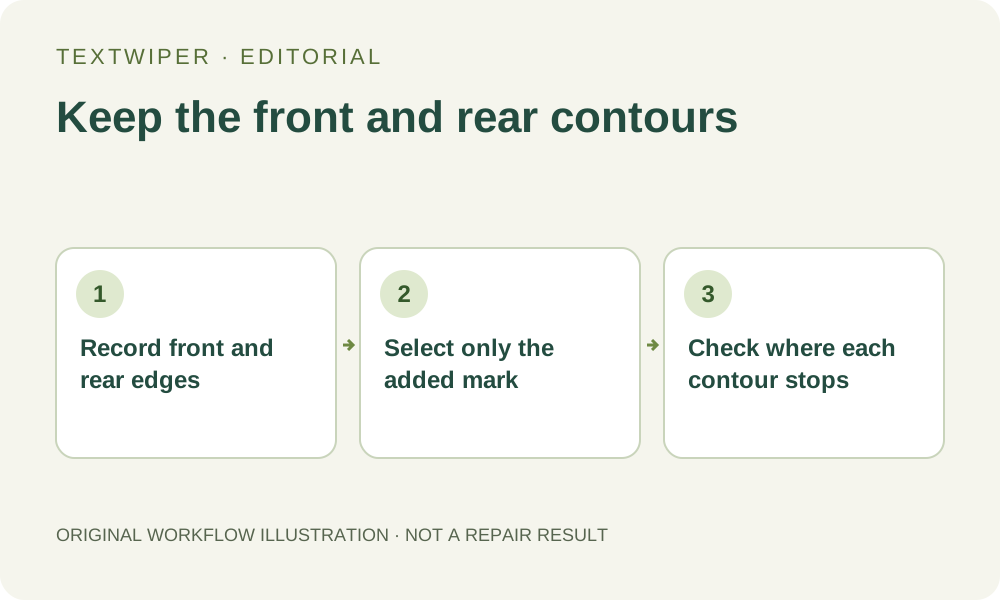
1. Read the overlap before reading the unwanted lettering
Use a photograph or illustration you own or are allowed to edit. Find a visible part of the foreground outline away from the lettering and trace it toward the obstructed area. Then identify the rear object’s edge and where its visible section stops. These are references in the actual source, not instructions to invent the shape hidden behind the front object.
For example, a product can stand in front of a display card while an added caption crosses their meeting point. The card’s edge may legitimately end at the product silhouette. Extending that edge through the product would change the scene even if the extension were straight and sharp. Mark the intended foreground and background in a short review note before removing anything.
2. Distinguish an object edge from a lettering stroke
Zoom in and compare several visible segments, including color changes on both sides of the boundary. A dark line may belong to the object, the added text, or both at the crossing. Decide which parts of the lettering you can locate confidently and which important edge is obscured by it.
Optional Find text can suggest where the words are, after its upload-permission prompt. A detected region does not label front and rear objects or establish the junction geometry. If the text region encloses a large portion of the silhouette, leave that suggestion unselected and use Brush for a controlled local area instead of accepting the whole box.
3. Keep available edge references outside the removal mask
Use short strokes around the unwanted mark, retaining as much clearly visible contour on either side as possible. Separate lettering pieces can stay as separate regions in one mask; do not join them across a useful boundary merely to make the selection appear tidy. Review the mask at close zoom and then against the entire object.
Protect may retain visible sections that must stay, but it also retains whatever unwanted mark exists on those exact source pixels. Where the lettering completely covers the junction, protection cannot reveal an unmarked outline beneath it. Record that uncertainty instead of painting an imagined edge into the interpretation of the source.
4. Compare a repair by the overlap it produces
Run a manual repair appropriate to the surrounding area and inspect the full candidate. Use comparison to check the visible foreground outline leading into and out of the repair. Confirm that the rear edge still terminates where the source shows it disappearing rather than continuing as a new line across the front surface.
Look for a notch, a new bridge between objects or an accidental sliver of background. These can change which shape appears in front without leaving obvious text residue. Also check the immediate colors on each side: a patch that borrows from the wrong side can merge two distinct surfaces even when its texture is plausible in isolation.
5. Assess the junction at the final viewing size
Hide comparison and read the whole composition. At normal viewing size, the product or foreground subject should still have a coherent silhouette, and the overlap should not reverse or become an ambiguous fused shape. A close-up can hide that larger relationship by making you concentrate on individual repaired pixels.
If another candidate is needed, change only the justified selection and repair again from the loaded source. Save any useful earlier candidate first. Do not repeatedly process a downloaded repair merely to force a continuous edge; that can compound an invented junction and make it harder to compare with the evidence in the original.
6. Stop when the hidden junction needs a design decision
If the source does not show enough of the key boundary to support a reliable reconstruction, seek an unmarked original or editable design. You can keep a clearly identified candidate for review, but do not describe its hidden geometry as recovered fact. TextWiper estimates selected background; it does not know which object should cover which other object in your design.
Download the accepted PNG and reopen it to check the junction, whole silhouette and retained text. Manual selection, Quick repair, Smart repair and downloads are free during beta. Optional recognition uploads a resized working image with permission. Whole-image automatic cleanup is a separate limited sign-in trial and still needs a whole-scene inspection; it is not an overlap-correction guarantee.