PRACTICAL IMAGE EDITING
Remove One Occurrence of Repeated Image Text While Keeping the Others
Sometimes the same complete phrase is temporary in one place and necessary in another. Searching for that phrase cannot tell TextWiper which location you mean. This task is about choosing one occurrence of identical wording, not matching a substring or deleting one word inside a longer phrase. Start with a location description, select only the corresponding image region and check every occurrence that must stay.
Published 2026-10-22 · Updated
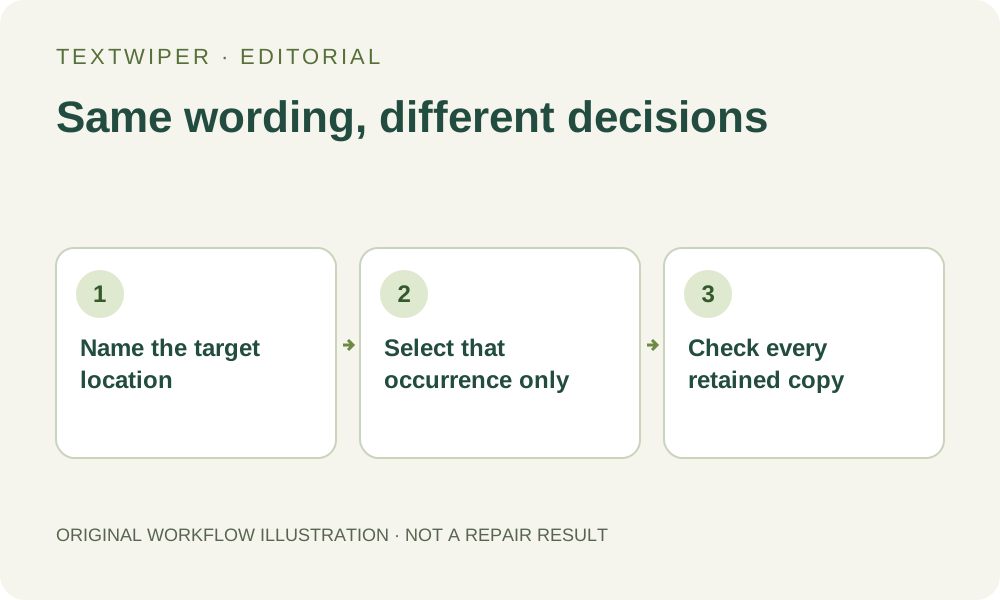
1. Identify the occurrence by position and purpose
Use your own artwork or an image you are authorized to revise. Suppose a fictional handout repeats the full phrase REVIEW COPY in a temporary header and in an explanatory example. Only the header is obsolete. This invented wording illustrates the decision; it is not a recorded scan or a promise about how recognition will group that phrase.
Record the unwanted location as a combination of position and surrounding content: header above the title, for example. Then list the other complete occurrences and why they remain. If your task note contains only the repeated wording, it cannot distinguish those decisions. Avoid using a vague instruction such as remove all review text when only one instance is authorized.
2. Do not use a common keyword as a location selector
A removal keyword matches recognized wording under the current matching rule. It does not mean top occurrence only or the second instance from the left. Contains phrase and Whole word or phrase address textual matching, not a unique visual location. Even a perfectly recognized identical phrase can therefore match several places that require different decisions.
Words to keep also works from matching wording. Putting the same phrase in both removal and protection rules does not express a location-specific exception; protection takes priority for overlapping matches. For this job, a small manual or individually inspected selection is clearer. Do not choose Scan & erase matches as though it will pause to ask which occurrence you intended.
3. Select the intended region in the picture
Brush lets you select without recognition. If Find text would help locate the repeated phrase, read its separate recognition upload permission first. Detection begins with nothing selected. Find the intended item by looking at the actual picture and its returned geometry, rather than trusting a repeated label in the text list.
- Zoom into the location named in your task note and confirm the nearby title, border or other visual landmark.
- Select only that detected occurrence if its real region is suitable; otherwise paint the target with Brush.
- Use Erase to trim coverage that reaches nearby material, and Protect only where visible details should stay.
- Visit every other occurrence and confirm it has no green removal coverage, including old manual strokes.
- Inspect the complete mask before you approve a repair.
4. Check the region size independently of the phrase match
The intended phrase may share a detection with a neighboring sentence. Selecting the correct occurrence still fails if the green area includes wording you need. Words and Characters can offer finer available positions, but they do not manufacture precise boxes from a line-only detection. When no suitable smaller region exists, clear that detection and use a defensible hand-painted boundary.
Blue protection preserves original pixels, including any unwanted lettering that occupies the protected region. It cannot separate two overprinted objects at the same coordinates. Try Quick repair for a suitable simple patch or consider Smart repair for texture only after the target occurrence has a clear boundary. A recognized phrase is not permission to reconstruct its surroundings.
5. Review the removed occurrence and every retained one
After repair, the complete result appears by default. First confirm the intended header or annotation is gone, then read the identical phrase in each location that should remain. Inspect punctuation and neighboring edges too. A cleaner target does not compensate for an accidentally erased example elsewhere in the picture.
Open Show comparison when you need to locate a doubtful change, then return to the full image. If you alter a selection, the previous candidate is invalidated and the workspace returns to the original. Repair again using the revised complete mask and repeat the retained-occurrence checklist. Do not assume the earlier candidate remains committed underneath the new selection.
6. Save the correct version without inventing a global rule
Download a reviewed PNG and reopen that actual file. Recheck the chosen location and all identical copies, including any near the image edge. Keep the original separately. A saved keyword template would save phrase rules, not this one-off geometric exception, so do not expect it to remember which copy you removed on this image.
Manual editing and image downloads are free during beta without an account. Whole-image automatic cleanup is a separate limited sign-in trial with its own upload choice and available allowance; it is not a way to express this positional exception. If the target cannot be separated from required content, obtain the editable source and change that specific object there.