PRACTICAL IMAGE EDITING
Remove an Old Crossed-Out Price While Keeping the Current Price
A crossed-out old price can sit only a few pixels from the amount customers should still read. Removing that old figure is a different task from clearing a broad SALE label: repeated digits, a crossing stroke and shared currency marks can make a keyword selection too wide. Work on authorized artwork, establish which complete price must remain and inspect its meaning as well as the repair. This guide does not verify pricing claims or advertising requirements.
Published 2026-10-21 · Updated
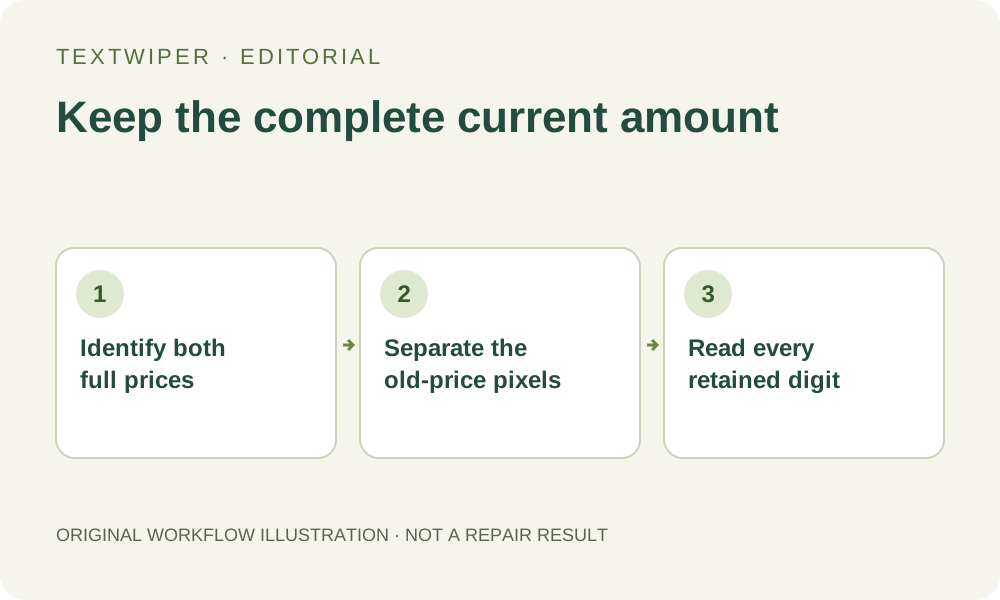
1. Define the obsolete amount and the complete amount to keep
Keep the unchanged artwork and compare it with your current product information. Write down both amounts in full, including currency, decimal separator, unit and any qualifying wording. For example, a fictional layout showing an old 29.90 and a current 19.90 contains the same final digits. That written example explains a selection risk; it is not a processed project sample.
Check whether the crossed-out line belongs only to the old figure or continues beneath the current one. Identify a currency symbol printed between the two prices: it might serve both. If the original design remains editable, remove the obsolete price object there and export a separate copy. TextWiper cannot change the live product price or decide which price is correct.
2. Treat recognition as a location aid rather than a price parser
Open the authorized JPG, PNG or still WebP. You can use Brush directly without requesting recognition. Find text is optional and asks for recognition upload permission before sending a working image. Detection may group both prices, miss a small decimal point or mistake a crossing stroke for another character. Nothing starts selected after detection.
If you use keyword suggestions, do not enter a common number such as 90 and assume it identifies only the old price. Even an exact phrase match can select a detected region containing adjacent content. Inspect the green geometry against the artwork. Switch to a smaller available character selection or manual Brush when a returned phrase combines the old and current prices.
3. Select the old figure and its crossing stroke separately
A rectangle is convenient only when it contains no current-price pixels. Use short strokes near a decimal point or a currency mark. Blue protection preserves input pixels, including any unwanted stroke painted over them; it cannot separate two objects occupying the same pixels.
- Zoom into both complete prices and use Pan to position the narrow gap between them.
- Cover the obsolete digits with Brush, or Area only where the rectangle is safely isolated.
- Follow the visible crossed-out line to both ends and include only the part that belongs to the obsolete offer.
- Use Erase to withdraw green coverage from the current digits, decimal separator, currency symbol and unit.
- Protect nearby visible price details, then examine the complete green and blue mask before repair.
4. Repair a candidate without broadening the price edit
Try Quick repair for a small old-price patch on an even background. Consider Smart repair when the patch contains texture, while keeping the same reviewed mask. Neither mode understands commercial arithmetic or restores an editable price. A plausible fill is insufficient if it closes the gap inside a nearby 9 or makes a decimal point disappear.
Manual selection, Quick repair, Smart repair and downloads are free during beta without an account. Whole-image automatic cleanup is a separate limited single-image sign-in trial requiring its own permission and available allowance. It may affect the whole artwork, so it does not inherit this local price-selection boundary. No automatic trial is needed to follow the manual steps above.
5. Read the retained price before judging the background
The full repaired result appears by default. First read the current amount aloud from the image, then compare it character by character with the saved product information. Check the decimal separator, currency mark, unit, range endpoints and qualifiers. A tiny leftover stroke can resemble a minus sign; a vanished dot can change the apparent amount more than an obvious repair patch.
Use Show comparison to locate changes, then Hide comparison to judge the complete artwork. Inspect the repair edge for fragments of the crossing line and mismatched background. If you revise the mask, the previous result is invalidated: repair again from the original. Do not keep judging a candidate that no longer corresponds to the displayed selection.
6. Reopen the output and stop if the price becomes ambiguous
Download the reviewed PNG and open that exact file. Verify the complete current amount again at the intended product-card size, not only while enlarged. Keep the original and candidate separately. Compare the destination product page as a separate business check; image cleanup does not update its data or establish whether a claimed discount may be published.
Stop if a crossing line covers a current digit, a shared symbol cannot be separated, or the source is too small to read reliably. Return to the design file and typeset the verified information there. Do not accept an invented digit or remove a necessary qualifier merely to obtain a cleaner price block.