PRACTICAL IMAGE EDITING
Remove Old Preparation Notes from Your Recipe Card, Keeping Amounts and Units
When reusing a recipe card you created, remove only notes that you have confirmed are obsolete, such as a later layout comment or a superseded personal test annotation. Keep the verified ingredient amounts, units and preparation instructions together. Image repair cannot decide which version of a recipe is correct. Establish the intended content from your recipe source first, then clean a separate image copy without treating a tidy fill as a recipe check.
Published 2026-10-22 · Updated
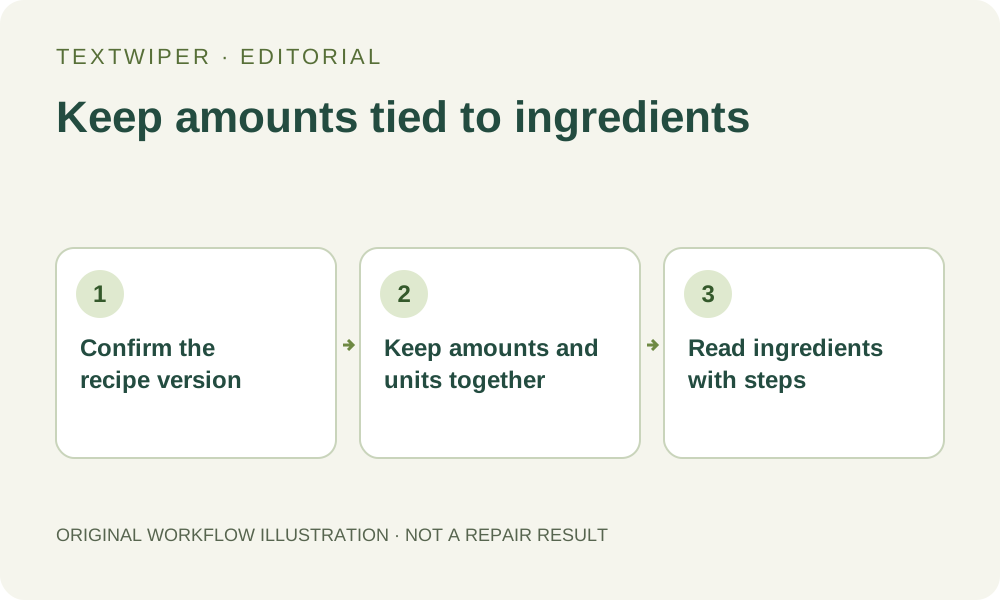
1. Identify the approved recipe and the obsolete note
Keep the unchanged card and locate the recipe version you actually intend to share. Distinguish a disposable comment such as “move this box” from a substitution, changed quantity or instruction still needed to make the recipe. If the note is the only record of a correction, resolve that content in your recipe source before removing it from the picture.
Prefer the editable card or document when the note is a separate object. Hide it on a duplicate, check whether text reflows and export again. A flattened image contains no recipe fields for TextWiper to reconcile. This workflow prepares a visual copy; it does not scale servings, convert units or supply missing ingredient information.
2. Pair each amount with its ingredient and its step
Read the ingredient list in order. Keep each quantity, unit, ingredient name and qualifier as one content group, even if the layout prints them in separate columns. A fraction, decimal point or plural ending can be much smaller than the note beside it. Check where a line wraps so the end of one ingredient is not mistaken for an independent comment.
Then find where that ingredient appears in the instructions. A split amount such as some for the mixture and some for a finishing step needs its association preserved. Keep necessary dietary or other required information that belongs to your intended card. Decide these relationships from the verified recipe, not from recognition results or the apparent color of the handwriting.
3. Mask the note without selecting the recipe column
Open an authorized JPG, PNG or still WebP. You may use manual selection directly. Optional Find text asks for recognition upload permission and may group the margin note with an ingredient line, miss a fraction or read a unit incorrectly. Nothing starts selected. A returned phrase is a location aid, not an ingredient record.
- Zoom into one obsolete note while keeping the complete adjacent ingredient or instruction visible.
- Use Brush for a short note close to text, or Area for a note box that is fully separate from the recipe.
- Use Erase to remove green coverage from amounts, units, line-wrap continuations and numbered steps.
- Protect clear nearby recipe text and column dividers. Protection keeps input pixels, including any note that shares them.
- Check arrows and underlines attached to the note separately; do not remove a connector that belongs to the preparation instructions.
4. Keep the repair within the reviewed note boundary
Try Quick repair for a small note over a fairly even card background. Consider Smart repair for a textured paper illustration, comparing the same mask. Inspect any underline, bullet or divider at the patch edge. Neither repair mode knows that a shortened line changed an ingredient association or that a lost dot changed a quantity.
Manual selection, Quick repair, Smart repair and downloads are free during beta without an account. The separate whole-image automatic cleanup option is a limited single-image sign-in trial requiring its own upload permission and available allowance. It may affect normal recipe wording across the picture. It is not a recipe-aware cleanup mode and is unnecessary for this local manual edit.
5. Read the result as a recipe before judging the patch
The complete repaired result appears by default. Compare the ingredient groups with your verified source, then read the instructions in order. Check every nearby fraction, amount, unit and step number. Confirm that line breaks have not made a qualifier appear to belong to the wrong ingredient and that a remaining arrow does not point into an empty patch.
Use Show comparison to find changes, then Hide comparison to review the full card at the size a reader will use. After a mask change, the previous output is invalidated and the original view returns; repair again before reviewing that version. A smooth background alone does not establish that the retained instructions are complete or internally consistent.
6. Share the reviewed file with a separate recipe master
Download PNG and reopen the actual file. Recheck the ingredient list and the edited instruction area after placing it in its destination layout, since a small display can obscure fractions or unit letters. Keep the editable recipe master, unchanged card and approved image under distinct names. An exported image does not become an editable recipe database.
Stop if a note overlaps an important amount, covers part of an instruction or cannot be classified as obsolete. Return to the source and typeset the verified content there. Do not accept a plausible reconstructed digit or delete a necessary note simply because it is inconvenient to mask. Finish with a readable recipe version whose content was checked separately from the picture repair.