PRACTICAL IMAGE EDITING
Remove Lettering or Remove the Background? Choose the Right Image Task
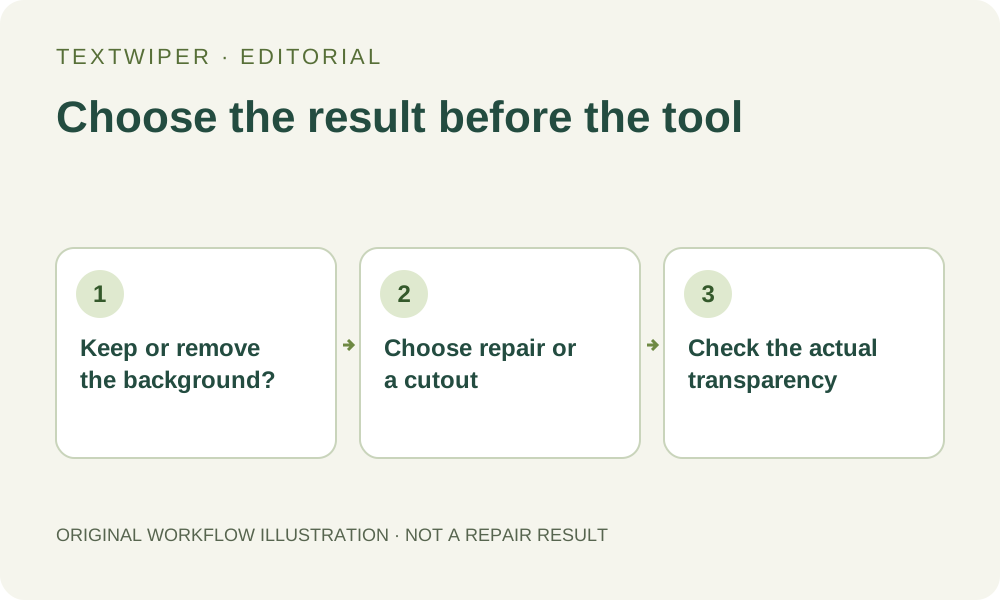
“Remove” can describe two very different requests. You may want an old caption replaced with plausible surrounding image content, or you may want the surrounding background gone so a subject can sit on another design. The first is a local repair; the second needs a cutout and suitable transparency. TextWiper offers the repair route. Its removal selection is not a background-removal or subject-segmentation promise.
Published 2026-10-21 · Updated
1. State what should replace the unwanted area
For lettering removal, the usual goal is to keep the picture continuous where an authorized caption used to be. The selected area receives estimated replacement colors. For background removal, the goal is often an isolated subject with the space outside it made transparent. These results require different information and should not be described by the same success condition.
Ask a concrete question before editing: should the space become more of the existing picture, or should it show whatever is behind the image in another application? If you need both operations, plan them separately. Removing a few words does not automatically isolate a person or product, and a subject cutout does not repair lettering still printed across that subject.
2. Choose a source that supports the intended result
Use an image you own or have permission to modify. If you still have the design source with separate text and subject layers, consider editing those in the source application first. A flattened photograph cannot reveal the exact original pixels hidden by a caption just because you select its letters. Repair estimates a replacement from available context.
If your real need is a product cutout, use a source with an appropriate subject boundary and a tool designed for that job. TextWiper does not currently offer a general subject-extraction workflow. Do not select the entire background in the repair editor and expect the remaining subject to be automatically separated or certified as an accurate cutout.
3. For an authorized caption, follow the local-repair route
This route is suitable when the background should stay visible and you can judge a plausible repair. Keep some surrounding context outside the selection. A large selection may require inventing more than the image can support.
- Open the authorized still image and locate the lettering that may be changed.
- Use Brush or Area to cover the lettering and its visible effects, keeping the selection close to the target.
- Use Erase to trim excess removal coverage and Protect for adjacent details that must remain.
- Choose Quick repair for a suitable simple area or consider Smart repair for texture, then inspect the full result.
- Download the reviewed candidate and reopen it in the destination where you intend to use the picture.
4. Do not read the green mask as transparent output
The green removal overlay shows a region selected for repair. It is a guide in the editor, not a preview of transparent pixels. Erase removes parts of that selection; it is not a general alpha eraser. Protect excludes visible details from local removal. These tools help control the repair boundary rather than construct a new subject silhouette.
For local manual repair, TextWiper retains the input alpha while repairing selected colors. If the original has an opaque white background, selecting that white area does not make it transparent. If the original already has transparency, repairing words does not promise a new contour or fill in a missing alpha shape. Choose the operation according to the pixels you actually need.
5. Verify transparency in the actual file and destination
PNG can carry transparency, but a PNG filename does not prove that a particular file contains transparent pixels. Inspect the reviewed download in the application where it will be placed, using more than one contrasting background if needed to see the existing edge. A checkerboard in an editing interface is not part of the delivered picture.
TextWiper’s JPG download uses an opaque white background, so it is not a transparent-cutout delivery route. Whole-image automatic cleanup is also a separate limited trial for supported opaque images; it should not be used as a substitute for subject extraction. Do not spend trial attempts on the assumption that its name implies every kind of image removal.
6. Keep the two operations and their approvals separate
If the project requires both lettering cleanup and a cutout, retain the untouched original and review each operation in its proper tool. Changing the order can change the available context, so inspect the final combined asset rather than approving the intermediate files alone. Important edges, required labels and recognizable subject features still need to be correct.
Manual selection, Quick or Smart local repair and downloads are free during beta without an account. Recognition remains optional and requires upload permission. This tutorial helps choose an editing task; it is not evidence of a background-removal feature or a new before-and-after test. Stop and obtain a better source if the intended cutout or repair cannot be judged reliably.