PRACTICAL IMAGE EDITING
Remove an Added Label from Pixel Art Without Accepting a Smoothed Grid
Pixel art is built from deliberate small squares, stepped outlines and chosen colors. A repair that looks smooth on a photograph may be wrong for that design. For your own artwork, first remove an added label in the original pixel editor when possible. If only a flattened image remains, try a bounded manual repair and judge the actual pixels at native size. TextWiper does not provide a pixel-grid brush, indexed-palette lock or automatic reconstruction of the artist’s original pattern.
Published 2026-10-24 · Updated
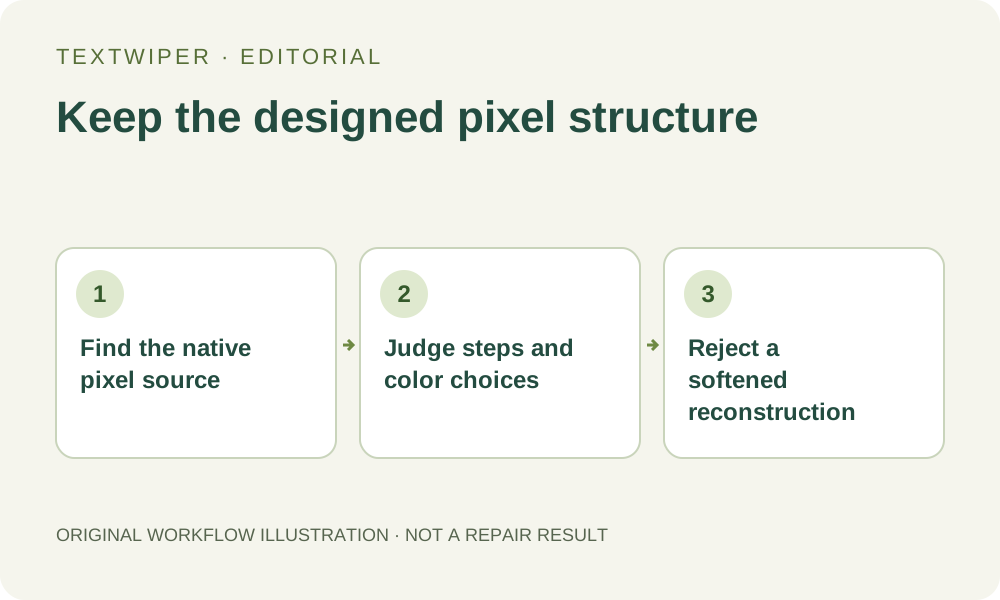
1. Separate the drawing grid from enlargement artifacts
Find the original raster and record its native dimensions before editing. A small sprite displayed enlarged can appear to have a coarse grid because each source pixel occupies several screen pixels. A previously resized copy may instead contain softened edges that were not present in the original. Do not treat those two files as interchangeable inputs.
Use the editable pixel-art project when available. Hide or remove the added caption there, preserving the intended palette and layers. If the only copy has a flattened label across the drawing, keep it unchanged as reference and decide whether an estimated replacement is acceptable. The goal is a reviewed presentation copy, not proof of the exact concealed pixel arrangement.
2. Define which staircase edges and colors must remain
Identify the silhouette, corners and repeating steps around the unwanted lettering. A diagonal made from one-pixel steps can be an intentional contour, not roughness to smooth away. List nearby colors by their visible role, such as outline, highlight and transparent space. These observations define the review; the editor does not infer an official palette from them.
If the caption covers a unique eye, tiny symbol or another essential shape, seek the earlier source rather than guessing. Protect can keep visible input pixels out of manual repair, but cannot reveal hidden design decisions. Whole-image automatic cleanup is not needed for this local task and cannot be assumed to respect the same discrete grid.
3. Make a narrow manual selection on a supported image
Open an authorized PNG, JPG or still WebP within the displayed limits. PNG is the useful starting format when the source needs transparency. Use Brush or Area around the added caption, then Erase to remove excess coverage and Protect for nearby visible details. Work slowly enough to distinguish the intended drawing from the lettering.
- Inspect the native source before enlarging the view.
- Mark only the unwanted label and its visible edge effects.
- Check Show mask for accidental coverage of a deliberate step or isolated pixel.
- Try an appropriate manual repair, then inspect its complete candidate without the comparison divider.
4. Judge the patch as a designed grid, not a smooth texture
Inspect the repaired patch enlarged enough to see its structure, then return to native viewing size. Look for new intermediate shades, softened corners, broken one-pixel gaps or an outline whose rhythm changes through the patch. A blur that hides the word at a thumbnail size may still break the drawing when used at its intended integer scale.
Compare the same region with the unchanged source and inspect retained pixels nearby. Quick repair and Smart repair estimate selected content; neither promises a finite palette or hand-authored steps. A result can therefore fail this task even when the label is no longer readable. Do not describe an attractive photographic fill as faithful pixel-art restoration.
5. Choose a source correction when exact structure is necessary
If the patch introduces colors or geometry you cannot justify, reject it. Return to the pixel-art project or reconstruct that small area deliberately in an appropriate pixel editor using a known reference. TextWiper does not offer per-pixel palette replacement, pixel snapping or a tool for certifying every output color against a project palette.
Changing the selection invalidates the current result, so rerun repair if you make a bounded revision. Save a candidate first when needed, but do not repeatedly enlarge the repaired image and call the additional pixels recovered detail. Enlargement does not reveal the original drawing under the label, and repeated inferred passes can move the result farther from its intended structure.
6. Check the saved PNG in its real display context
Download the accepted PNG and reopen it. PNG avoids a new lossy JPG stage and supports transparency, but does not guarantee that the result retains an indexed palette, metadata or original file bytes. Check actual dimensions, transparent gaps and the complete silhouette. A checkerboard visible in the editor is a display aid, not a background pattern you should intentionally add.
Finally place the file in the destination at its intended size and scaling method. A layout application can soften a correct native image through resampling, which is a separate issue from the saved patch. Keep the original and accepted output distinct. Manual editing is free during beta; this workflow illustrates acceptance decisions and reports no new pixel-art quality benchmark.
Sources
- MDN: image-rendering — Explains browser scaling choices such as crisp-edges and pixelated. Display scaling does not reconstruct the intended source pixels or give TextWiper a palette lock.