PRACTICAL IMAGE EDITING
Remove a Wall Label from a Photo of Your Own Artwork, Keeping the Artwork Intact
For a presentation photograph of your own artwork, decide whether you need the exhibition setting or a clean view of the work itself. A wall label outside the frame can sometimes be omitted with a new capture, a crop in another application or a small local repair. Keep the artwork’s visible marks and frame intact. A label that overlaps the work creates a different problem: repair cannot recover the exact brushwork hidden underneath.
Published 2026-10-22 · Updated
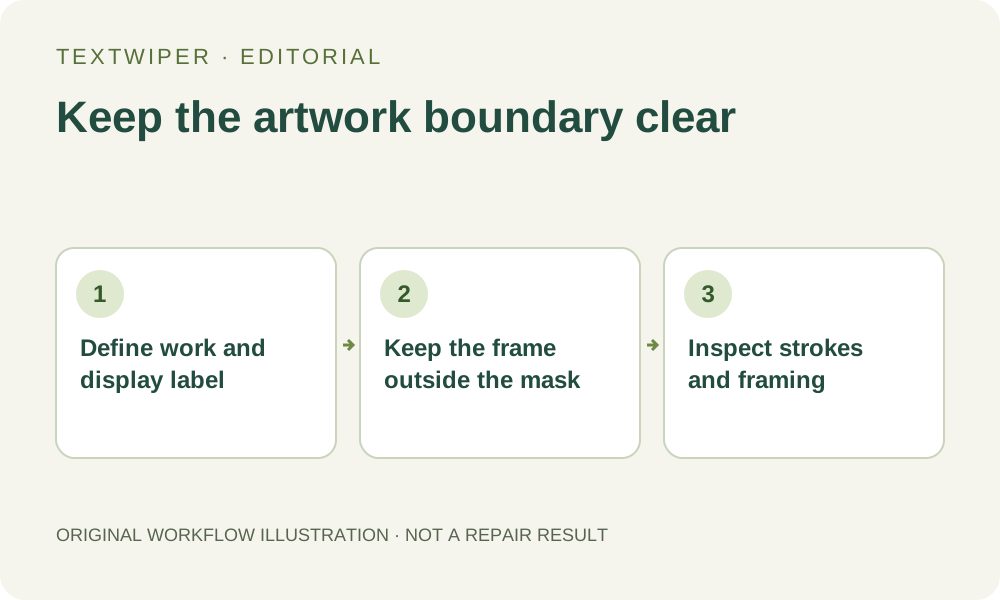
1. Define the presentation copy you actually need
Use your own work or a photograph you have permission to modify. Decide whether the wall label should be absent in this particular copy, rather than assuming all writing around an artwork is disposable. A title, signature, date within the work or intentional painted lettering may be part of the piece. Keep any information required for the intended presentation in the appropriate accompanying material.
Preserve the unchanged photograph and a clear record of the artwork you intend to show. A cleaned setting does not change authorship or create a new photograph of an unseen surface. This guide concerns an edited presentation image; it is not a technique for recreating an artist’s original strokes or authenticating a work.
2. Choose a new view, crop or repair before selecting
If the work is available to photograph again, choose a position that keeps the entire intended work and avoids the label. Check that the new capture does not clip a frame corner, change the useful view or replace needed context. When you need only the work, an appropriate crop in another application may remove the wall label without estimating the wall pixels.
If keeping the wider composition matters, inspect a local repair candidate. Trace the complete edge of the label, its fastenings and any shadow that visibly belongs to it. Separate these from the frame shadow, wall seam and hanging hardware that you plan to retain. A pale rectangle may extend farther than the printed words inside it; removing only its text can leave the physical label obvious.
3. Mark the display label without entering the work
Open a JPG, PNG or still WebP image copy. A wall label is not just a text-recognition problem: its backing, shadow and attachment may be graphical. Manual selection can address the intended local footprint. Optional Find text requests recognition upload permission and may also detect the artwork’s title or signature; those detections do not imply removal.
- Zoom into the label and keep the nearest artwork edge and frame corner visible.
- Use Area only for an isolated label whose rectangle stays outside the work; use Brush for an irregular shadow or attachment.
- Use Erase to withdraw green coverage from the frame, canvas edge, visible brushwork and mounting details.
- Protect clear details beside the label, including an intentional signature if it is nearby. Protection retains the original input pixels.
- Inspect the full boundary. If label and artwork share important pixels, choose a new source rather than asking repair to invent the work.
4. Inspect the wall fill without retouching the artwork
Quick repair can be a candidate for a small isolated label on a reasonably even wall. Smart repair provides another local fill to compare when the wall has visible texture. Keep the same reviewed mask. A clean wall patch can still be unacceptable if the frame corner bends or its shadow gains an implausible break beside the repaired area.
Manual selection, Quick repair, Smart repair and downloads are free during beta without an account. Whole-image automatic cleanup is a separate limited single-image sign-in trial with its own upload permission and allowance. It may change details across the photograph and is not an artwork-preservation mode. This local wall-label task does not require that trial.
5. Review the work before the repaired setting
The full result is displayed by default. Follow the entire artwork boundary, inspect the nearest corner and compare any signature, fine painted edge or visible texture beside the patch. Check that a frame shadow still belongs to the frame, rather than looking like a remainder of the removed label. Then inspect the wall for a rectangular tone change or repeated texture.
Use Show comparison to find the edited area, then Hide comparison to assess the presentation image as a whole. View it at its intended portfolio or slide size, where a crop or broken edge can affect the composition. A changed mask invalidates the earlier result; repair again from the original before judging the revised candidate.
6. Deliver an edited photo, or obtain a better source
Download PNG and reopen the actual file. Check the full frame and intended artwork edges again after placing it in the destination layout. Keep the original photograph and a separate edited copy, with the artwork information attached through the chosen presentation format. TextWiper does not straighten the photographed work, reconstruct a hidden signature or produce an editable reproduction.
Stop when the label covers painted detail, the source cannot resolve a signature or the frame edge changes after repair. Photograph the work again or use an authorized source that shows it clearly. Preserve the difference between improving a photograph’s surroundings and changing the work being presented: a plausible reconstructed brushstroke is not the original artwork.