PRACTICAL IMAGE EDITING
Remove a Cursor or Click Highlight from One Still of Your Own Screencast
For a still illustration from your own screen recording, first look for a frame that shows the intended interface without the pointer or click halo. That can preserve real pixels that repair would have to estimate. If only a flattened frame is suitable, select the unwanted pointer and its visible effect locally, then check the controls beneath and around it. TextWiper edits a supported still image, not a video timeline or cursor track.
Published 2026-10-22 · Updated
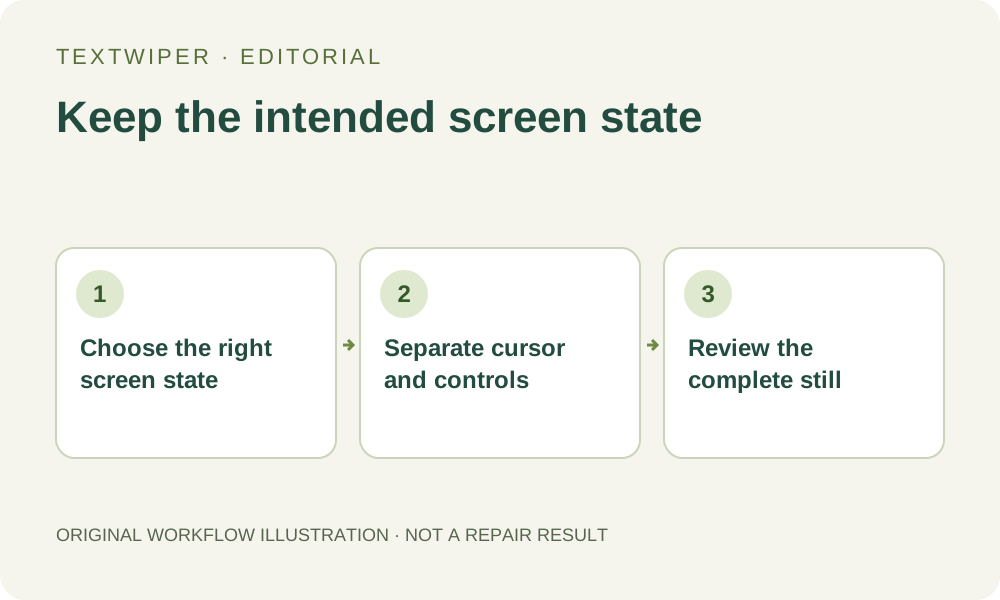
1. Decide whether the cursor is part of the explanation
A pointer can tell a reader where an action occurred, and a click ring can be useful evidence in a tutorial. Decide whether your illustration needs that cue before removing it. A still introducing a settings panel has a different purpose from a step that demonstrates clicking its confirmation button. Keep the unchanged frame and state the intended use of the edited copy.
Identify the actual overlay: an arrow pointer, text caret, circular click highlight, trail or shadow. Distinguish it from a genuine loading spinner, selection indicator or application icon. TextWiper does not know which process drew a ring. Removing a real status indicator to make the screenshot look settled would change the state you are trying to illustrate.
2. Prefer another frame without changing the relevant state
In your recording or its source project, inspect nearby frames using that application’s normal controls. Choose a moment with the same panel, selected item, entered value and message but with the cursor away from the useful content. The exact export controls depend on the recording software. Avoid replacing the intended screen with a later frame in which a setting or result has changed.
Some recording tools keep cursor effects separately; others bake them into the footage. If the source can export without the effect, inspect that export before trying pixel repair. A cursor-free frame is not automatically equivalent when moving the mouse also changes a hover menu, tooltip, focus outline or button appearance. Check those states as part of choosing the source.
3. Map the overlay and its intersections in the still
Export one authorized frame as JPG, PNG or still WebP. Check the entire pointer footprint, including its shadow and a click ring that may be wider than the arrow. A translucent halo can tint text and borders while leaving them visible. It still overlaps those pixels; protection cannot separate the original interface from that tint.
- Open the frame and zoom into the pointer, keeping the surrounding control in view.
- Use Brush to trace the cursor and visible halo; use Area only if its whole rectangle contains no necessary control detail.
- Use Erase to trim green coverage away from text, chevrons, focus borders and status dots.
- Protect visible details beside the overlay, then examine each place where the pointer or ring crosses a control.
- Stop at an obscured character or state marker that cannot be checked from a trustworthy source.
4. Repair locally without expecting cursor-aware reconstruction
Find text is unnecessary for a graphical cursor. If you choose optional recognition for separate lettering, it asks for upload permission and does not identify a pointer track. Quick repair can be a candidate for a small pointer over an even panel; Smart repair offers another local fill to inspect. Neither understands buttons or restores the hidden screen from the recording.
Manual selection, Quick repair, Smart repair and downloads are free during beta without an account. Whole-image automatic cleanup is a separate limited single-image sign-in trial with its own upload permission and available allowance. It may alter the wider interface and is not a cursor-removal setting. It is not needed for this local still-image workflow.
5. Check labels, control geometry and captured state separately
The editor shows the full result by default. Read every label beside the repaired area, follow the surrounding border and check icons at their intended display size. A tiny leftover arrow tip can resemble a dropdown chevron; a missing segment of a click ring can resemble an active outline. Inspect each visible effect, not only the main pointer shape.
Compare selected tabs, toggle positions, entered values and messages with the original frame and your intended state. Open Show comparison to locate differences, then Hide comparison to judge the whole illustration. If you revise the mask, the old output is invalidated; run repair again from the original rather than assuming the previous candidate reflects the new boundary.
6. Save a still illustration and retain the recording
Download PNG and reopen that exact file before inserting it in a guide or presentation. Keep it separate from the unaltered frame and recording. This output has no timeline or adjacent frames, and it does not prove that a sequence of repaired frames would match. To change a full screencast or cursor effects throughout it, use the appropriate recording or video source.
Choose a new capture or another frame if the cursor covers a button caption, obscures a state indicator or leaves an ambiguous control after repair. For a demonstration that depends on the action itself, retaining the pointer may be clearer than removing it. The goal is an honest still that explains the chosen screen state, not an apparently untouched record of every interaction.