PRACTICAL IMAGE EDITING
Remove a Phrase That Wraps Across Image Lines Without Clearing the Gap
A phrase can be one instruction to a reader while occupying two or more separate lines in an image. To remove that wrapped phrase, locate the intended pieces on every line and keep the space and content between them outside the mask where possible. TextWiper’s keyword workflow can match phrases within a recognized line; it does not join arbitrary lines into a paragraph. A large rectangle around the whole sentence is not automatically the right removal area.
Published 2026-10-25 · Updated
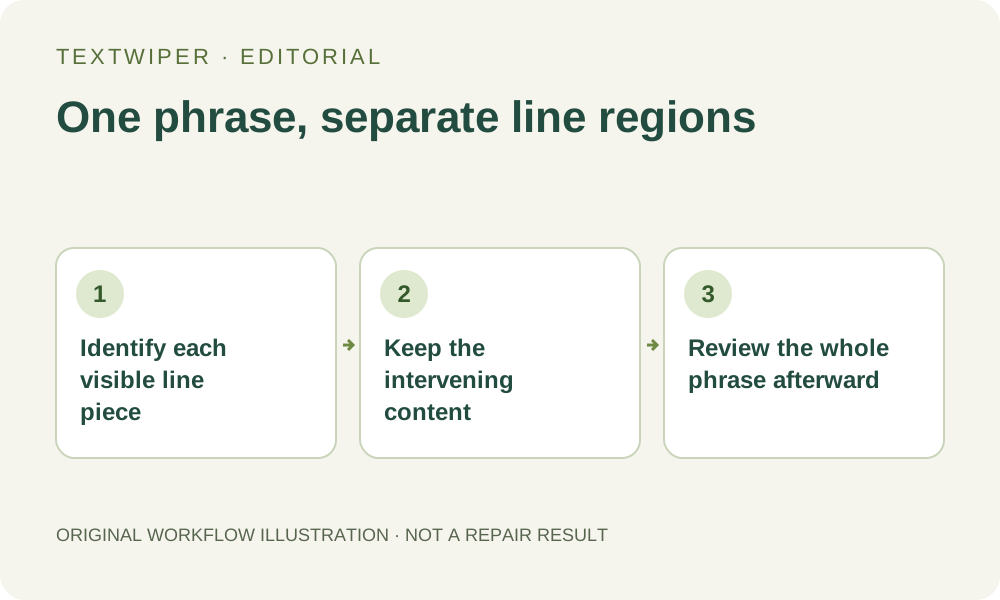
1. Map the intended phrase onto the actual layout
Begin with your authorized original and read the complete statement. Write down which visible words belong to the outdated phrase and where its line breaks occur. A wrap can separate a short expression from its final word or leave punctuation on another line. Decide explicitly whether those marks belong to the removal.
Look through the gap between the target pieces. It may contain ordinary background, but it may also contain another caption, a diagram connector or the top of an illustration. The reading order of a sentence does not make that entire rectangular area disposable. Distinguish the words to remove from unrelated items that happen to sit between their coordinates.
2. Use recognition as separate location information
Open the image in TextWiper. If you choose Find text, first review its permission to send a resized working image for recognition. Compare the returned wording and positions with every target line. A service may split, merge or miss parts of the caption; the displayed reading order is not a semantic paragraph editor.
If you use a removal phrase, expect matching to depend on the actual recognized line information. Typing spaces where the picture has a line break does not instruct the matcher to bridge unrelated lines. Do not keep submitting the same recognition merely to force a paragraph join. Inspect the available regions and select the intended fragments individually when needed.
3. Keep short fragment rules from selecting unrelated occurrences
A practical choice is to select the target regions directly rather than turning each fragment into a broad reusable rule. A short word such as “now” may appear elsewhere in the image and be perfectly valid there. A keyword identifies matching text, not the one position you had in mind when you read the wrapped sentence.
If you do use separate fragment entries, inspect every resulting selection before repair. Add the applicable Words to keep rules when useful, but still review shared or coarse regions. When a selected region includes retained wording, switch the selection view only if real finer positions are available; otherwise remove that region from the selection and use a controlled brush area.
4. Build several local regions instead of one enclosing rectangle
Select the first line piece, then the next, keeping their surrounding gaps unselected. A single repair mask can contain separate regions; there is no need to join them with a painted bridge. Use short brush strokes where a returned region is too broad, and inspect letters with descenders, detached punctuation and shadows that belong to the unwanted phrase.
Use Erase to reduce an overly broad removal selection and Protect for visible details that must stay. Protection retains the input pixels, so a protected overlap can also retain unwanted lettering on those same pixels. Check the actual combined mask rather than assuming that two controls can separate text from an underlying detail when they share one location.
5. Read the complete composition after repair
Choose Quick repair for a suitable simple background or inspect Smart repair where texture warrants a candidate. The default preview shows the full result. Use comparison deliberately to examine each former line region and the content between them, then return to the complete view so no part remains hidden behind a comparison divider.
Read the surrounding text as sentences, not just isolated letter shapes. Look for a stranded comma, a line-end hyphen or a final word that now makes an unintended claim. Also inspect a connector or illustration between the cleared lines. A pleasant-looking first patch is insufficient if the second line or the protected middle has changed incorrectly.
6. Save a coherent result or return to the editable source
Download PNG and reopen the actual file to inspect the whole statement, line spacing and retained content at its intended display size. If the task also requires replacing the removed sentence or reflowing the remaining text, perform that typography in an appropriate design application. TextWiper repairs image pixels; it does not retypeset a paragraph or automatically close its empty lines.
Stop when the unwanted phrase and essential lettering share an inseparable region, or when a large removed paragraph would need a newly designed layout. Seek the editable source rather than widening a mask until the meaning is damaged. Manual selection, repair and downloads are free during beta. The separate limited whole-image cleanup trial does not provide a paragraph-specific deletion command.