PRACTICAL IMAGE EDITING
Several Unwanted Text Areas in One Image? Plan One Mask with Separate Regions
An image can contain an obsolete heading at the top and a small draft note near the bottom while the useful material between them must stay. You do not need to fill that whole span with a removal rectangle. Plan separate regions in one manual mask, then judge one candidate against a location checklist. Each manual repair uses the loaded original and the complete current mask; it does not automatically accumulate a previous repaired result.
Published 2026-10-22 · Updated
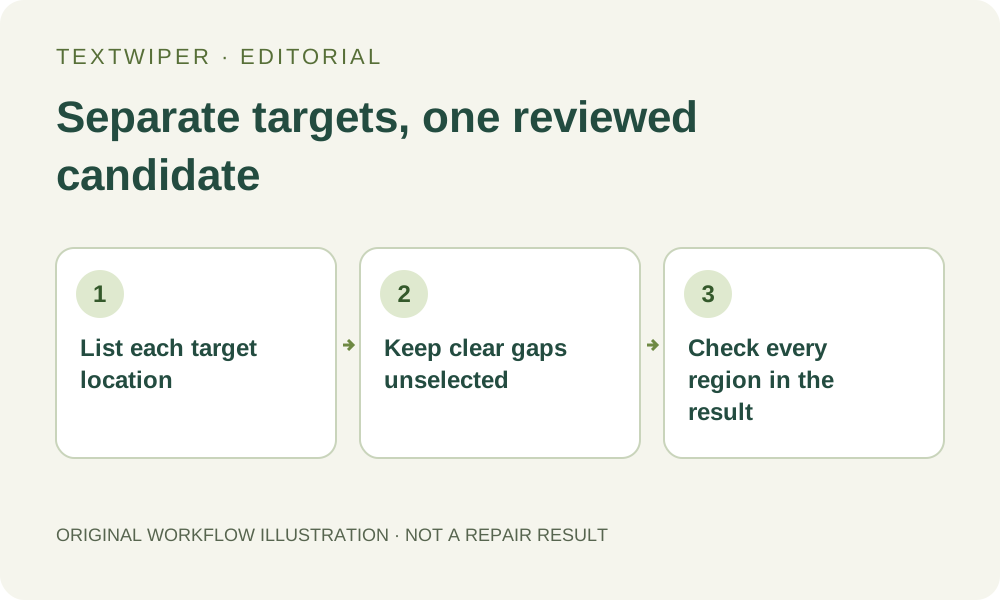
1. Make a location list before touching the image
Use an image you own or are authorized to edit. Describe each unwanted annotation by its location and role, such as top-left draft note and lower-right review label. Those fictional positions explain the workflow, not a new tested case. Also identify the meaningful picture content lying between the targets.
Decide whether all listed annotations belong to the same intended deliverable. If one must remain in a particular version, leave it out of that version’s removal plan. A single count of selected text areas is not a substitute for this inventory: one broad detection can cover several words, while several brush strokes can refer to one label.
2. Keep the original-to-candidate relationship clear
All the separate green regions contribute to the current manual removal mask. Running Quick or Smart repair uses that mask with the loaded original. If you later remove the top selection and repair only the bottom one, the next candidate is not a committed top repair plus a new bottom repair. The unselected top target can reappear.
Changing the selection invalidates the prior preview and returns the workspace to the original. Keep every intended target represented in the revised mask. For a deliberately accepted second source, download and verify a PNG, then open it as a new image; that is a different file workflow, not an automatic behavior of successive repair clicks.
3. Draw disconnected regions instead of a bridge
Start with one target and move around the image with Pan. A large Area selection that spans unrelated content would tell the repair to replace that content too. The fact that both endpoints contain unwanted text does not make the space between them unwanted.
- Zoom into the first target and paint its visible lettering and relevant effects with short Brush strokes.
- Pan to the next target and add its own small region, leaving the gap between targets unselected.
- Use Area only for an isolated block whose full rectangular interior may be replaced.
- Use Erase to remove accidental connecting strokes and Protect for nearby details that must remain.
- Inspect the entire mask and check every item in the location list before repairing.
4. Treat recognition and protection as aids to the same plan
Find text can help locate annotations, but it is optional and asks for recognition upload permission before sending a resized working image. Inspect each returned location. Do not select all detected text unless every detected region genuinely belongs to this task. Manual brush coverage and selected detections can both contribute to the mask.
Blue protection keeps input pixels where it excludes removal, so it can also preserve unwanted lettering that overlaps those pixels. It is not a guarantee that a hidden edge will be reconstructed. If a label crosses an essential object, revise the plan or obtain a suitable source rather than drawing one broad region and hoping protection will infer the boundary.
5. Compare the result one location at a time
Use Quick repair for appropriate simple areas or consider Smart repair for texture, while recognizing that different regions can produce different quality in the same candidate. Neither mode promises a consistent outcome across every selected patch. The full repaired result appears by default; locate changes with optional comparison and then inspect the complete image again.
Read the location list in order. Check that each intended label is gone and that the meaningful gap between labels remains intact. Inspect retained text and the boundaries beside each patch. If one location needs a new mask, revise it while preserving the other intended regions, then repair again from the original and repeat the entire location check.
6. Save one accepted candidate and its source separately
Download the reviewed PNG and reopen that exact file. Confirm all listed locations, dimensions and any important transparent edges. Store the original separately, with a short note identifying the removed annotations. A location checklist helps with review; it is not a cloud project, a stored mask or a promise of recoverable editing history.
The manual selection, local repair and download route is free during beta without an account. Whole-image automatic cleanup is a separate limited sign-in trial with its own upload choice; it does not use the green manual regions as its processing boundary. Do not switch to it merely because the manual task contains several independent labels.