PRACTICAL IMAGE EDITING
Match Image Labels with Symbols: Literal Phrases, Not Wildcards
A short label containing a plus sign, dot or hyphen can look like a search expression, but TextWiper’s keyword fields use literal phrases. They do not interpret regular expressions or wildcard commands. Separators also matter: commas, semicolons and line breaks divide the entries you supply. For an authorized label with meaningful punctuation, compare the detected wording, enter a deliberate rule and inspect its actual selected area before repair. If the syntax cannot describe the target safely, use a manual selection.
Published 2026-10-24 · Updated
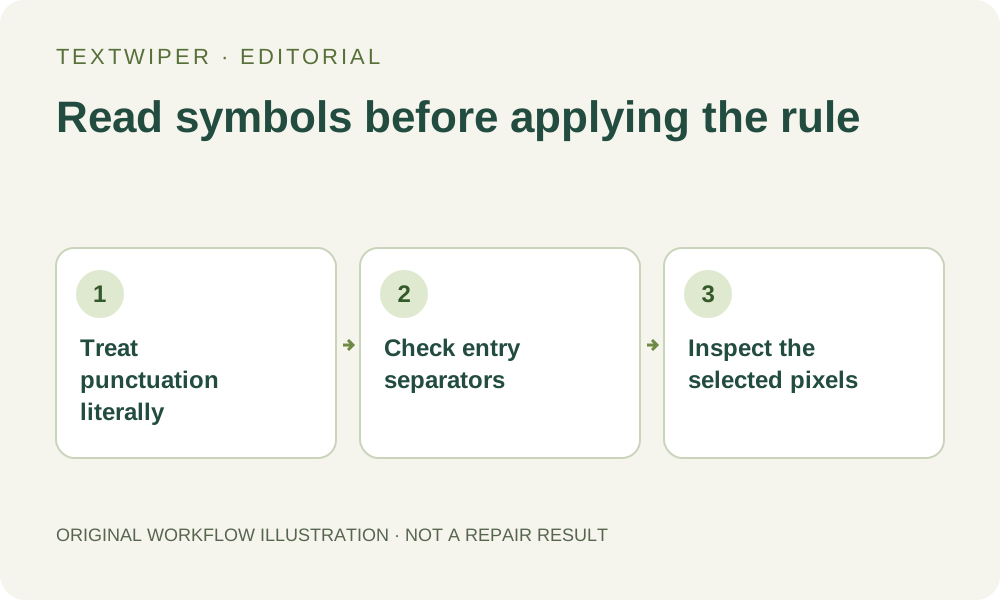
1. Describe the entire unwanted label
Keep the original and identify the disposable label by wording and location. Fictional examples such as C++, v1.0 and TEST-ONLY illustrate symbol-bearing strings; they are not a new recognition test or a promise about how a particular photo is detected. Decide which surrounding lettering must remain before choosing a keyword.
Read the recognized text if you have already used Find text. A dot, plus sign or dash visible to a person may have been missed or read differently. Recognition is optional and asks permission before sending a resized working image. If the target is absent or its geometry is unsuitable, select it with Brush rather than repeatedly scanning solely to obtain a convenient string.
2. Do not turn literal characters into pattern commands
An asterisk is not a request to match every ending, a dot does not stand for any character, and a plus sign does not repeat the previous letter. A phrase that looks like SALE.* therefore describes those characters, not every label beginning with SALE. Do not use programming-style expressions to broaden removal without inspecting their actual meaning in this interface.
Matching normalizes some case, spacing and Unicode forms, but does not equate every punctuation mark or infer an intended version number. A hyphen and a space are not a safe interchangeable assumption. Copy only the wording you intend to target and compare it with the visible detection, preserving the original source as the reference.
3. Check which punctuation splits the entries
Commas, semicolons and line breaks separate keyword entries, including the corresponding full-width comma and semicolon forms. Spaces within a phrase do not split it into separate entries. Quotation marks and backslashes do not create a quoted or escaped entry that overrides these separators. A comma-bearing label therefore cannot be entered as one literal phrase merely by adding quotes around it.
Do not replace that limitation with several broad deletion fragments unless every resulting selected area is appropriate. A shorter fragment can select other labels or an entire coarse text box. When the exact punctuation-bearing target cannot be represented safely, use a location-specific manual mask. The same entry-separator behavior also matters in the keep field.
4. Apply the rule for inspection before requesting repair
Open Use your keyword library and enter the intended removal and keep phrases. Choose Contains phrase or Whole word or phrase deliberately. Whole-word matching is a boundary choice, not a regex mode or a guarantee that punctuation has a single linguistic interpretation across scripts. Keep rules take precedence over removal matches.
- Check the target’s actual detected spelling and location.
- Use Apply to detected text when the required detections already exist.
- Use Scan & match my words only when fresh recognition is needed and approved.
- Inspect green removal coverage and blue protection, including other occurrences.
- Avoid Scan & erase matches while still diagnosing the rule, because it proceeds into repair.
5. Separate a correct string match from a safe image region
A matching phrase identifies available detected regions. It does not invent exact character geometry when recognition returned only a larger phrase box. If selecting v1.0 also covers a neighboring instruction that must remain, change the selection manually or use a smaller genuine region. A successful text match alone is not approval to reconstruct everything inside that box.
Review protection carefully too. A keep phrase sharing the same coarse area can legitimately prevent removal, while a broad removal fragment can reach unrelated labels elsewhere. Do not delete protection merely to increase the selected count. For repeated batches, verify the rule on representative different layouts before requesting any automatic keyword repair.
6. Judge the actual output and keep the rule’s scope clear
After an intentional repair, inspect the complete result by default and use comparison only when helpful. Check that the intended symbol-bearing label is gone, retained text remains correct and nearby structure has not become distracting. A no-match result keeps the original rather than proving the label was removed. A changed mask requires a new repair and review.
Download the accepted PNG or JPG, reopen it and keep it distinct from the source. A saved keyword template can reduce retyping, but choosing it does not scan an image or preserve a prior geometric mask. Manual selection, repair and downloads remain free during beta. This guide explains literal-rule decisions from the implementation, not a new punctuation-recognition benchmark.