PRACTICAL IMAGE EDITING
No Removable Keyword Matches? Check the Rule Before Scanning Again
A picture can contain readable text while your keyword rule finds nothing to remove. Recognition, matching and the effective removal mask are separate stages. TextWiper does not supply a default deletion list, and a keyword-driven edit with no removable area keeps the original rather than manufacturing a cleaned result. Before scanning again or shortening every keyword, find which stage is empty. This guide concerns a rule result, not a promise that recognition sees every word or that the editor understands which wording is obsolete. Start with one authorized image and one clearly identified target.
Published 2026-10-23 · Updated
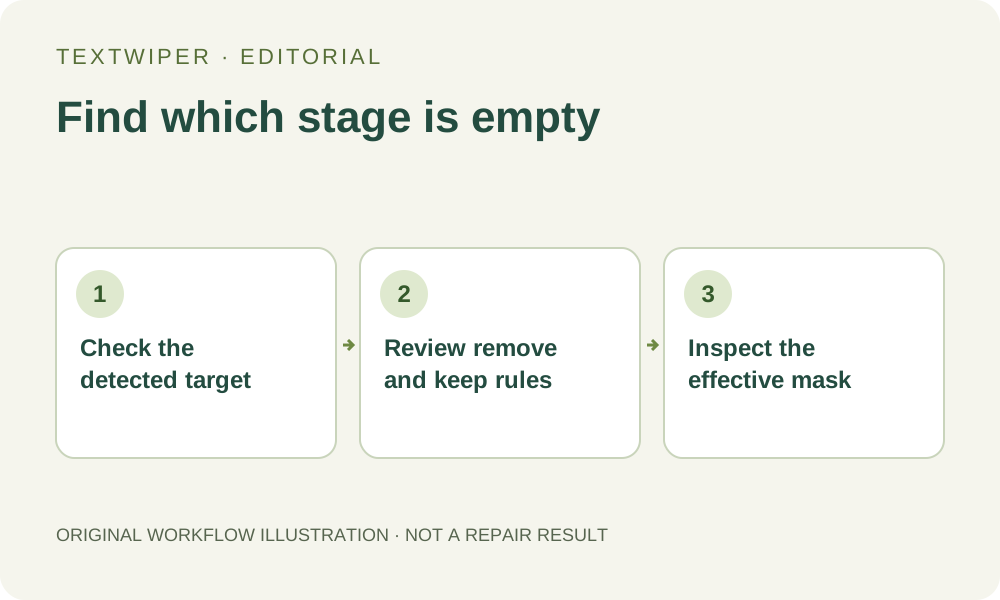
1. Separate visible words from detected words
First locate the intended target on the image, then see whether the recognition list contains it. A target visible only in the picture has not become a usable keyword match just because a person can read it. Small, angled or decorative lettering may be missed. You can select those pixels with Brush rather than repeatedly submitting the same recognition request.
If the correct wording is in the list, continue to the matching rule instead. A list containing other words does not prove the target was recognized correctly. Read its punctuation and spelling, and confirm its location. Recognition is optional and asks permission to upload a resized working image; manual selection and local repair can be used without that request.
2. Check what you entered as a removal rule
The library starts empty. A keep-only list can protect detected content but is not a command to delete everything else. Enter your own intended removal wording, separating entries with commas or new lines. Spaces within an English phrase do not create separate entries. Loading a saved template supplies its fields; it does not by itself approve the visible deletion area.
Compare a complete target phrase with the recognized wording. For example, a fictional draft label written as TEST-ONLY is not necessarily the same recognized string as TEST ONLY. Normalization handles some case and spacing differences, but it does not make all punctuation equivalent or repair every recognition error. Do not use a broad fragment simply to turn an empty count into a nonzero count.
3. Check protection and the actual boundary
Words to keep take precedence over removal matches. If the same detected region matches a protection rule, its pixels may be excluded from deletion. Protection can also overlap a hand-drawn area. This is a reason to review the plan, not to delete the keep list automatically. A legitimate retained phrase can share a coarse detection region with the unwanted target.
Whole-word and containing matches answer different questions. Changing the mode may affect unrelated words throughout the image or batch; it is not a safe general fix for a missing target. If the intended portion cannot be isolated by the available text regions, use a reviewed manual mask. Protection retains input pixels, including any unwanted lettering that shares them; it cannot uncover the background beneath that lettering.
4. Resolve one representative image deliberately
If the target is already detected, change the fields and use Apply to detected text to review the current rule without another recognition request. Scan & match my words includes scanning, while Scan & erase matches proceeds to repair its matches. Avoid that immediate route while diagnosing a rule. An empty result is useful information when the image genuinely has no matching disposable text.
- Confirm the intended target is present and authorized for removal.
- Check its detected wording, or choose Brush if it was not detected.
- Review the removal phrase, keep rules and matching mode without broadening unrelated targets.
- Apply the intended suggestions where available and inspect green removal coverage together with blue protection.
- Repair only after there is a defensible effective removal area, then inspect the complete candidate.
5. Do not count a skipped item as a cleaned image
In keyword-driven batch processing, an item with no removable mask can be skipped with its original unchanged and no result generated. That does not certify the original is already clean. It says the current rule produced no removable region. Check whether the item had no target, a missed target or a conflicting rule before deciding whether it belongs in the delivery set.
A ZIP of successful results should not be used as proof that every input was edited. Map completed outputs to their source items and keep skipped or failed items in a separate review list. Do not insert an unchanged original into a results folder under a name implying successful removal simply to make the count match. Resolve the remaining task or state that it was not performed.
6. Accept a specific change, not a match count
The full repaired result appears by default. Verify the target is gone and required wording remains, using Show comparison when helpful. Changing the mask invalidates the old candidate, so repair and check the new version. Download the accepted PNG or JPG and reopen the actual file; a nonzero rule count or success message is not the final visual check.
Manual selection, Quick repair, Smart repair and downloads are free during beta without an account. Whole-image automatic cleanup is a separate limited sign-in trial with separate upload permission and allowance, not a retry button for empty keyword matches. Stop when the target cannot be identified safely. The useful outcome may be a manual edit or a confirmed no-op, not another recognition request.