PRACTICAL IMAGE EDITING
Recover Batch Delivery When ZIP Export Fails
A batch repair can finish successfully while its ZIP does not reach your device. Separate image processing from result conversion, archive preparation and browser saving. Keep the queue open, identify the stage that failed and save completed images through their individual download controls. Rebuilding the edits is unnecessary when the results are already present.
Published 2026-10-30 · Updated
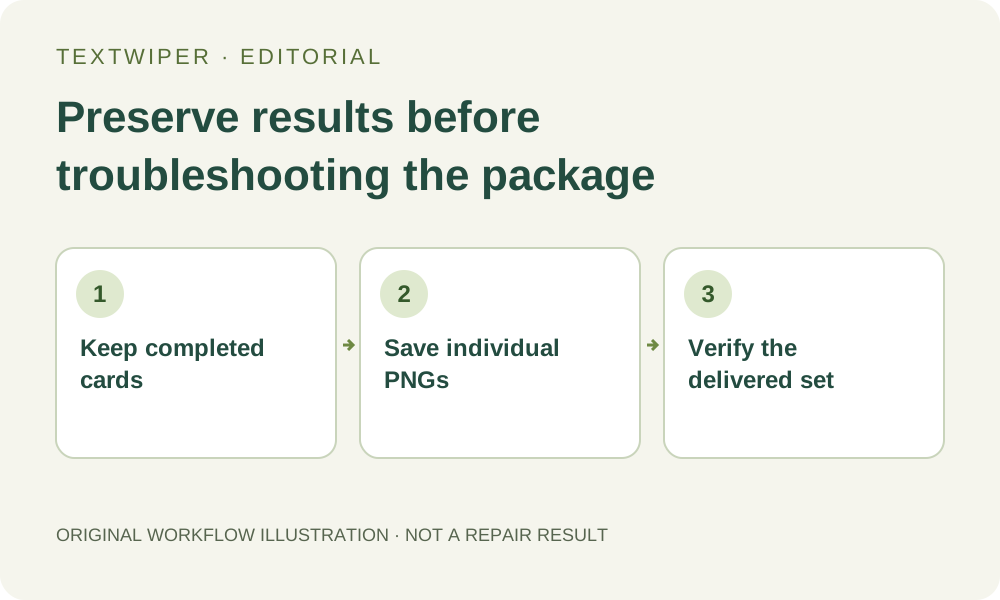
1. Check whether results exist before diagnosing the ZIP
Look for completed cards with Inspect result and individual download actions. Open a representative result to confirm that an actual repair is available. Failed, canceled or reviewed-only cards without a result are a different problem: an archive cannot supply an image that was never produced.
Count the cards that currently have results and record which filenames belong in the delivery. The built-in ZIP gathers current results; it does not repair unfinished cards, automatically restrict itself to a separate recipient list or include historical versions. Establishing this set first prevents a packaging failure from being confused with missing processing work.
2. Separate archive preparation from browser saving
After a ZIP request, the page prepares image files in the chosen format and assembles the archive. An error during this stage can prevent any archive download from starting. Read the visible message and keep the queue available rather than assuming every underlying image has also failed.
If preparation completes but no saved archive is visible, inspect the browser’s download list, save prompt and destination. A browser permission, canceled save or unavailable destination belongs to delivery after preparation. Do not claim a specific cause without that evidence, and do not repeat repair simply because an archive is absent from the expected folder.
3. Use individual PNGs as the first recovery path
For a completed card, use its PNG download action and locate the actual file on your device. This exports the stored PNG result without requiring another recognition or repair. Open it before proceeding, then save the remaining intended results in a controlled order to a new local delivery folder.
Individual downloads may still require browser approval or a save choice. Respond to those controls and check each saved filename rather than launching many untracked attempts. Downloading does not remove a result from the queue or automatically release its in-page storage; keep the tab until the files you need have been verified.
4. Keep format conversion separate from packaging
If the ZIP was requested as JPG, each result needs a JPG export before it is packaged. Trying an individual PNG can help separate access to the existing result from JPG conversion. It does not establish that every JPG encoder or every future archive will work, and it does not change the accepted repair.
The batch JPG path flattens transparency on white and encodes a new image. Use it only if that is suitable for the deliverable. Do not select JPG merely to make a ZIP smaller when the task requires transparent PNG. A ZIP is a container for the chosen files, not a quality setting or a promise of a smaller image payload.
5. Package saved files externally only when appropriate
Once the intended images are safely saved and opened, you may use your own device’s archive tool if the recipient requires one package. That is an external delivery step, not another TextWiper feature. Choose the verified files explicitly and give the archive a name that identifies this delivery rather than an earlier failed attempt.
Reopen or extract the newly created archive into a separate folder and compare its file list with your delivery note. Check the images themselves, especially where several original filenames were similar. A working archive containing the wrong revision or an omitted image is still an incomplete delivery, even if its total file count looks plausible.
6. Clear the queue only after the handoff is verified
Avoid Clear queue, refreshing the page or removing completed cards while their only usable results remain in this tab. Those actions are not ZIP recovery tools. If you later need more room, first verify the saved set, then intentionally start another batch with its own source and output records.
If an individual PNG also fails, keep the source and note the visible export behavior for further diagnosis; do not report that result as delivered. Retry an existing export when appropriate, without consuming an automatic trial or rerunning the entire queue. Completion here means the recipient’s intended image files can actually be opened, not simply that a ZIP button was clicked.