PRACTICAL IMAGE EDITING
Send Only Selected Batch Results Without Including the Whole ZIP
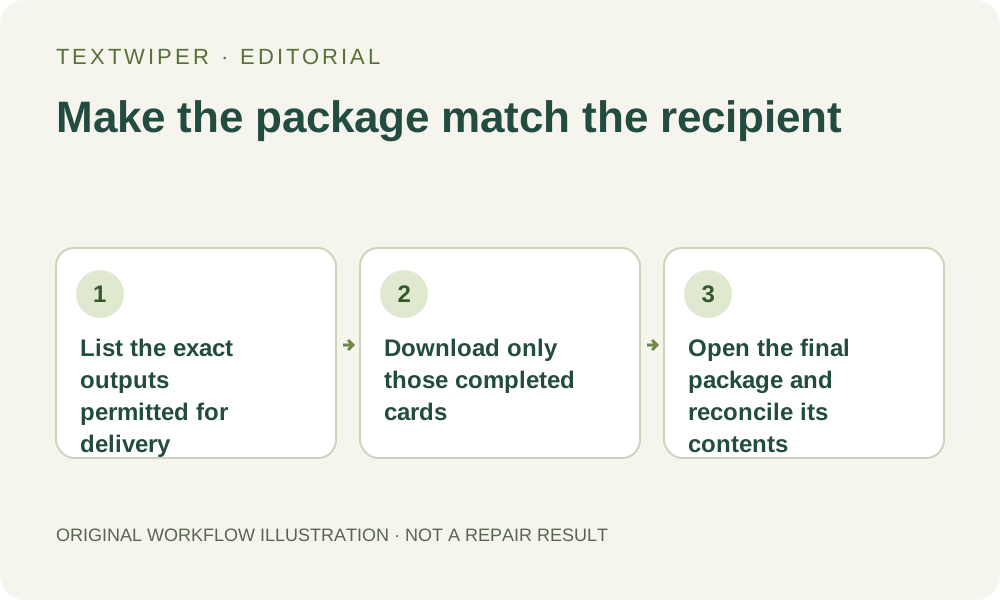
When a recipient needs only part of a batch, download those completed cards individually and assemble the delivery outside TextWiper. Download results as ZIP includes every card that currently has a result; a result-ready state does not mean that the file is approved for this recipient. The text-selection controls do not select export membership. Keep your working collection intact while making an explicit delivery subset.
Published 2026-10-28 · Updated
1. Define the delivery subset before using an export button
Make a short local list of the exact views and revisions the recipient needs. For an illustrative internal review, a batch may contain six completed product views while a partner is permitted to receive only two. The numbers describe a planning example, not an observed customer batch. Decide membership by the actual files and their permitted use, not by queue position.
Keep delivery permission separate from repair quality. A useful draft can be repaired successfully yet remain unsuitable for that recipient, placement or publication. The original source may also have different sharing permissions from the accepted output. Do not include it merely because it is nearby in your download folder or might help someone compare the edit.
2. Understand why the convenient ZIP is too broad
The current batch ZIP gathers every card with a stored result and encodes them in the single chosen ZIP image format. It has no per-card include or exclude checkbox for an arbitrary recipient subset. A card can have a result before you have approved it for this particular handoff. Inspecting two cards does not restrict the ZIP to those two.
Select all detected text and Select none operate on recognition selections, not package membership. Applying selection changes can also invalidate results. Do not use those controls, a keyword-rule change or a repair-mode choice to curate an export list. Those actions concern image editing and cannot express who should receive an already completed file.
3. Download the specific completed cards individually
Wait until the queue is idle. Open Inspect result for each intended member and check its full picture, accepted revision and retained content. Then use that completed card’s PNG or JPG button according to the delivery requirement. This exports the stored result; there is no need to recognize or repair it again simply to exclude another image.
PNG retains the current transparency; JPG places transparent content on white and re-encodes it. Choose the representation deliberately even when all members use the same format. A card without a result has no completed-image download to include. If a source was intentionally left unchanged, handle that authorized original separately and describe it honestly rather than calling it a repaired result.
4. Assemble a clean delivery folder outside the editor
Locate and reopen the saved files on your device, then copy only the intended outputs into a separate delivery folder. Match each file to your list by actual content and revision. Numeric queue prefixes help distinguish current entries, but filenames can be simplified during export and are not permanent asset identifiers. A browser may also rename repeated downloads.
Leave source files, obsolete candidates, unrelated results and private working notes outside that folder unless their inclusion is explicitly appropriate. Do not delete useful queue cards merely to make ZIP export contain fewer items. That would discard their in-page work. Individual downloads let you curate a package while the rest of the collection remains available.
5. Create and inspect the package in a separate local tool
If the recipient requires one archive, use your device’s normal archive tool on the curated folder. That package is created outside TextWiper; it is not a second built-in selective-ZIP mode. Give it a clear local delivery name, avoiding the assumption that the automatically generated batch archive represents this narrower list.
Open or extract the finished archive and compare its actual entries with the list. Check for missing files, duplicates, browser-renamed copies and an unintended source or earlier revision. Open the images themselves as well as counting them. The right number of entries can still contain a wrong view, and an archive name cannot prove that all members were reviewed.
6. Confirm the delivered set without losing the working set
Send or upload the checked package through your intended channel and confirm which identified version the recipient should review. If the channel recompresses or substitutes previews, inspect the available final copy separately. TextWiper does not send the files, grant recipient permissions or record their approval; those delivery actions belong to your external workflow.
Keep accepted masters and a concise membership note before closing the workspace. An account does not save the temporary queue, masks or output package. This guide is about selecting which existing results to hand off, not secure redaction or automated distribution. Manual batch editing and downloads remain free during beta; whole-image automatic cleanup is a separate limited workflow.