PRACTICAL IMAGE EDITING
Only Some Images Were Added to Your Batch? Reconcile Accepted Files Before Retrying
Choosing several files does not guarantee that every file becomes a queue card. TextWiper checks them individually: accepted images remain when another file is rejected, and reaching the ten-image queue cap stops checking the remaining selection. Compare the cards with your own source list before starting recognition or adding the whole selection again. A file that was never admitted has no Retry this image button.
Published 2026-10-28 · Updated
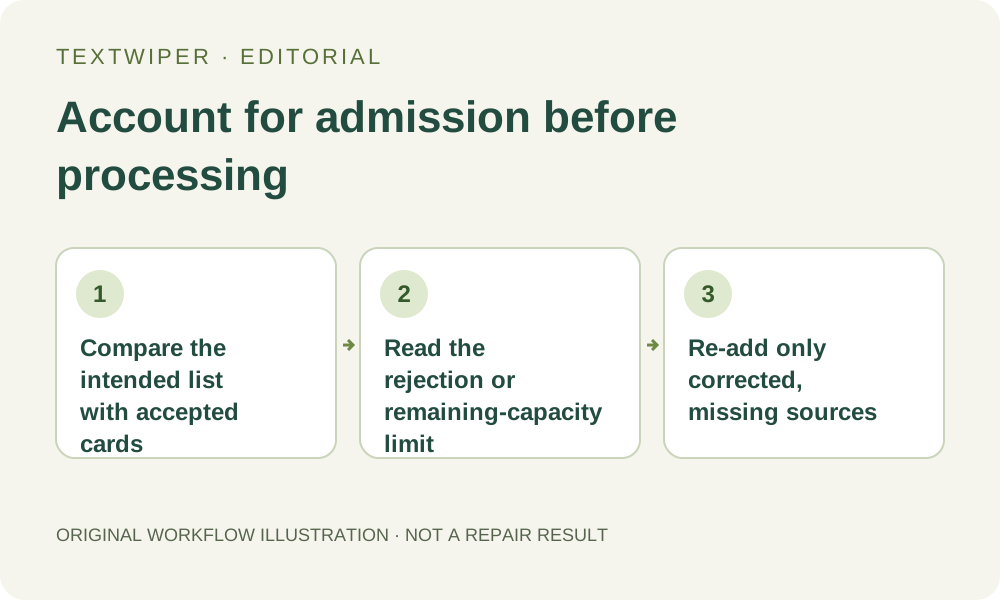
1. Establish what you intended to add
Use supported images you own or may edit, and keep a short list of their local names and recognizable views before choosing them. Record how many cards were already in the queue. The displayed total after an addition includes those existing cards; it is not the number just accepted from the latest file picker.
For an illustrative case, a queue already contains two cards and you choose four additional files. If the final queue shows five cards, that total alone cannot identify which of the four failed to enter. Match each new card by its name, thumbnail and dimensions. This example explains reconciliation; it is not a measured upload or processing result.
2. Separate accepted cards, rejected files and unchecked remainder
Wait for the file-checking operation to finish and read the queue status, including the file-error lines. Earlier accepted files are not rolled back because a later file is invalid. Each admitted file has its own card. A rejection is therefore an input-admission problem, separate from a recognition or repair failure on an existing card.
At ten cards, checking stops for the remaining selection. A file after that stop may not have been examined at all, so do not label every missing file corrupt. Also, adding the same local file again can create another card: there is no automatic duplicate-file reconciliation. Retrying the entire picker selection can hide the original omission among duplicates.
3. Check both per-file validity and remaining queue capacity
Current inputs are static JPG, PNG or WebP, up to 10 MB each, 4096 pixels on each side and 16 megapixels per image. A renamed extension does not turn an unsupported or damaged file into a supported image. If the message concerns format, decoding or dimensions, inspect that particular source in a trusted local tool before trying a corrected working copy.
The current queue also has a ten-card cap, 40 megapixels in total and a 100 MB compressed-source storage cap. Existing cards count toward those totals even after downloading their results. A small compressed file can still use many decoded pixels. When a pixel-capacity check rejects one file, a later smaller file may still be admitted; do not assume the accepted set is simply the first consecutive files.
4. Correct only the cause that actually blocked admission
If the queue is full, first save and reopen any useful results, then remove cards you no longer need or finish this group before starting another. Removing a card discards its in-page draft and result. Downloading alone does not free a slot. Do not clear a useful collection merely to make the displayed total match the file-picker count.
For an oversized source, retain the original and create a suitable working copy outside TextWiper if that is acceptable for the job. Recheck required detail and dimensions after any resize or conversion. A damaged file may need a fresh authorized source rather than another conversion. Neither signing in nor changing a keyword rule expands these admission limits.
5. Choose only the missing sources again
After resolving the relevant issue, use Choose images and select just the missing corrected files. Reconcile the new cards once more before recognition. An unaccepted file has no card on which to use Retry this image; that button is for failed or canceled processing of an already admitted item. Adding a file itself does not run recognition or repair.
Keep accepted cards that are still useful. Find text in queue can work on the cards not yet recognized, while existing recognition and results have their own states. Inspect the intended selection before approving repair. Do not start Scan & erase matches as a way to check whether a file was added: it is a processing action, not an input audit.
6. Close the gap with a source-level outcome list
Before downloading a package, mark each intended source as admitted and handled, deliberately deferred, or still excluded with its actual reason. The ZIP contains current successful results, not every source you selected in the file picker. An input rejected before a card existed cannot appear as a repaired output, and a no-match skip does not create an edited file.
Save useful outputs and your reconciliation note before closing the page. The queue and its error display are temporary, and account preferences do not preserve your images or drafts. This guide describes admission behavior rather than a new stress test. Manual batch editing and downloads remain free during beta, with the stated workload and recognition-service limits.