PRACTICAL IMAGE EDITING
A Large Image Will Not Open? Check Bytes, Dimensions and Batch Totals
A file can be small on disk yet too large in pixel dimensions, or valid by itself yet too large for the current batch. Check the specific limit before changing your photograph. TextWiper does not automatically resize an oversized source into an accepted manual editing image. Prepare a separate copy externally when necessary and keep the full source.
Published 2026-10-19 · Updated
1. Treat file weight and image dimensions as separate checks
The manual editor’s displayed limit is 10 MB per file, implemented as 10 × 1024 × 1024 bytes. It also limits each side to 4096 pixels and each image to 16,000,000 pixels. A file must pass all of those checks. Renaming a picture or making its JPEG compression stronger does not necessarily reduce its width or height.
For a planning example, 6000 × 1000 is only six million pixels but exceeds the side limit. A 4096 × 4096 picture stays within the side limit but contains 16,777,216 pixels, above the image total. A 4000 × 4000 image meets both pixel limits, though its file can still exceed the byte limit. These are arithmetic examples, not tested images.
2. Distinguish an individual rejection from a full batch
Batch editing accepts up to 10 images and 40,000,000 pixels across the queue. It also guards source-file storage and accumulated result storage separately, each at 100 × 1024 × 1024 bytes. An image can meet the individual rules yet fail when added to a queue that is already near one of these totals.
Three 4000 × 4000 pictures illustrate the difference: each is 16 million pixels, but together they would total 48 million. The queue therefore cannot hold all three at that size. Do not shrink a satisfactory original merely to force every image into one batch; a smaller group can be the more useful response. Completed outputs also need to be saved before clearing a queue.
3. Choose the smallest change that addresses the message
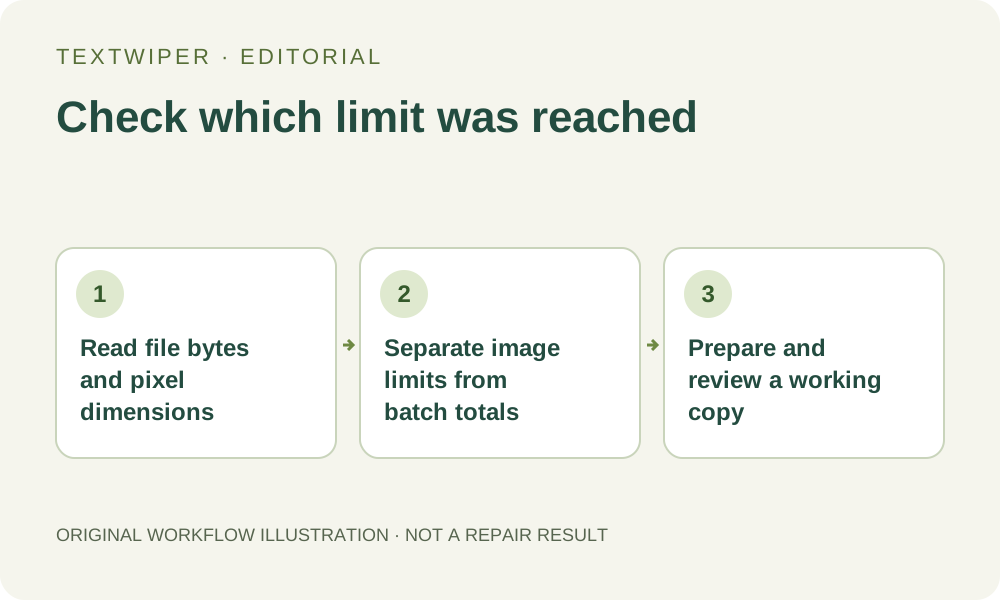
- Look at the original file’s dimensions and byte size in a normal image application. Identify whether a single-image limit or a batch total caused the rejection.
- If only the queue is full, download completed results and start a smaller batch. Keep the original files and any review notes before clearing anything.
- If the picture exceeds a side or pixel limit, use an external editor to resize a duplicate while retaining its aspect ratio. TextWiper has no general source-resize control.
- If only the file byte limit is exceeded, create an appropriate supported export externally. Inspect visible quality rather than lowering quality blindly until the file opens.
- Open the new copy and verify its dimensions, framing and smallest necessary details before rebuilding any removal selection.
4. Understand why a smaller file may still need substantial memory
Compressed file bytes are not a measure of the whole editing workspace. The browser decodes the image and keeps working canvases, masks, history and potentially a result. The published limits are guardrails, not a guarantee that every device can finish every permitted image. A low-memory browser can still struggle with an accepted file.
If the page becomes unreliable, first save an existing reviewed output if possible and retain the source. Reduce the workload deliberately: use a smaller batch or an externally prepared smaller copy. Avoid opening many tabs of the same large edit. This problem is separate from Smart repair downloading its required runtime and model resources; a resource-loading message alone does not prove a pixel-limit failure.
5. Rebuild and inspect the edit on the chosen copy
Resizing changes the image coordinate space. Open the new working copy as a new image and select the unwanted text again. The editor does not transfer a previous brush mask between differently sized source files. Find text is optional and requests recognition upload permission; manual selection can be used without that request.
Compare retained fine detail with the full source before repair. If downsizing makes a necessary label unreadable or blends lettering into an object edge, that copy may be unsuitable even though it meets every limit. Quick and Smart repair estimate the selected background; a permitted resolution cannot guarantee an acceptable patch or restore detail discarded while making the copy.
6. Judge the deliverable against its intended size
Inspect the full repair result and download the reviewed PNG or JPG. Reopen it and check actual dimensions and appearance at the destination size. An output from a smaller working copy has that copy’s dimensions; enlarging it later does not recover the original fine detail. Do not describe it as an original-resolution edit of the larger source.
The automatic watermark trial has separate restrictions and is not an oversized-file workaround. This guide concerns manual editor and batch admission, not an automatic service quota or a promised memory benchmark. Keep the full original for a future workflow and use the smaller copy only when its reviewed output is adequate for the task.