PRACTICAL IMAGE EDITING
Process More Than Ten Images in Checked Small Batches
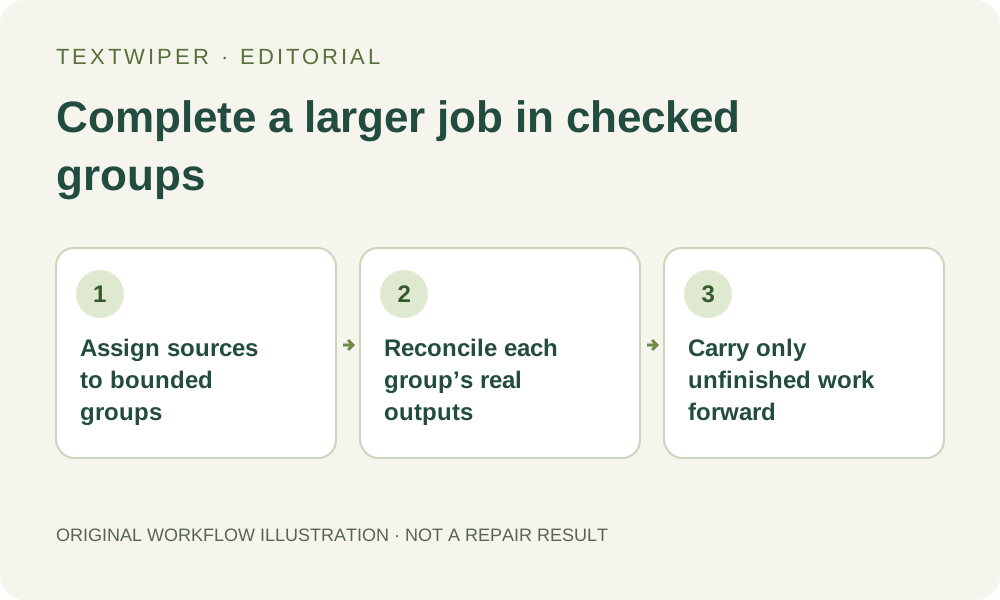
For a job larger than ten images, use several deliberate batches and reconcile each one before replacing its workspace. The batch limit is a limit on the current collection, not a promise of automatic pagination through a larger folder. Keep a local source list that records which images produced accepted files, which stayed unchanged and which still need work. That makes a large job traceable without forcing every source into one fragile run.
Published 2026-10-27 · Updated
1. Define the complete job outside the temporary queue
Create a local list with an identifier for each authorized source, its intended edit and the destination that will use it. Use short stable identifiers you can recognize in a folder. The list is your own working record; TextWiper does not scan a whole source folder, generate a multi-batch manifest or save a persistent project containing the images.
For an illustrative twenty-four-image job, you might initially plan groups of eight, eight and eight. That is only a planning example, not a tested capacity recommendation. Dimensions, file sizes and device memory can require smaller groups. Assign every source once in the list so that splitting the work does not quietly omit or duplicate a picture.
2. Build each group around limits and compatible decisions
A queue holds at most ten images and forty million pixels in total. Each source must also meet the individual input limits, and source/result storage has separate guards. Ten is a maximum count, not a target that overrides those other limits. Do not shrink a valuable original merely to reach a ten-file group if a smaller group meets the task.
Group compatible removal and keep rules when planning a shared keyword run. An image requiring a different rule or careful local repair can belong to a smaller review group. The objective is to finish an identifiable set, not to maximize the number of simultaneous cards or assume that a successful first image approves every remaining layout.
3. Match the accepted queue to the intended source group
Use Choose images to add the planned group, then read any rejection messages and compare the visible cards with the source list. A selection of several files can be partly accepted. A file chooser closing normally is not proof that every selected image entered the collection, and a displayed count cannot identify which source is missing.
Complete the required recognition or manual selections deliberately. Recognition uses the page upload permission and current service availability; the queue processes one image at a time. Do not start the next group in another tab merely because one image is waiting. Keep the current run and its outcomes understandable before increasing the workload.
4. Close each group with explicit outcome categories
Inspect every completed candidate and download accepted results. Record the actual output name beside its source identifier. Mark an unchanged no-match item as unchanged, a rejected candidate as needing revision and a failed or unfinished card as pending. Those outcomes are not interchangeable just because they all began as files in the same group.
Open or extract the downloaded files and compare their count and identities with the successful-result cards. The ZIP includes current results, not all original inputs. Keep any untouched source needed for an unchanged deliverable separately and label it honestly. Never create an edited-output entry merely to make the number of outputs equal the number of inputs.
5. Replace the workspace only after the checkpoint is real
After the current group’s useful downloads have been reopened and recorded, remove cards or clear the queue when you no longer need their drafts. Clearing discards the in-page collection. A download does not remove stored results automatically, and an account keyword template does not preserve the queue, image files or masks for a later session.
Add the next planned group and reconcile it against its own list before running anything. Keep group identifiers in your local folder organization because queue item numbers are not permanent cross-session asset identifiers. There is no automatic next-page command that processes all remaining files from a larger job while you are away.
6. Finish with a job-level reconciliation, not only the last ZIP
At the end, every listed source should have a clear disposition: accepted edited file, intentionally unchanged source, unresolved failure or excluded item with a reason. Check duplicates and wrong revisions as well as missing files. The final group’s success message cannot summarize work that was cleared from earlier groups.
Retry unfinished work in a deliberate small group or individual image, using the retained sources and notes. Do not restart accepted groups just to obtain a uniformly new archive. Manual batch editing and downloads are free during beta, with bounded workload and current recognition limits. This workflow adds human checkpoints; it does not create an unlimited or unattended batch service.