PRACTICAL IMAGE EDITING
Work on a Cropped Image Detail Without Mistaking Its Coordinates for the Full Picture
A small annotation inside a large composition may be easier to inspect as a separate cropped working file. That is an external source-preparation choice, not a new recognition mode or a measured accuracy improvement. TextWiper edits the crop you actually open. Its detections, mask and downloaded result belong to that crop; they do not automatically map back onto the complete original.
Published 2026-10-28 · Updated
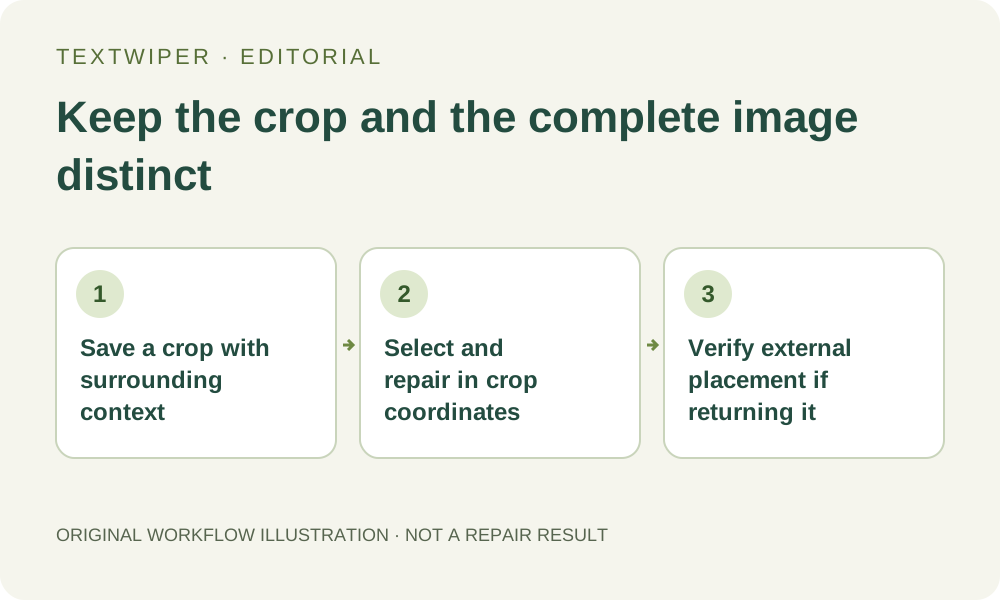
1. Decide whether a crop serves the intended deliverable
Keep the unchanged authorized image and identify the target's position in the complete composition. A crop can be sufficient when the deliverable is that detail alone. If the final deliverable must retain the full frame, plan an external placement step before editing. TextWiper does not offer a command to send a crop's mask back to its parent picture.
Consider first whether zooming and panning in the full-image workspace already provides enough control. That avoids creating an extra source and alignment task. A crop does not reveal detail missing from a low-resolution source, and enlarging the file does not establish better recognition. Use the most suitable original rather than a screenshot of a magnified preview.
2. Make an independent working file with useful context
In an image application that supports cropping, save a separate copy around the target. Retain visible background on every available side, plus nearby edges needed to judge the repair. A crop cut exactly to the unwanted letters gives the repair little surrounding context; cutting through a shadow or object boundary can also make its continuity harder to inspect.
If you intend to return the result to the full composition, avoid unnecessary scaling, rotation or perspective changes while making this copy. Record the crop's placement in your external working document, using that application's controls. TextWiper does not read a crop-origin record from your note or infer it from a filename. Keep the full source and the crop clearly distinguishable.
3. Treat recognition as a new request on a different input
Open the verified crop and check its dimensions and visible context. Optional Find text sends a working image of this loaded crop after upload permission, not the complete file you kept elsewhere. Compare the returned wording and regions with the crop itself. A different input may yield different suggestions, but this workflow supplies no promise that cropping improves detection or spelling.
Keep any usable positions local to this workspace. A box near the crop's upper-left corner is not a box at the full image's upper-left corner. Do not copy its apparent coordinates into a full-frame deletion plan. If recognition remains unhelpful and the target is visible, use Brush or Area; repeatedly scanning the crop is not a requirement for local repair.
4. Repair and accept the crop on its own terms
Select only the unwanted annotation, keeping the surrounding context unselected. Use Erase to trim excess and Protect for needed visible details. Choose a suitable manual repair, then inspect the complete crop and its borders. A clean central patch can still be unsuitable if a line changes at the crop edge or the available context is too narrow to judge.
Download PNG and reopen the actual cropped output. Confirm that its geometry still matches the working crop and that the intended change is acceptable. Preserve the untouched crop as an alignment reference. The output is a cropped image, not a full-frame result with an invisible offset, and its PNG format does not contain a reusable TextWiper selection project.
5. Return only an approved change through a verified external placement
When the full composition is required, open the unchanged full source and the accepted crop in a suitable external layered editor. Place the crop at its recorded location without casual resizing. Check several landmarks inside and around the crop, not only one corner. If the two sources differ in scale or orientation, resolve that difference before accepting any placement.
Use the external editor's reversible mask to limit the contribution to the approved changed area where appropriate. Pasting the entire crop can introduce an unnecessary rectangular join, altered color or changed surrounding pixels. This is a new external composition that needs its own review; TextWiper neither performs that placement nor certifies the other application's export or color handling.
6. Inspect the whole frame or choose a simpler route
Review the complete external result at its intended use size and inspect the patch boundary closely. Verify that no displaced edge, crop border or leftover annotation appears. Export and reopen the actual full-frame deliverable. Retain the original, working crop and accepted output under distinct names so a small detail file is not accidentally delivered as the complete picture.
If alignment or the boundary cannot be checked confidently, return to the full original and build a manual selection there, or use the editable source in its native application. Manual repair and downloads are free during beta; optional recognition requires upload permission. This workflow does not claim improved OCR accuracy, recovery of hidden detail or automatic transfer of selections between differently sized images.