PRACTICAL IMAGE EDITING
Keep the Original Record Separate from an Edited Presentation Copy
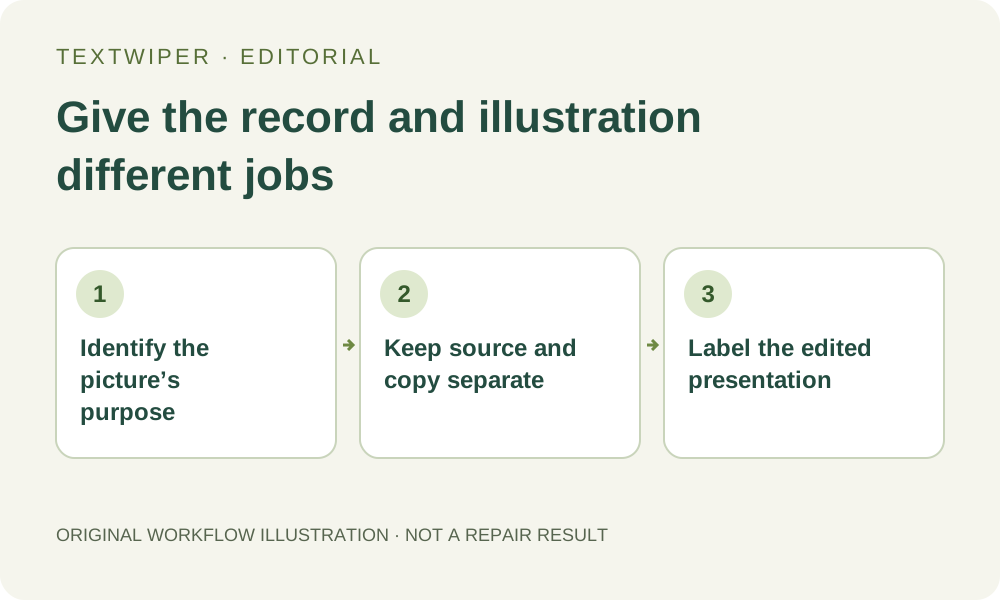
Before removing a distracting annotation, decide whether the picture will be used as a record of what was visible or merely as an illustration. An edit can be visually successful and still be unsuitable for the first purpose. Keep the unchanged original as the record. If an authorized presentation copy is useful, give it a separate identity and explain the relevant change instead of silently replacing the source.
Published 2026-10-25 · Updated
1. Ask what the reader needs to learn from this picture
A training slide might need to demonstrate a generic interface layout. An incident note might instead need to show the exact warning that appeared. The same screenshot could serve either job, but deleting the warning changes what a viewer can conclude. These are original planning situations, not customer cases or a policy for a particular organization.
Write a one-sentence purpose before editing. If the text itself is part of the fact being documented, retain the unchanged picture for that use. Do not remove inconvenient wording simply because it distracts from a preferred explanation. When an original must remain authoritative, an attractive derivative cannot quietly take its place.
2. Preserve the actual source before building a derivative
Keep the input you received or captured under a distinct source name in an appropriate location. Make the working copy separately. A convenient naming example is interface-record.png and interface-training-edited.png; these are suggested local filenames, not automatic TextWiper labels. Avoid overwriting the only source with a download whose name looks similar.
The source should be the actual file relevant to the event or revision. A recreated screenshot with similar content is a new illustration, not the original record. If you have only a copied preview, state that limitation rather than calling it the full source. File preservation and access rules remain your responsibility outside this image editor.
3. Decide whether editing is necessary at all
For a factual explanation, placing a caption beside the unchanged image may be clearer than altering pixels. You can explain which annotation is obsolete, or point to the relevant part, in the surrounding document. TextWiper does not provide a document annotation or evidence-management system. Make those presentation decisions in the application that will publish the material.
If a separate illustration is appropriate, define exactly what may change and what must remain. Do not remove ownership marks, meaningful disclosures or context needed to understand the picture. When you are unsure whether a change would mislead its audience, retain the unedited version and resolve the purpose before processing it.
4. Make a bounded cosmetic copy when appropriate
Use only non-sensitive material you own or may edit. The following sequence produces a candidate illustration, not a replacement factual record.
- Open a separate authorized image in TextWiper, keeping the source file outside the temporary workspace.
- Select only the disposable overlay with Brush or Area; use Erase to trim unwanted coverage.
- Protect visible details that the presentation still needs, without claiming that hidden details can be recovered.
- Use a suitable manual repair and inspect the complete result, checking what the change now implies.
- Download the reviewed candidate under its derivative name and reopen that exact file.
- Place it in the presentation with an explicit edit note and keep the original available only to authorized recipients.
5. Write a note that identifies the change and its limit
An original note could say: “Edited training illustration: our temporary draft annotation was removed; this is not the original screenshot.” Use it only if that accurately describes your work. A useful note names the purpose and relevant change, rather than claiming the image is authentic, certified or complete. Do not invent a repair log the website never generated.
If the removed area covered information whose appearance matters, the derivative may still be unsuitable even with a note. Use the original or a different illustration. A caption cannot make a reconstructed detail into a verified fact. Likewise, sharing a source for comparison is appropriate only when the recipient is permitted to see that material.
6. Review the final document, not just the cleaned file
Open the actual document or page that will be read. Confirm it contains the intended derivative, that the edit note remains visible and that no surrounding sentence treats the derivative as the original record. Check thumbnails, linked downloads and replacement assets separately so a source file is not accidentally overwritten or released.
Manual repair and downloads are free during beta and do not require an account. Accounts do not archive source images or provide chain-of-custody records. This guide concerns truthful presentation and version separation; it is not secure redaction, forensic validation or a determination of a particular retention obligation. Keep those other requirements in the appropriate approved workflow.