PRACTICAL IMAGE EDITING
Prepare a HEIC Photo Before Removing Text Online
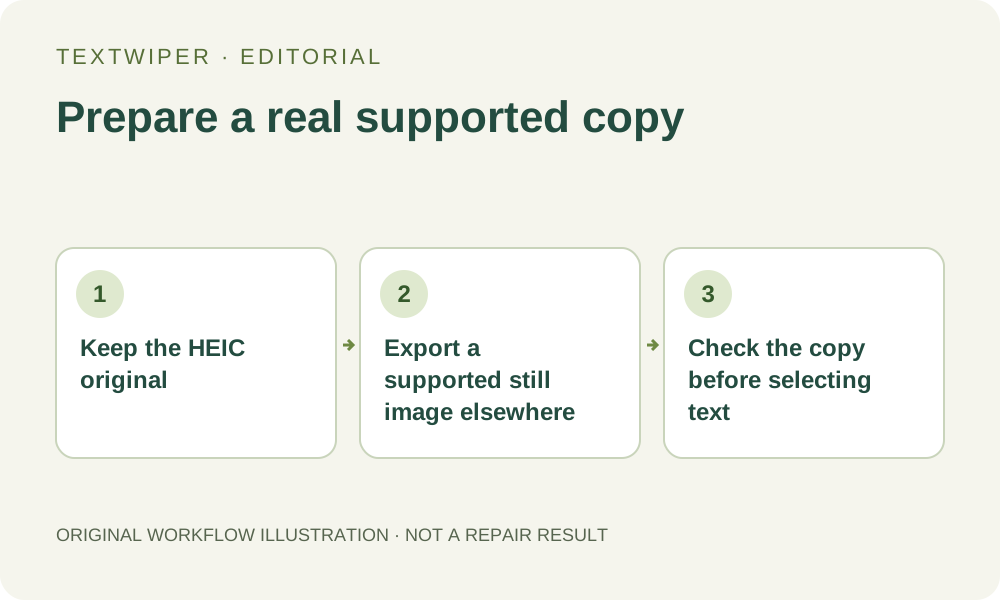
A photo you can view on your phone may still be an unsupported file for the editor. TextWiper accepts JPG, PNG and still WebP; it does not convert HEIC files. Keep the original and use a separate application to export a supported working copy before selecting text. Renaming the extension is not conversion.
Published 2026-10-19 · Updated
1. Identify the file rather than guessing from its thumbnail
Check the photo’s file information in the application that currently opens it. A gallery preview or a familiar filename does not establish that the file contains JPEG data. When an original HEIC cannot be opened in TextWiper, the next step is format preparation, not a different recognition language or a repeated repair request.
Work only on photos you own or are authorized to edit, and retain the original in a separate location. If the photograph contains several unwanted captions, first confirm that this is the intended full image rather than a small sharing preview. A compatible file is only a starting point; it does not establish that text removal will look convincing.
2. Export from an application that actually opens the source
Use an image or photo application that can decode your original HEIC and explicitly export JPG or PNG. Still WebP is also supported by TextWiper if your application offers that format. This is an external step: the TextWiper upload control does not contain a HEIC converter, and it cannot correct a file that another tool only renamed.
Choose a separate destination filename so that the source is not overwritten. Before exporting, inspect available size and quality settings. An export or sharing action can change dimensions, color appearance or metadata; this guide does not certify that an unspecified converter preserves every property. Avoid making a screenshot unless losing source detail is an acceptable decision.
3. Verify the working copy before opening the editor
- Open the exported file in your ordinary image viewer. Confirm that the whole expected frame is present and that the picture is a single still image.
- Compare orientation, subject color and visible detail with the source. Inspect faces, fine edges and any wording you intend to keep.
- Check file size and dimensions. The manual editor allows a file up to its displayed 10 MB limit, no side over 4096 pixels, and no more than 16 million pixels in total.
- If the copy exceeds a limit, resize or export a new copy in the external application. Retain the first export and original until the replacement has been checked.
- Open the supported copy in TextWiper and confirm the displayed dimensions. Do not start a repair when the preview already looks wrong.
4. Select the unwanted text on that checked copy
Use Brush or Area to mark the unwanted caption. Erase corrects excess removal coverage, and Protect can retain nearby detail during manual repair. Find text is optional; it requests permission to send a resized working image for recognition. A supported file does not mean every caption will be recognized, particularly when the text is small or decorative.
Try Quick repair for a small label on an even surface, or consider Smart repair for texture. Review the complete result with comparison hidden, then use comparison to inspect a doubtful boundary. Repair estimates the background beneath the selected text; converting HEIC to another format cannot reveal the authentic hidden pixels.
5. Distinguish a format failure from a visual editing failure
If the file is rejected before an image appears, examine the actual exported format, file size and dimensions. A .jpg name attached to HEIC data remains unsupported. A real JPEG can also be too large or incomplete. Return to the application that opens the original instead of treating these errors as a reason to keep scanning.
If the supported copy opens correctly but repair leaves a patch or lettering fragment, you have passed the format stage and reached a selection or repair problem. Adjust the mask or use a better source. Do not repeatedly convert the same image to different lossy copies in the hope that the missing background will reappear.
6. Save a reviewed output without promising an HEIC round trip
Download PNG or JPG from TextWiper and reopen that exact output. Check the cleaned area, important retained content and the dimensions needed for its destination. The editor does not export HEIC. Keep the source, supported working copy and approved result as distinct files so that a later revision starts from a known image.
This workflow verifies compatibility and visible suitability, not archival equivalence between formats. If your task requires a particular color workflow, metadata record or original-format delivery, confirm those requirements in the external tools before editing. Manual selection, repair and download are free during beta; no whole-image automatic trial is required for this preparation path.