PRACTICAL IMAGE EDITING
Place a Cleaned Transparent PNG on a New Background
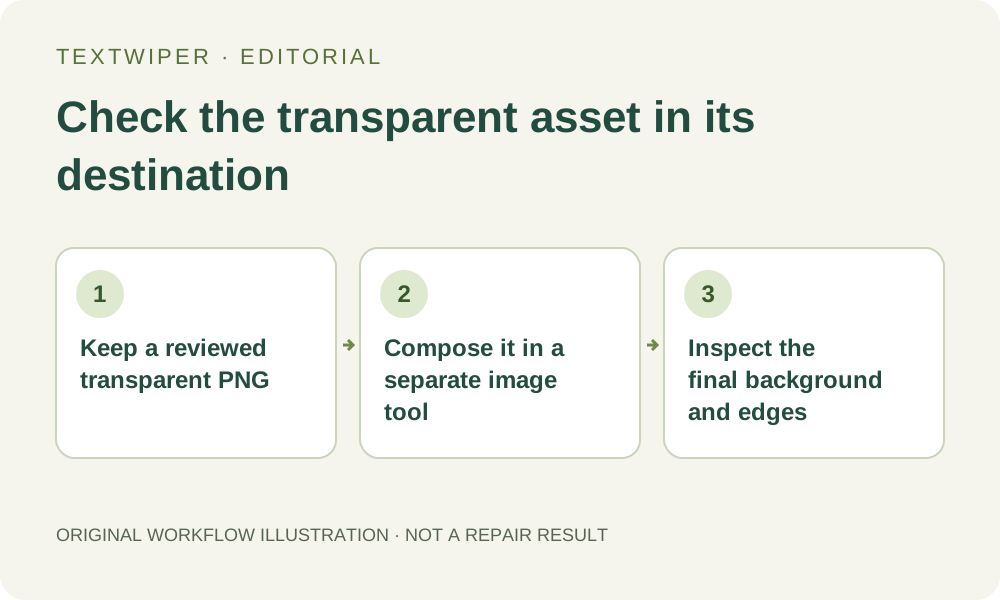
If an authorized transparent asset needs unwanted lettering removed before reuse on a new background, treat cleanup and composition as two separate jobs. TextWiper’s manual repair retains the input alpha; it does not cut out the subject, add a background layer or remove an opaque backdrop. Save and inspect the actual PNG candidate, then place it over the intended background in a suitable local image application. The composite needs its own review because a new background can reveal problems hidden by the editor’s checkerboard.
Published 2026-10-27 · Updated
1. Confirm the source is suitable for this two-step task
Open a source you own or may edit and check what is actually transparent. A visible checkerboard may be a viewer overlay, but a checkerboard baked into the source is just colored pixels. An opaque JPEG placed on a new layer does not become a transparent cutout merely because the layer sits above another picture.
Manual repair retains the original alpha. If unwanted lettering itself creates opaque pixels outside the subject, that repair will not make those pixels transparent. Resolve the needed alpha or source-layer change in an appropriate application instead of expecting a local text repair to perform background removal. Keep the untouched authorized source for comparison.
2. Repair only the intended lettering before composition
Use Brush or Area to select the unwanted overlay, or choose recognition deliberately if candidate text locations would help. Recognition asks for permission to send a resized working image; manual drawing does not require that request. Protect important visible details and inspect the actual selected scope before running Quick repair or Smart repair.
Judge the complete manual result and use comparison only when useful. A patch can look plausible on one display backing while containing a halo or softened edge. If the source alpha needs structural correction, changing the repair radius or expanding the color-removal mask is not an alpha-editing tool and will not solve that separate requirement.
3. Download the real transparent candidate as PNG
Choose the PNG download and reopen that exact saved file in an image application that can show transparency. Keep it as a reviewed master distinct from later composites. JPG export places transparent areas on white; using it at this step would discard the transparency needed for placing the subject over another background.
Check the actual format and dimensions, and make sure you saved the result rather than a screenshot of the workspace. The checkerboard, selection colors and review controls are editor overlays, not layers that need to be erased from a genuine export. Conversely, a pattern already present in the source remains image content unless actually edited.
4. Compose in a separate local image application
In a trusted local image editor with layer support, open the intended background and place the downloaded PNG above it. Preserve the source aspect ratio and choose scale and position for the destination. These are external composition actions; TextWiper does not provide background layers, subject resizing, blend-mode controls or a new-background export workflow.
Keep the transparent master unchanged while working on a separate composition. If the new background and subject require further color or lighting changes, identify those as additional design decisions rather than as proof that the text-removal stage failed. Do not imply that estimated pixels under the removed lettering reveal the subject’s original hidden appearance.
5. Inspect edges against the backgrounds that matter
Look closely at the former lettering, semi-transparent outlines, hair-like detail and soft shadows against the actual intended backing. A light fringe may be hard to see on white and obvious on dark colors; a dark edge can behave the other way around. Where helpful, use contrasting temporary backings in the external tool as diagnostics, without treating them as additional measured repair results.
Inspect the final scale as well as a close view. Scaling or compositing can change how thin details appear, and a large smooth preview does not approve a small web placement. If the edge problem belongs to the alpha or cutout, correct that separately in the source workflow. Repeating color repair will not automatically create the required transparent boundary.
6. Export and review the composed deliverable separately
Choose whether the destination needs a flattened composition or a reusable transparent asset. Export the composed image from the external application in an appropriate format, then reopen that actual delivery file and check its dimensions, background and edges. Keep the standalone transparent master so a later placement does not require removing the lettering again.
If the destination recompresses or resizes the composition, inspect its received rendition too. Acceptance of the PNG master does not automatically approve every derivative. Manual text selection, repair and downloads are free during beta; composing a saved asset elsewhere needs no additional recognition or limited whole-image cleanup attempt. The illustration here explains the workflow and does not demonstrate a new tested composite.