PRACTICAL IMAGE EDITING
Will the Green Mask or Checkerboard Appear in My Download?
The editor’s green removal tint, blue protection tint, detected outlines and comparison divider are viewing aids. They are not painted into a normal PNG or JPG result download. The checkerboard behind transparent pixels is also a display background, unless a similar pattern was already baked into the image itself. Use the reviewed image download, not a screenshot of the workspace, and reopen that file to determine what it actually contains.
Published 2026-10-26 · Updated
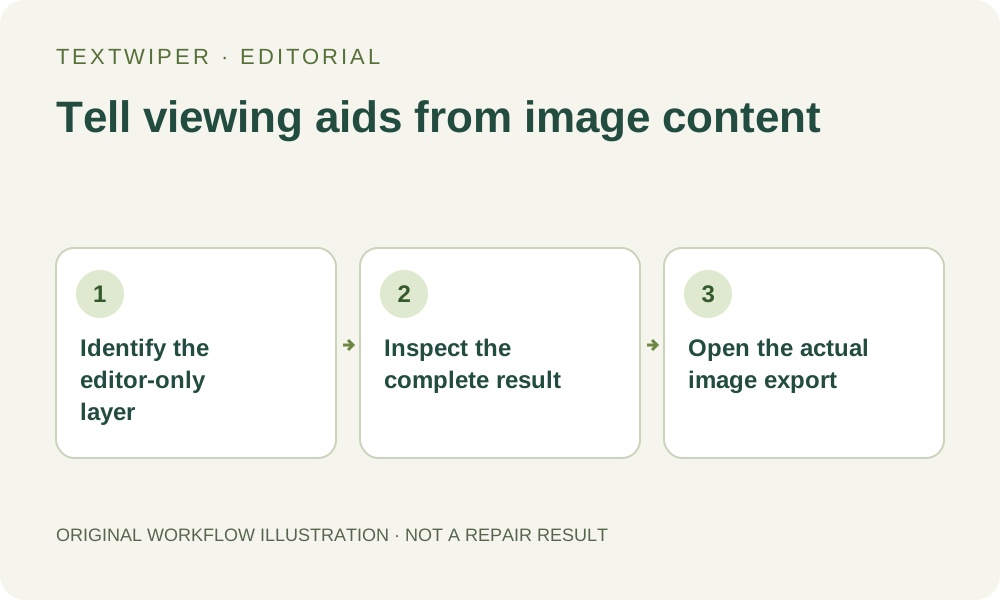
1. Identify whether you are viewing a selection or a result
Before repair, green shows the removal selection and blue shows protection. Detected outlines help locate recognized regions; they are not the words themselves. Use Show mask to examine the underlying view when helpful. Hiding that visual layer does not deselect the regions, remove protection or repair any pixels.
After a successful repair, TextWiper shows the complete result and does not display the selection tints over it. If you change the selection, the candidate is invalidated and the editor returns to the source for the next repair. Seeing green again can therefore mean you are reviewing a new mask, not that the exported candidate contains green paint.
2. Do not mistake hidden tint for a completed removal
A clean-looking view with the mask hidden is not proof that an edit happened. Read the operation status and check the actual lettering in the underlying image. To remove selected content manually, choose the intended mode and run repair. A checkbox that controls visibility is not a substitute for that processing step.
Likewise, a blue region indicates the area you chose to preserve; it is not an instruction to paint the final image blue. If a real blue label or green background belongs to the source, it can remain in the result for entirely different reasons. Identify the color’s location and behavior instead of assuming every similar color is an editor overlay.
3. Understand the transparency checkerboard
A checkerboard around or through a transparent image helps reveal the canvas’s empty areas. It is a display backdrop, not a request to fill those pixels with squares. The image can have partial transparency at its edges as well, so inspect the actual PNG on suitable backgrounds rather than judging alpha from one light backdrop.
Some source images already contain an opaque checkerboard illustration. Exporting that source as PNG does not turn those painted squares into transparency. If the pattern is part of the pixels, it remains content unless separately edited. Removing an image background is a different task; this text-removal workflow does not automatically identify and erase a baked-in checkerboard.
4. Keep comparison and screenshots separate from delivery
Show comparison temporarily places part of the original over the result so you can inspect differences. Hide comparison returns to the complete candidate. The slider position does not limit the repaired download to one side, and it does not save the original half into the normal result export.
A device screenshot is different: it records the visible workspace, including whatever divider, controls, checkerboard or selection tint was on screen. It may also have a different resolution from the working image. Use Download PNG or Download JPG for the edited image; use a screenshot only when you intentionally need an explanation of the interface.
5. Reopen the exported image to resolve a suspected overlay
Find the actual completed image download and open it in a viewer on your device. Confirm its dimensions and the intended revision. Check the location where you thought an outline or colored overlay remained. A stale screenshot or source file in the same folder can resemble the candidate without being the exported result.
For transparent artwork, examine PNG alpha on contrasting backgrounds. JPG has no alpha and flattens transparent areas to white. If a line or tint is genuinely present in the standalone output, compare it with the source and inspect the repair rather than assuming it is merely a display aid. The output’s actual pixels, not an interface label, settle that question.
6. Change only the state that needs changing
If the issue was only a viewing aid, adjust its display control; no new repair is needed just to hide comparison. If a real letter fragment or artifact remains, revise the intended removal mask and produce a new candidate, then check that exported revision. Keep a useful earlier file before replacing it.
Manual selection, Quick repair, Smart repair and downloads are free during beta. Automatic whole-image cleanup is a separate limited sign-in trial with its own upload choice. Do not spend an automatic attempt to remove the editor’s green tint or a display checkerboard: first establish whether the unwanted mark is actually part of the image.