PRACTICAL IMAGE EDITING
Open an Image File, Not a Webpage Link: Resolve the Input Before Editing
TextWiper opens image files selected from your device or delivered as files by a supported drop. A webpage address or copied line of text is not the image itself. If nothing loads, first identify what you supplied rather than repeatedly pressing a repair button. This guide concerns getting an authorized file into the workspace; it is not a remote-image import service or a way to bypass another website’s access restrictions.
Published 2026-10-23 · Updated
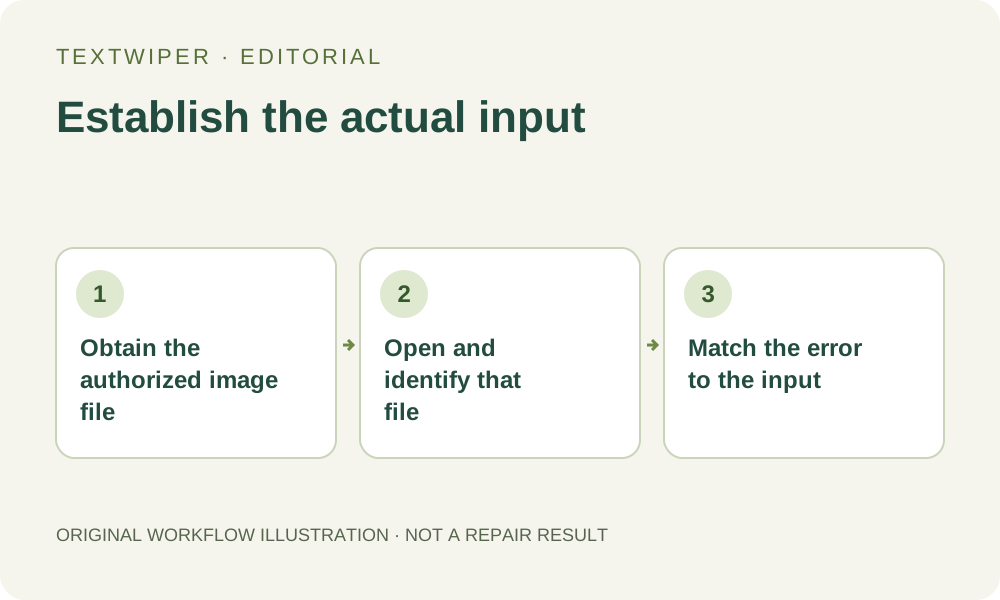
1. Identify the item you actually have
A browser tab can show a picture inside a page, but its address may identify the page, an album or a preview rather than a downloadable image. A copied address remains text. TextWiper has no paste-a-URL import field that retrieves arbitrary remote content. Keep the source reference separately if you need it for permission or attribution.
Use the owner’s normal image-download or export route when you are allowed to do so. If the website supplies only a restricted preview, ask for an authorized image file instead of changing addresses or attempting to defeat its controls. The file must exist as usable image data on your device before this workflow can establish a reliable input.
2. Distinguish file selection from dragging a link
Choose Upload image and select the saved image, or drop that file from your device into the upload area. Dragging an item from another webpage is less predictable: the browser may supply a file, a link, or text. The editor reads dropped files; it does not turn every link-shaped drop into an image download. Use the file picker when the drop does nothing.
Clipboard text, a copied filename and a shortcut to another location are also different from selecting the file’s contents. Do not assume a successful copy action proves that the editor received a picture. Look for the workspace itself: a loaded image, its displayed filename and its pixel dimensions provide a more useful confirmation than the appearance of the thing you dragged.
3. Confirm one file before planning the edit
Save any reviewed result from the current workspace before replacing it. A newly loaded source starts a new manual task; an account does not retain the old image or its selection. Begin with one known file so an input problem is not confused with a batch or recognition problem.
- Open the saved item in an ordinary image viewer and confirm it is the authorized picture you intended to use.
- Select that item through Upload image, using a JPG, PNG or still WebP within the stated size limits.
- Read the workspace filename and dimensions, then check the whole composition rather than only the first visible corner.
- Confirm that the image is ready before drawing a mask, requesting recognition or trying repair.
- If loading reports an error, keep the source and read that message before choosing the next action.
4. Correct the input rather than renaming its extension
An unsupported-file message and an incomplete-file message point to different checks. A download saved as an HTML page is not made into PNG by renaming it. Likewise, a partially downloaded JPG may not contain enough data to decode. Return to the authorized download or export source and obtain a usable copy; do not repeatedly rename the same bytes.
The manual editor accepts static JPG, PNG and WebP, with a 10 MB file limit, no side above 4096 pixels and a 16-megapixel limit. Animation, SVG and GIF are not supported inputs. If your genuine image needs conversion or resizing, do that in an appropriate application and inspect the converted file. An input-format check does not certify its image quality or ownership.
5. Keep loading separate from processing permission
Loading a supported file does not automatically recognize its words or remove anything. For a local manual edit, choose Brush or Area and mark only the intended pixels. Optional Find text has a separate recognition upload choice. Accept it only when you want that step; a successful local load is not consent for every available processing route.
Quick repair and Smart repair are local manual options, although their required resources may need to load. Whole-image automatic cleanup is a separate limited sign-in trial, with its own upload permission, eligibility and allowance. Do not use that trial to diagnose a missing file or a text-only drop: the input must be valid before any of these processing choices become meaningful.
6. Keep the source and the reviewed output distinct
After a suitable manual repair, inspect the full result, which is shown by default. Comparison is optional. Download the reviewed result and reopen the actual saved image. Retain the original file alongside its source reference; the editor’s page address is not a link to a permanent copy of your loaded picture or mask.
If the input remains unreadable in both an image viewer and the editor, obtain another authorized copy instead of treating repair as file recovery. If only this editor rejects a valid image, use the precise displayed message to describe the problem without sharing sensitive files publicly. Manual editing and downloads are free during beta; an unresolved input is not a reason to purchase or resubmit automatic attempts.