PRACTICAL IMAGE EDITING
Meet a File-Size Limit After Removing Image Text
A source file that fitted an upload limit does not guarantee that its edited export will fit the same limit. TextWiper exports a newly encoded PNG or JPG at the working image dimensions; it does not offer a target-byte-size control. Keep the reviewed result, measure the actual downloaded file, and make a separate delivery copy if another application must compress or resize it. Do not change the removal mask to solve a file-packaging problem.
Published 2026-10-26 · Updated
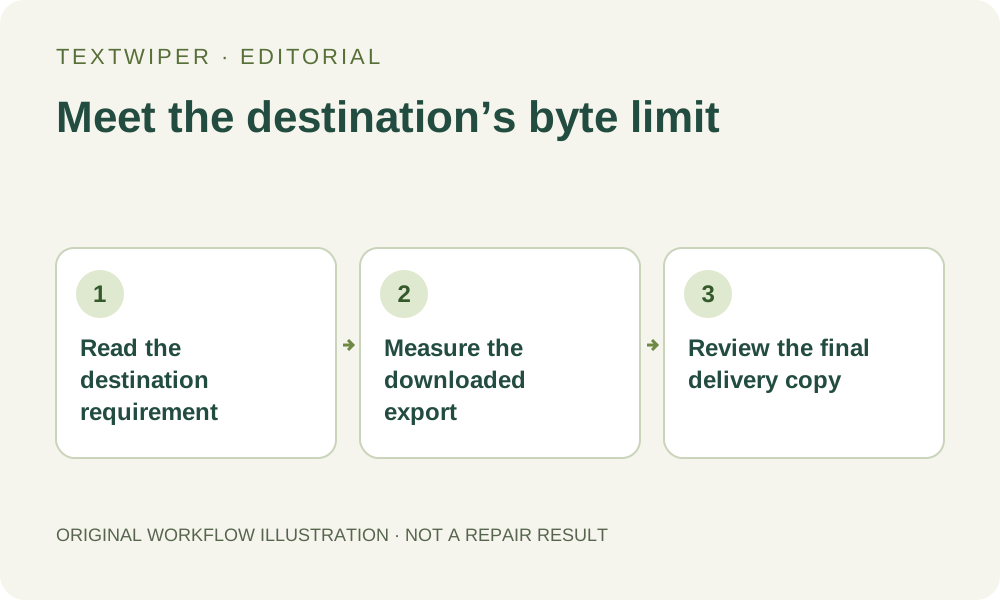
1. Write down the actual delivery requirement
Distinguish file bytes from pixel dimensions. A receiving form may limit both, and meeting one does not establish the other. Record the accepted formats, maximum file size and any minimum image dimensions before making another export. Use the requirement shown by the receiving service rather than assuming every image field has the same limit.
Check how the destination expresses its size limit, including the units it displays. Compare that with the saved file’s reported size rather than a rounded thumbnail label or the source file’s old size. If a file is very close to the stated boundary, a comfortably smaller copy is easier to verify than relying on a rounded number.
2. Save a master before making the smaller copy
Inspect the complete repaired result and download a suitable master. PNG is appropriate when transparency or lossless storage of the current pixels matters; an opaque photo may also have a useful JPG delivery candidate. Keep the untouched source and the reviewed master separate from the copy you will adjust for the upload limit.
A newly encoded PNG can be larger than a compressed photo source even though the visible edit is small. The changed area is not the only factor controlling exported file size. That difference does not by itself mean the repair failed, and downloading the same result again is not a method for progressively shrinking it.
3. Measure the formats that preserve the required content
Open the actual saved file’s information on your device and read its byte size and dimensions. For an opaque photo, you can also download JPG from the same existing candidate and compare its actual size and appearance. Generating another export from an existing result does not require another repair or automatic-cleanup attempt.
JPG is not guaranteed to meet the requested size. It also flattens transparent areas to white and introduces compression changes throughout the image. A small enough file is unsuitable if it loses required transparency or makes small retained words unreadable. Treat those as acceptance conditions alongside the byte count, not as optional refinements afterward.
4. Use a separate tool when size adjustment is required
TextWiper’s download controls do not provide a JPEG quality slider, target-size encoder or image-resize command. If neither suitable export meets the requirement, use a trusted local image application to make a delivery copy from the master. Choose its compression or resize settings deliberately; those are separate actions outside this editor.
Reduce dimensions only when the destination’s minimum dimensions and the intended detail allow it. Repeatedly recompressing an already compressed candidate makes it harder to trace deterioration. Return to the reviewed master for a new size-setting attempt, retain the master unchanged, and avoid uploading private images to an unknown online compressor merely to check their size.
5. Reopen and inspect the final smaller file
After the external adjustment, measure the new file again. Check the reported format rather than only its filename extension, confirm its actual dimensions, and open that exact copy. Renaming a file to end in .jpg does not encode a smaller JPEG or establish that the receiving system can read it.
Inspect the former lettering area, fine retained text, sharp edges and any transparent boundary. View the copy at its intended display size as well as a useful close view. A file-size pass does not establish visual quality, and an acceptable master does not automatically approve a resized or recompressed derivative.
6. Verify the received copy without rerunning cleanup
Use the receiving service’s ordinary authorized upload workflow, then inspect the image it actually displays. Keep its acceptance message separate from a claim about appearance: it may accept the bytes while producing a visibly different rendition. If it still rejects the file, compare its current error with the saved copy’s actual properties.
Keep the source, reviewed master and accepted delivery copy identifiable. Manual selection, Quick repair, Smart repair and downloads remain free during beta. A file-size adjustment does not need the separate limited whole-image automatic-cleanup trial, and another image-generation attempt will not fix an unrelated destination upload rule.