PRACTICAL IMAGE EDITING
Need a Cleaned Image in WebP? Convert a Reviewed PNG Export in a Separate Tool
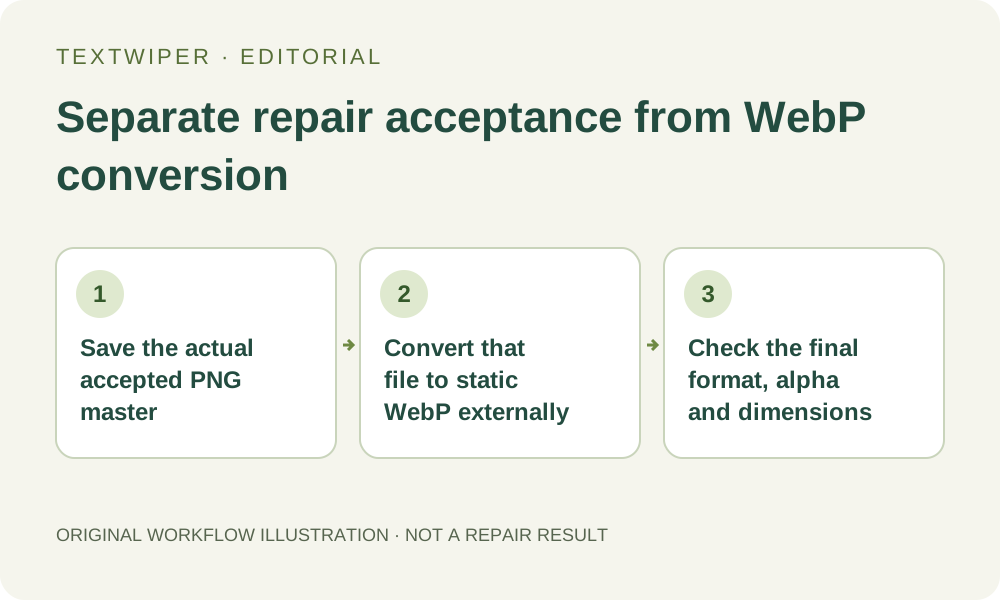
TextWiper can open supported still WebP inputs, but its current image downloads are PNG or JPG. If your destination requires a cleaned static WebP, finish and review the edit, save a suitable PNG master, then convert that saved file in a trusted separate tool. The destination copy needs a new check for dimensions, transparency and encoding changes. Renaming the extension is not conversion, and a smaller file is not guaranteed.
Published 2026-10-28 · Updated
1. Confirm that the destination really requires WebP
Read the receiving system’s current file requirements before making another representation. Distinguish a required static WebP file from a general size preference or a website that creates its own derivatives. If PNG is already acceptable and transparency matters, an additional conversion may not be necessary. Keep the destination requirement with your own delivery note.
This workflow is for one still image you own or may edit. It does not import or preserve an animation sequence, convert video frames or promise compatibility with every upload form. Accepting still WebP as an input is not the same as offering WebP as an output. Do not look for an unimplemented format button in the TextWiper download controls.
2. Finish the repair before creating the conversion master
In TextWiper, build the intended selection, repair it and inspect the complete result. Keep necessary lettering and meaningful details in view. Use comparison when it helps assess the edited area, then return to the full result. Conversion cannot make an unreviewed repair reliable or reveal the exact scene that was hidden beneath the removed overlay.
Download the accepted result as PNG and reopen that actual file. Verify its picture and dimensions before calling it the master. Do not accidentally feed the original source or a workspace screenshot into the converter. For a batch result, the completed card’s PNG button gives the particular existing result; you do not need a new repair merely to create this representation.
3. Preserve the required transparency at the handoff between tools
If the accepted image has alpha that must remain, use its PNG export for the external conversion. A JPG export composites transparent content on white, so converting that JPG to WebP later does not recover the earlier alpha. Likewise, PNG does not invent transparency in an opaque source. Choose the master according to the pixels you actually have.
Inspect a transparent master against more than one contrasting background in an appropriate viewer or destination tool. The visible checkerboard in an editor is a display aid, not a background to capture as a screenshot. Keep the master unchanged while making derivatives, so you can return to the approved file if an external conversion flattens or alters its edges.
4. Convert the saved master in a suitable separate application
Use a trusted local image tool that actually supports static WebP export and the transparency you need. Open the identified PNG master and select that tool’s WebP export or conversion function. TextWiper does not perform this step, choose an external encoder’s settings or provide a target-size WebP service. A filename ending in .webp alone does not establish the file format.
Keep the intended dimensions and disable unintended resizing or cropping where the external tool offers those choices. Review its transparency, color and encoding options. If exact decoded-pixel preservation is required, investigate a supported lossless setting and verify the produced file rather than treating the label as a test result. Lossy conversion may change detail across the image, outside the repaired area too.
5. Inspect the newly encoded WebP as a new deliverable
Open the produced WebP in a viewer that decodes it and confirm its actual format and pixel dimensions. Check the repaired area, small retained letters, hair or thin edges relevant to your picture. When alpha matters, confirm it was retained and inspect the composite on the intended background. Comparing only the file icons or extensions misses these failures.
Check the actual byte size against any destination limit after encoding. WebP is not guaranteed to be smaller than this particular PNG or to fit a fixed budget under every setting. If you alter quality, resize or convert again, review the resulting file again. A digest difference from the PNG is expected for a different encoded format and does not by itself mean the transfer failed.
6. Deliver the checked derivative while retaining the master
Upload the accepted WebP to the intended destination and inspect the resulting placement when available. A platform may create additional crops or renditions after accepting the file, so successful upload is not the entire visual review. Keep your PNG master, final WebP and a short note of which version was approved for this use.
The PNG master is a saved raster output, not a reopenable TextWiper mask project. This guide describes a cross-tool static-image workflow; it does not claim built-in WebP export, a new measured conversion result or an unlimited automatic-cleanup service. Manual repair and PNG/JPG downloads remain free during beta, while the separate optional whole-image trial keeps its own limits.