PRACTICAL IMAGE EDITING
Finish an Image Edit on a Shared Device Without Leaving the Workspace Open
On a shared computer, signing out of TextWiper and clearing an image workspace are separate actions. Signing out ends the website account session; it deliberately lets local editing continue. Save the files you are allowed to keep, then check the single-image editor and any batch queue before handing the device over. This is a practical end-of-session checklist, not a claim that closing a page securely erases browser or device storage.
Published 2026-10-25 · Updated
1. Decide where the accepted output is allowed to go
Before finishing, confirm whether the shared device is an appropriate place to download the image. Follow the owner’s or organization’s normal rules and use only material authorized for this workflow. If a file should not be on this computer, do not load it merely to test whether clearing works. TextWiper is not a confidential-material handling environment.
For an ordinary authorized edit, inspect the complete result and save the copy you actually need. Reopen the download so you do not discard the only usable candidate. Batch ZIP files contain existing successful results rather than every source item. Keep a clear local record of which files you saved, without placing sensitive source text in filenames or account templates.
2. Wait for the current operation to reach a clear state
Do not hand over a busy workspace or guess that closing an account dialog canceled an image operation. Save completed manual results first. For a manual batch that needs to stop, use Cancel current run and inspect the remaining cards; Clear queue is a separate destructive action. A canceled card is not a saved repaired file.
The whole-image automatic cleanup trial has its own server-side attempt and limited allowance. Stopping a wait or leaving the page is not a promise to cancel accepted processing or refund allowance. Do not submit another image simply to check account state. Finish the known status and permitted download decisions before ending the shared-device session.
3. Sign out of the TextWiper account explicitly
If you signed in, open Account and use Sign out, then check the signed-out state rather than merely closing the dialog. This account is optional for manual editing. Signing out does not delete the account, erase synchronized templates on other devices or remove image pixels currently held by the page. It does not sign out the browser’s Google account either.
The application removes account template choices and restores relevant guest preferences, but you must not assume every hand-entered phrase or image has vanished. Review what remains on screen. Do not delete the account or change passwords as a routine substitute for ending one session. If sign-out reports a failure, keep control of the page and resolve that actual failure.
4. Clear the separate image workspaces deliberately
Only discard local work after its permitted outputs are safely saved. These steps concern the current website page, not every file or browser session on the machine.
- Close the account dialog and check whether the single-image workspace still contains your picture or result.
- Use the editor’s clear-image control when you no longer need that in-page source, selection and result.
- Open the batch workspace if you used it, save any remaining required results and choose Clear queue.
- Check that the queue no longer displays your cards; merely closing Batch returns to the landing area without clearing it.
- Review any other TextWiper tabs you opened yourself, since each can contain independent page work.
- Close your finished tabs without changing or closing another person’s unrelated work.
5. Manage your downloaded files as a separate device task
A PNG, JPG or ZIP already saved in Downloads does not disappear when you clear the editor. Decide what should remain according to the device’s rules. Move permitted delivery files to the approved destination and deal only with your own local copies. Do not clear the shared Downloads folder, browsing history or other people’s files in bulk.
If browser sign-in, saved credentials or a separate provider session needs attention, use the device’s normal account controls within your authority. TextWiper’s sign-out button does not manage those accounts. Likewise, deleting a visible file is not a guarantee of secure erasure or removal from backups. This guide does not prescribe wiping a shared browser profile.
6. Verify the state you are actually handing over
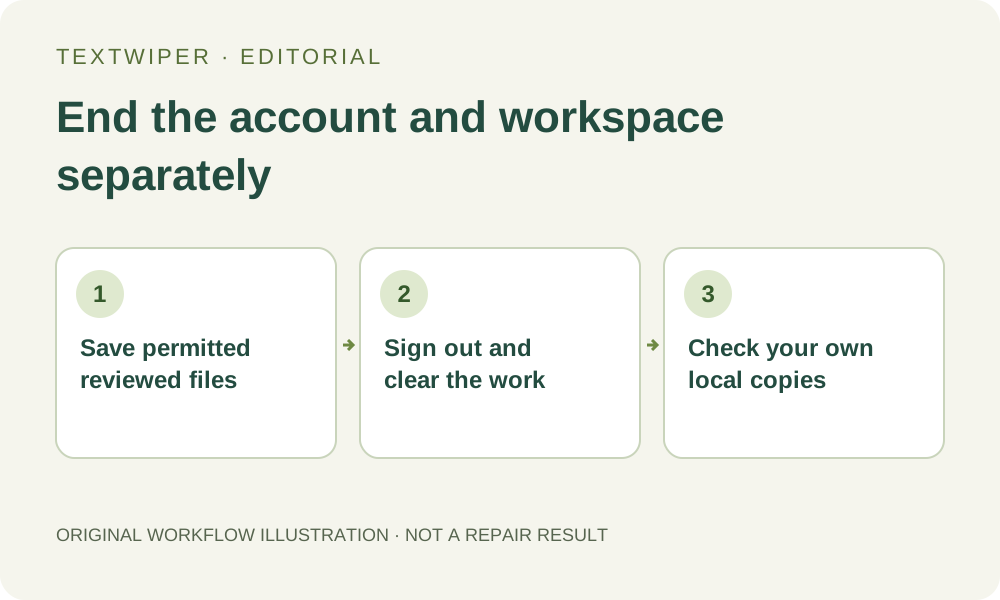
Check three things independently: your TextWiper account is signed out, your in-page images and batch cards are no longer displayed, and your own downloaded files have been handled appropriately. None of these checks proves the others. A clean landing page can coexist with a saved ZIP; a signed-out account can coexist with an open local picture.
Accounts synchronize preferences and keyword templates rather than storing manual image projects. Manual editing remains free without an account, which is why sign-out intentionally does not end all editing. This checklist documents those practical boundaries. It provides no new privacy audit, secure-deletion test or guarantee that every trace of activity has been removed from a device.